Creating/Deleting Workspaces
A workspace is a resource category that represents a hierarchical relationship of resources. A workspace can contain resources such as clusters, namespaces, and registries. Typically, each workspace corresponds to a project and different resources can be allocated, and different users and user groups can be assigned to each workspace.
Create a Workspace
Follow the steps below to create a workspace:
-
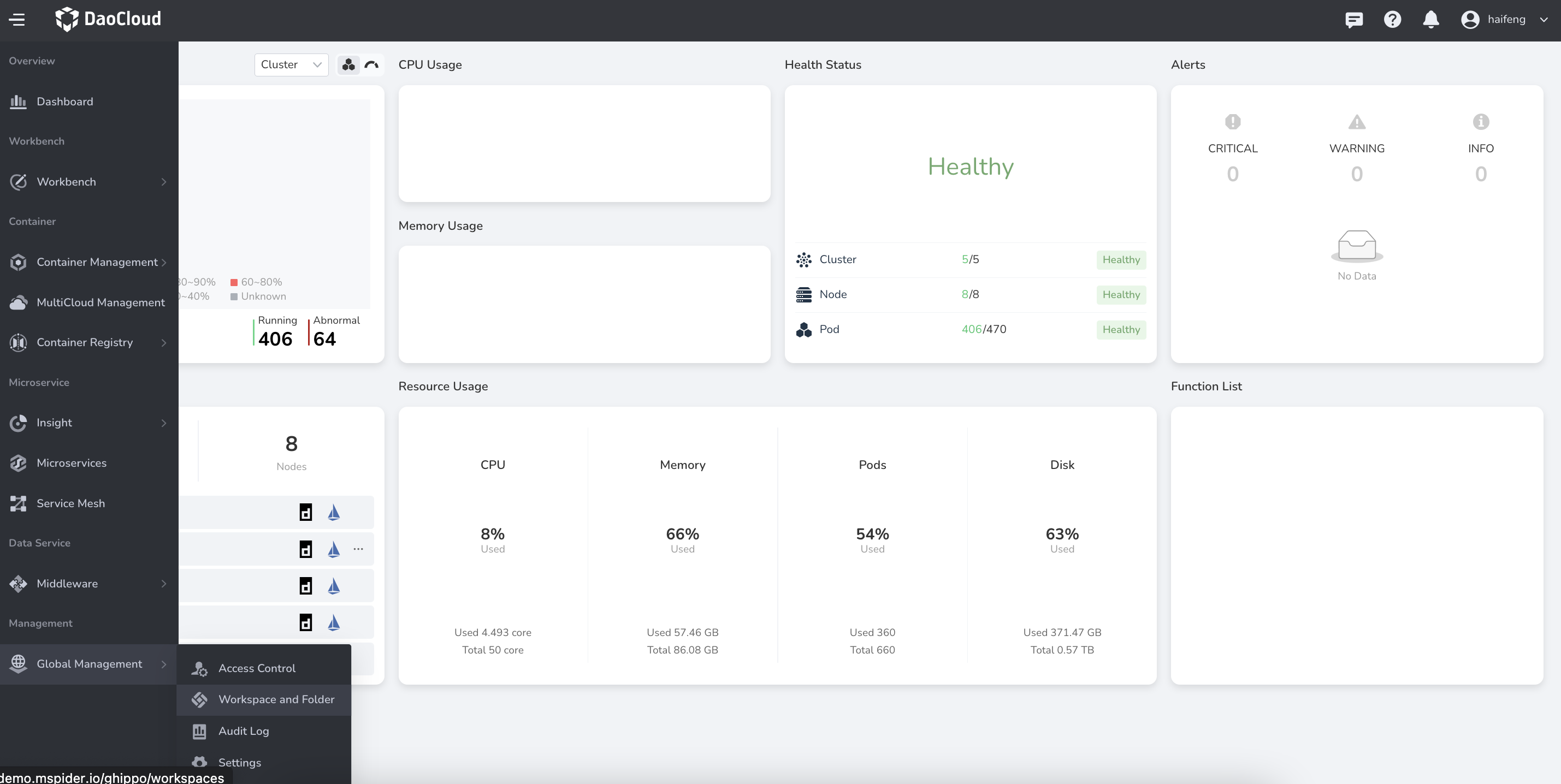
Log in to DCE with a user account having the admin/folder admin role. Click Global Management -> Workspace and Folder at the bottom of the left navigation bar.
-
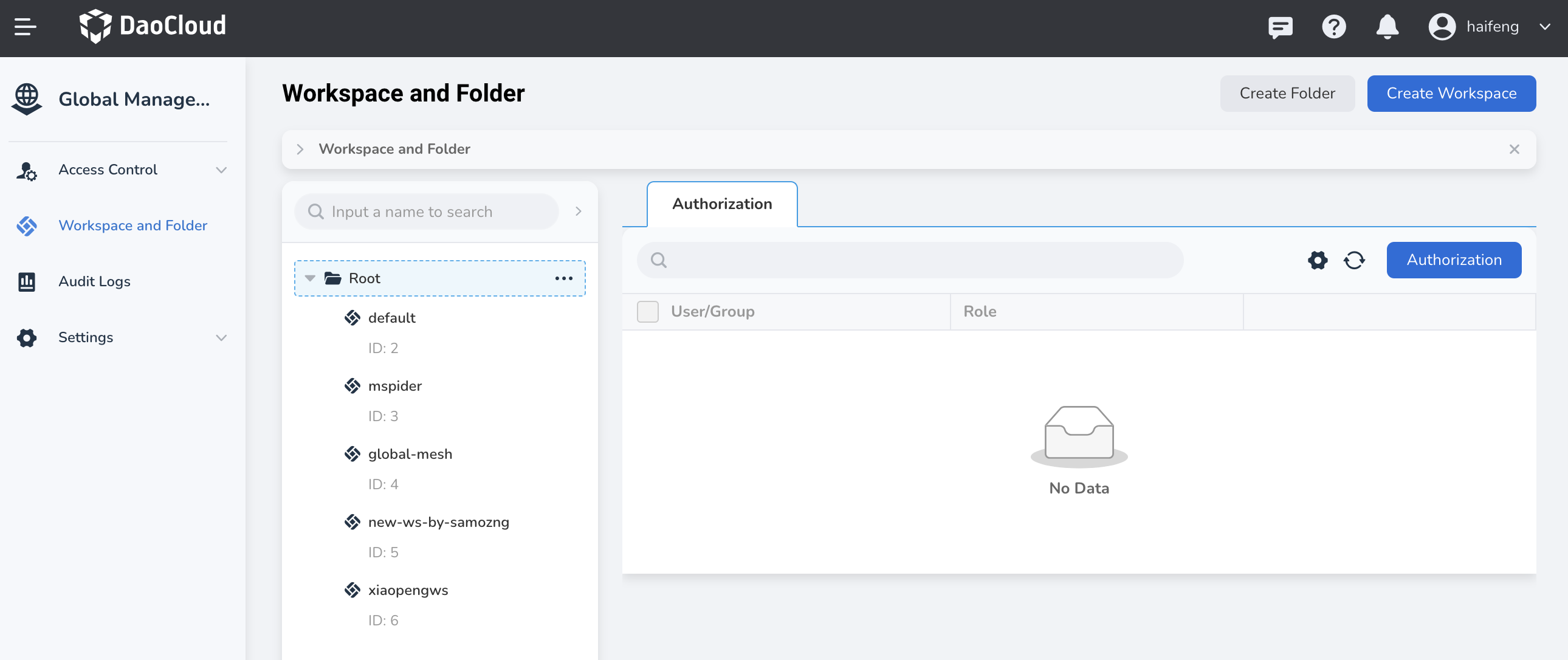
Click the Create Workspace button in the top right corner.
-
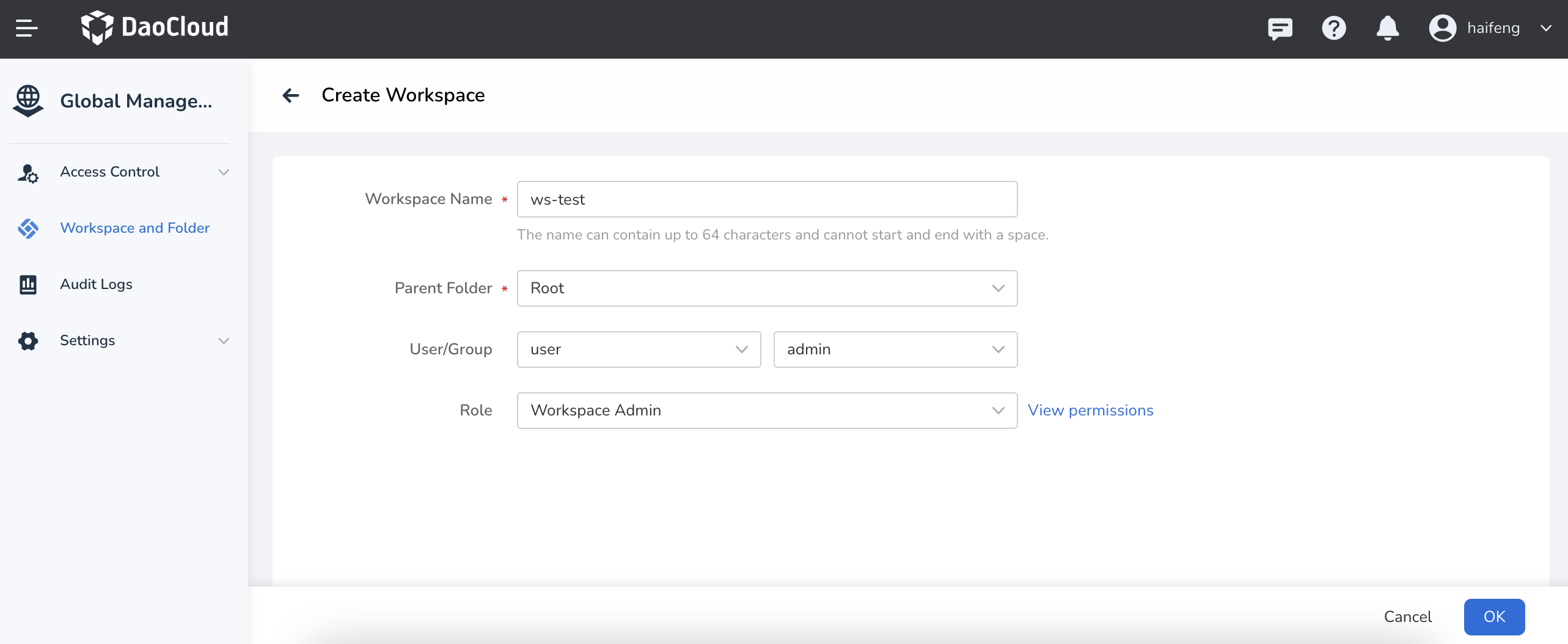
Fill in the workspace name, folder assignment, and other information, then click OK to complete creating the workspace.
Tip
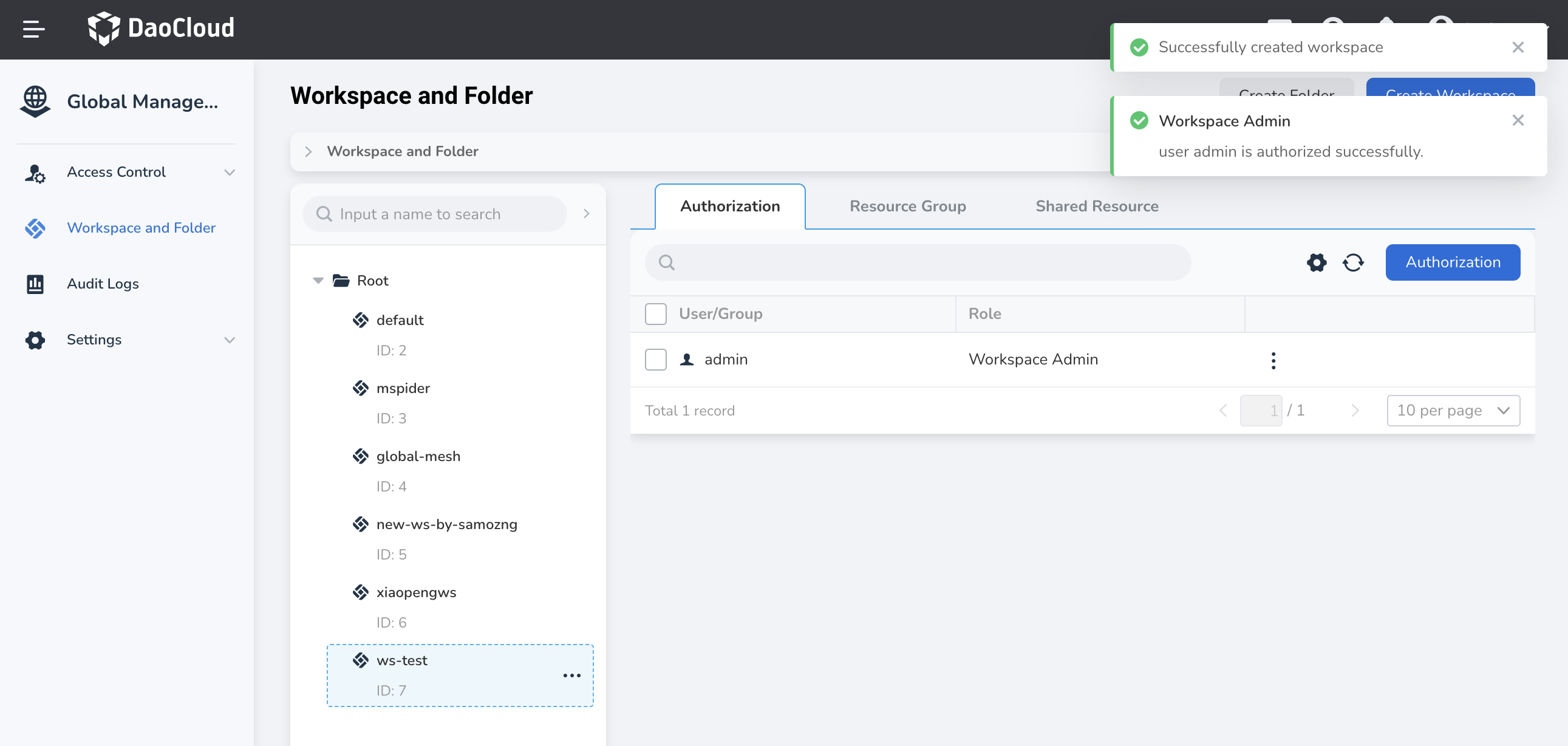
After successful creation, the workspace name will be displayed in the left tree structure, represented by different icons for folders and workspaces.
Delete a Workspace
To edit or delete a specific workspace or folder, select it and click ... on the right side.
- If resource groups and shared resources have resources under the workspace, the workspace cannot be deleted. All resources need to be unbound before deletion of the workspace.
- If Microservices Engine has Integrated Registry under the workspace, the workspace cannot be deleted. Integrated Registry needs to be removed before deletion of the workspace.
- If Container Registry has Registry Space or Integrated Registry under the workspace, the workspace cannot be deleted. Registry Space needs to be removed, and Integrated Registry needs to be deleted before deletion of the workspace.
Move a Workspace
To move a specific workspace, select it and click ... on the right side.

Moving a workspace means transferring a workspace from one folder to another, for example, moving WS01 under folder01 to folder02.
What is moved: the people and resources bound to the workspace.
Permission changes after the move: members of folder01 no longer have permission to manage or view the resources in WS01; members of folder02 have permission to manage or view the resources in WS01; the management and viewing permissions that members of WS01 have over WS01 resources remain unchanged.
Prerequisite for the move: the operator has management permissions over both the source folder and the target folder.