Installing and Using Metax GPU Components
This section provides guidance on installing the Metax metax-gpu-extensions and metax-operator components, as well as instructions for using Metax GPUs in both full-card and vGPU modes.
Prerequisites
- A prepared DCE 5.0 base environment.
Component Overview
DCE 5.0 ships with two built-in Helm chart packages: metax-gpu-extensions and metax-operator. Choose which to install based on your usage scenario.
- metax-gpu-extensions: Contains the
gpu-deviceandgpu-labelcomponents. When using the Metax-extensions solution, application container images must be built based on the MXMACA® base image. This solution only supports the full GPU usage scenario. - metax-operator: Contains the
gpu-device,gpu-label,driver-manager,container-runtime, andoperator-controllercomponents. With this approach, you can build application container images that do not include the MXMACA® SDK. It supports both full GPU and vGPU scenarios.
Installation Steps
metax-gpu-extensions
- In the left navigation bar, go to Container Management -> Cluster Management, and click the name of the target cluster.
- From the left navigation bar, click Helm Apps -> Helm Templates, then search for metax-gpu-extensions.
-
When the component appears, start the installation.
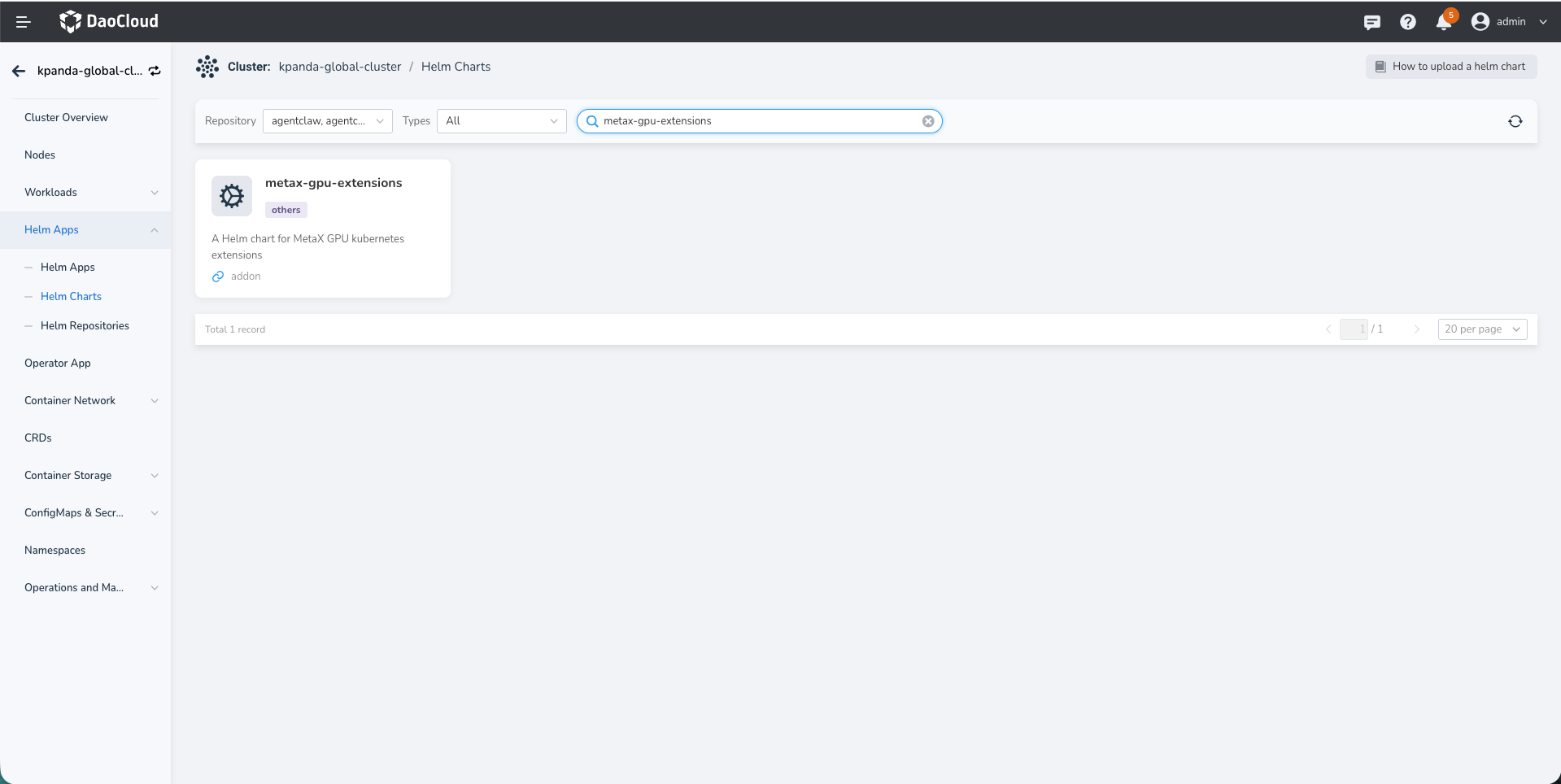
After successful deployment, you can verify the resources on the nodes.

The node list in the DCE 5.0 platform will display the
Metax GPUlabel.
metax-operator
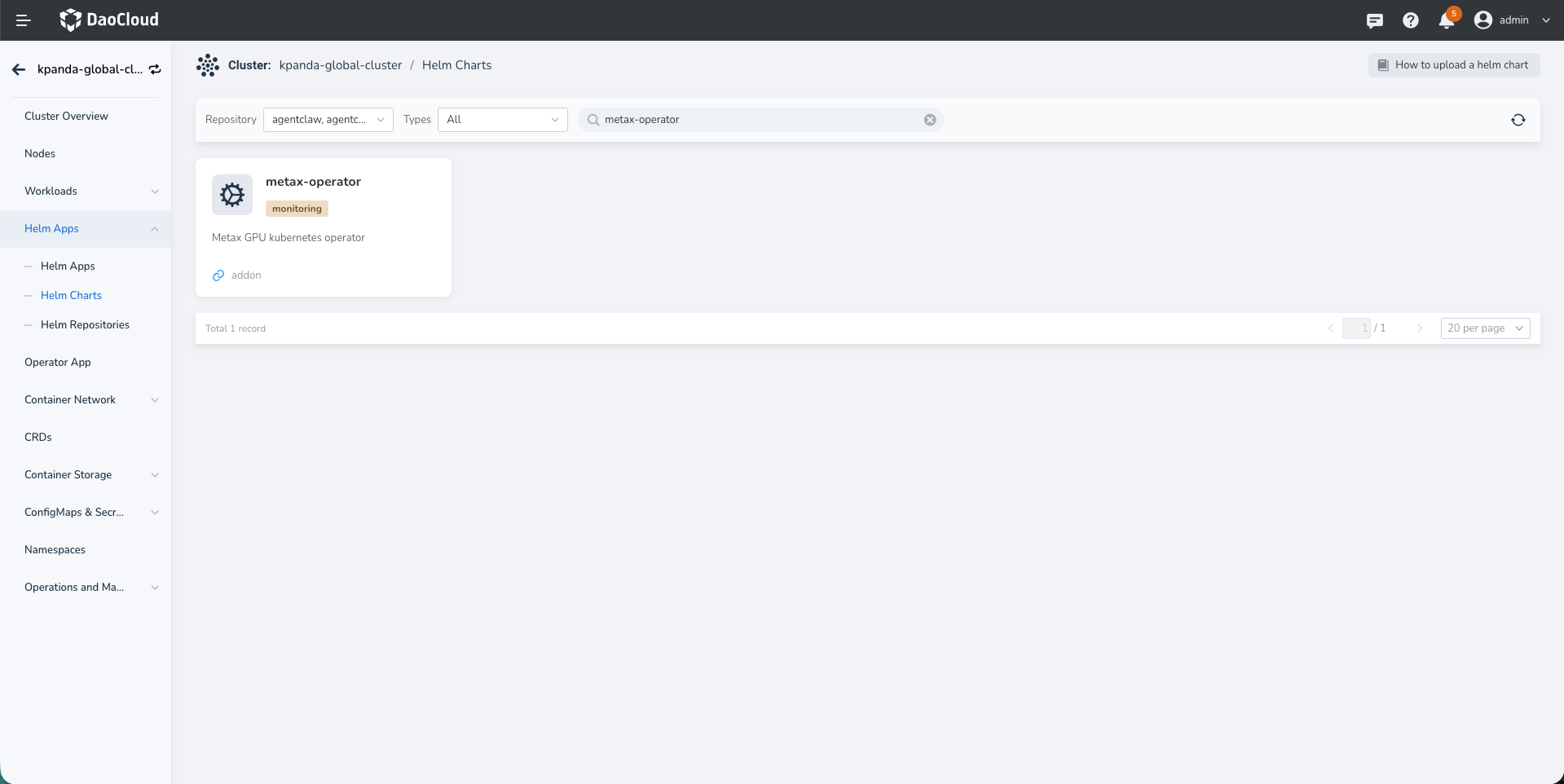
Similar to installing gpu-extensions, search for metax-operator and start the installation once it is found.
Using the GPU
After installation, you can use the Metax GPU in workloads. When enabling GPU support, be sure to select Metax GPU as the GPU type.

To check GPU usage, enter the container and run mx-smi.
