Manage Native Applications
After creating a native application, you can view the application details or update the application configuration as needed.
View Application Details
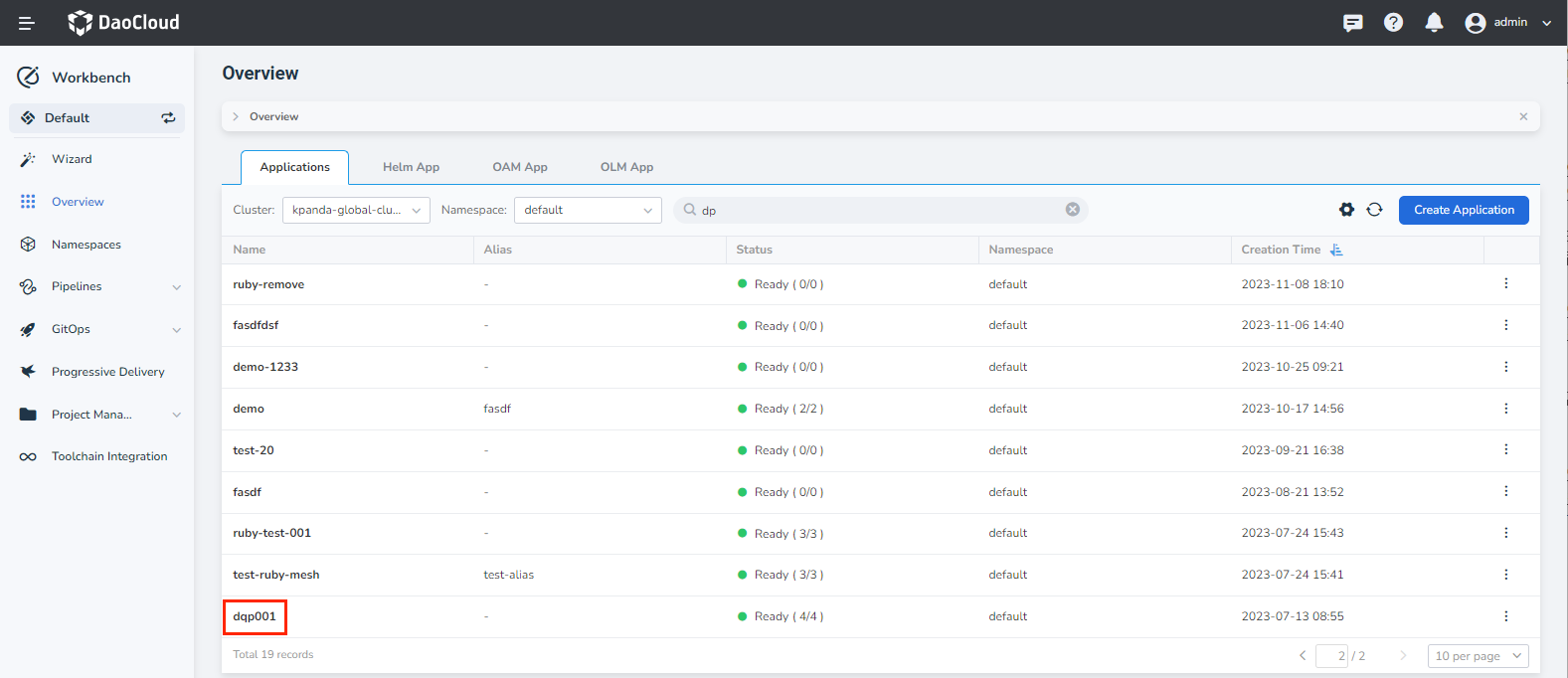
On the Workbench -> Overview page, click the Native Applications tab, and then click the name of the native application.
-
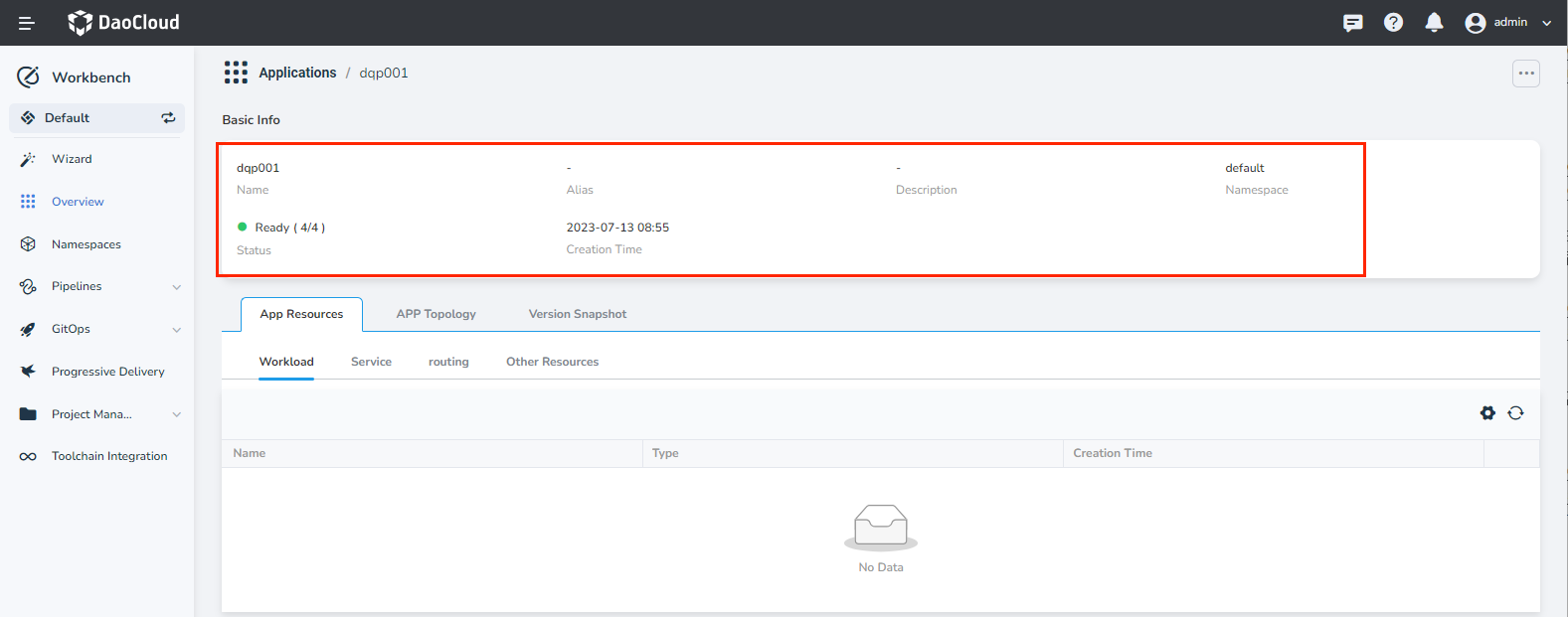
Here you can view basic information like the application name, alias, description, namespace, creation time, and more.
-
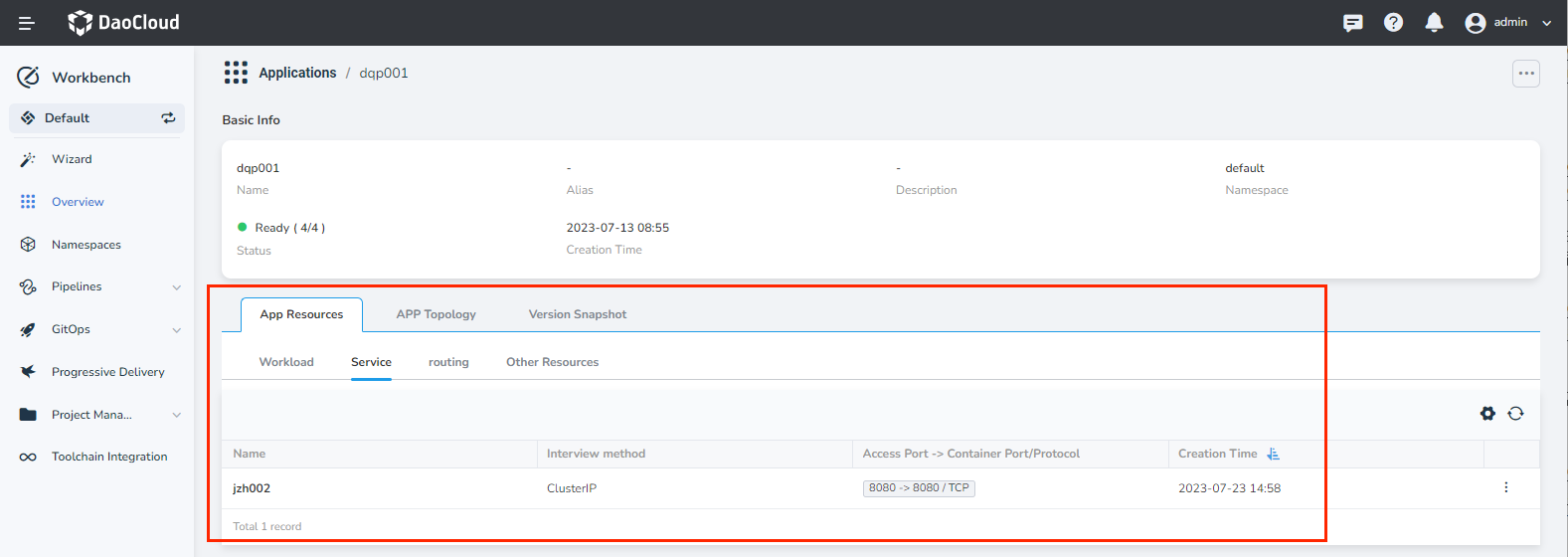
Click the App Resources tab to view the Kubernetes resources associated with the native application, such as workloads, services, and routes. You also have the ability to edit and delete various resources.
-
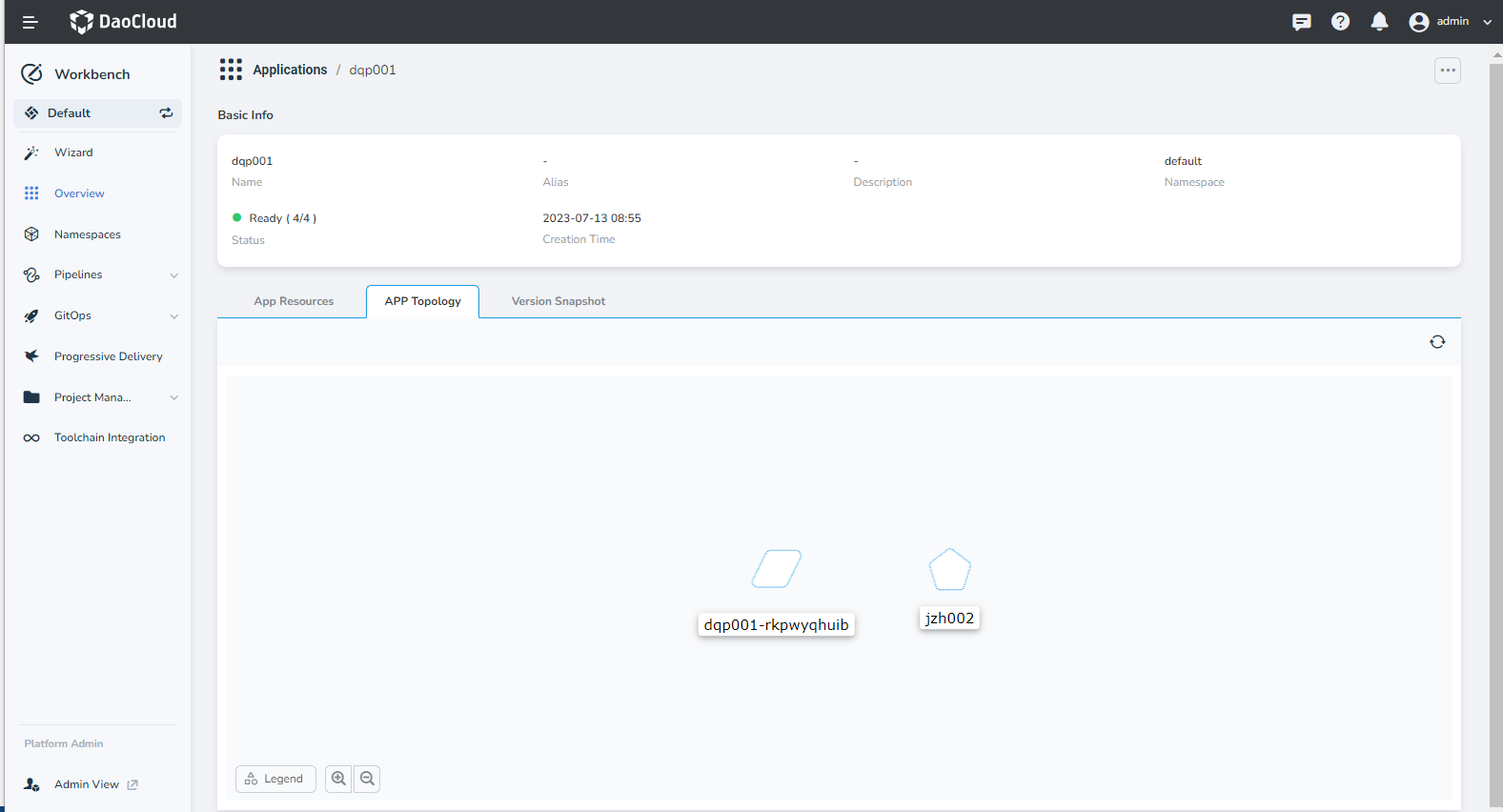
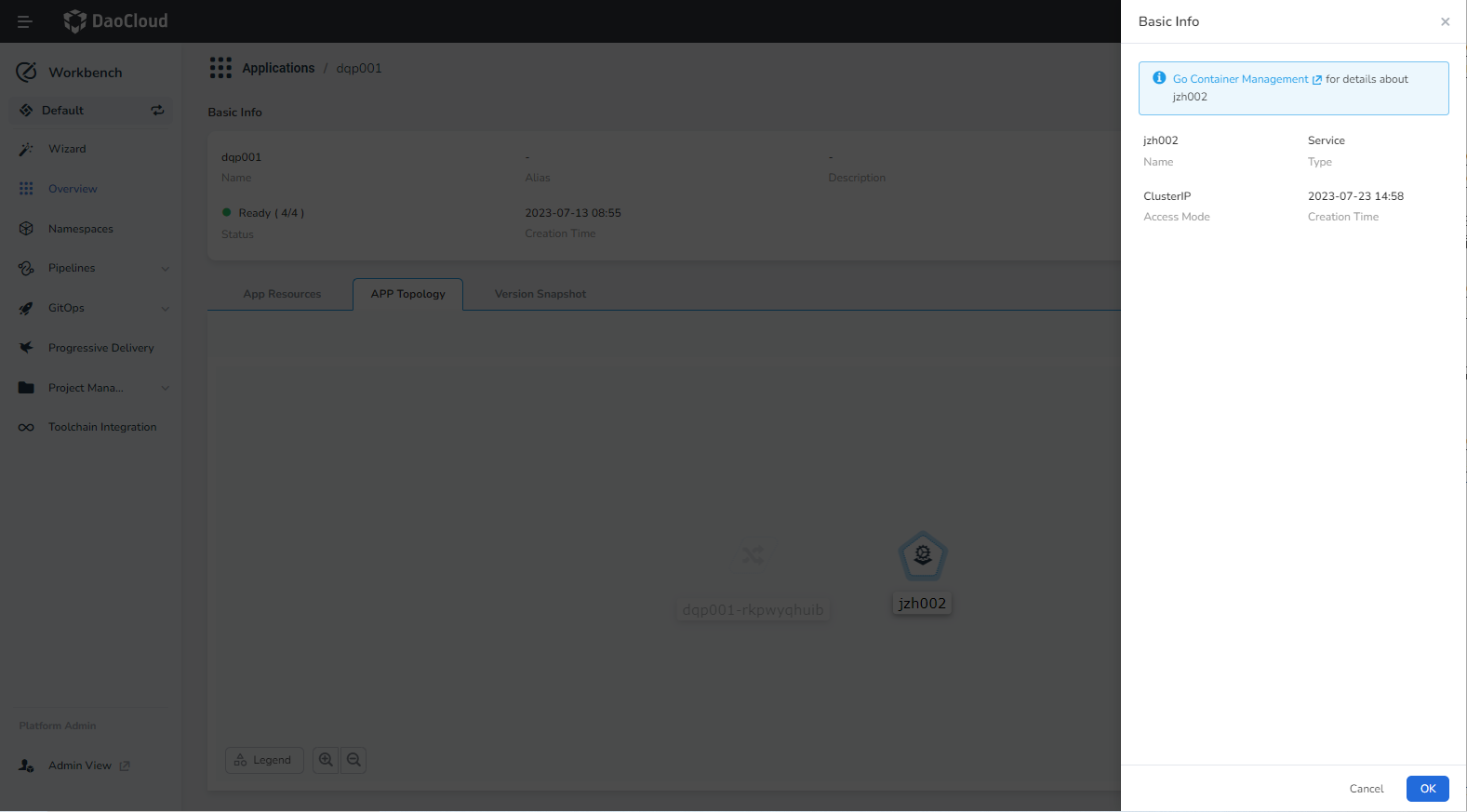
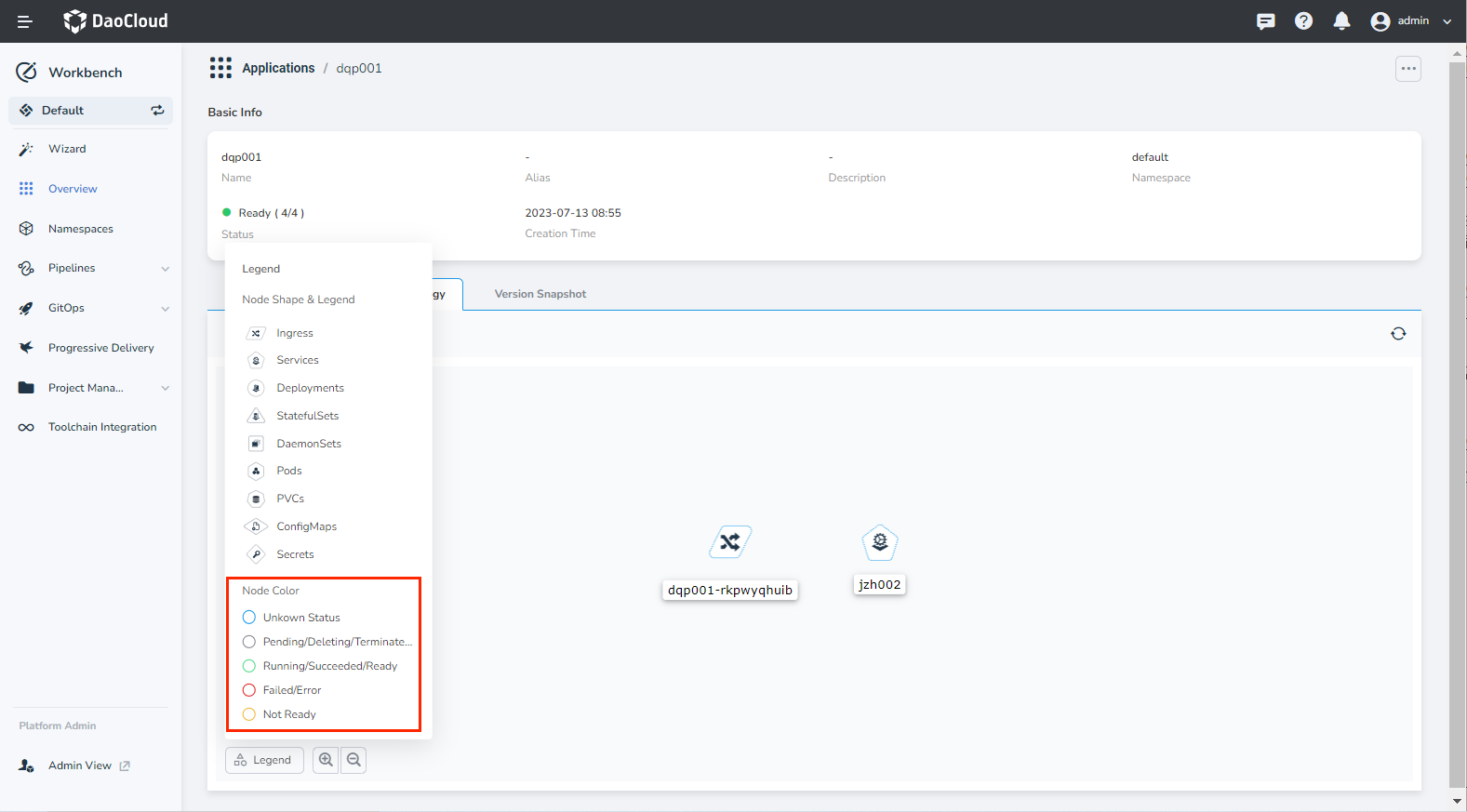
Click the APP Topology tab to visually see the resources including workloads, containers, storage, configurations, and secrets.
-
View basic resource information and navigate to the Container Management module to see more resource details:
-
Nodes in the visual topology are color-coded, so that the health status of some resources that support a status can be judged by the node color:
-
-
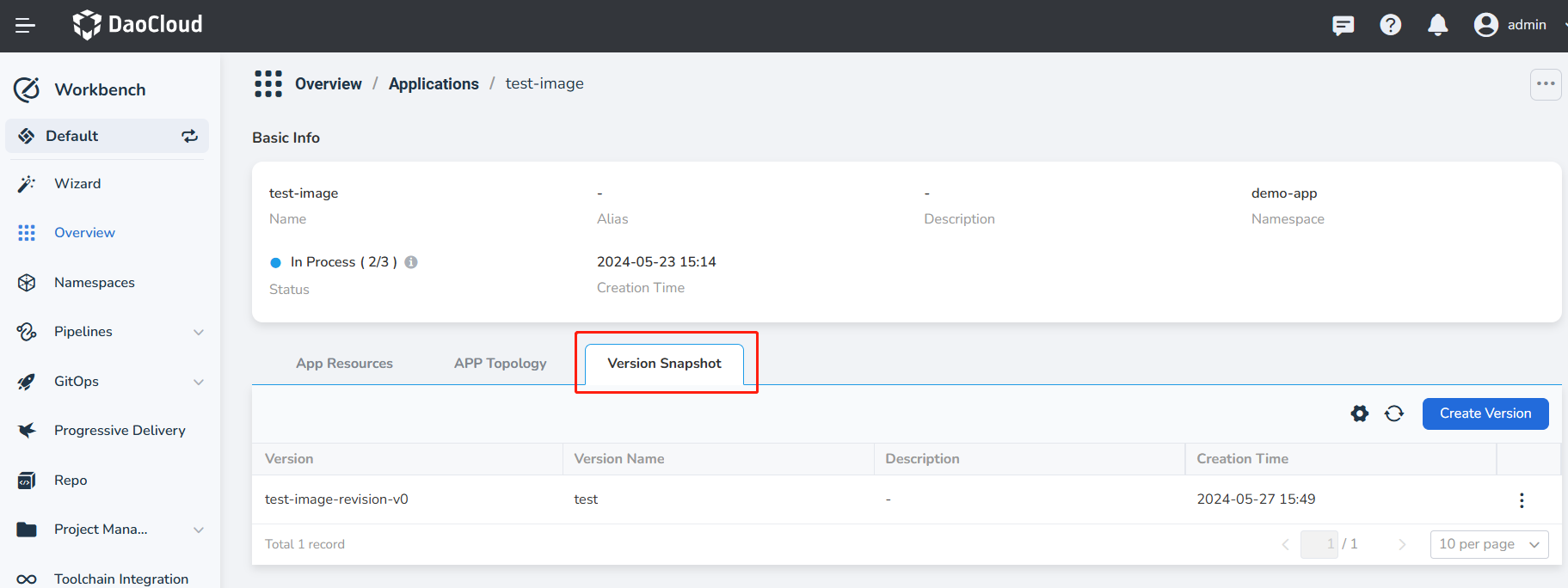
Click the Version Snapshot tab to view the version number, version name, description, creation time, and more.
Edit basic information of a native application
- Click the name of the native application, and then click the ⵈ in the upper-right corner of the page, and select Edit Basic Info.
-
Set an alias or provide additional description as needed.

View YAML of a native application
- Click the name of the native application, then click the ⵈ in the upper-right corner of the page, and select Check YAML.
-
View the manifest file of the native application.
