Installation
This page describes how to install DCE Assistant offline and online. DCE Assistant uses the same architecture and the same Helm Chart as Copilot. The Chart name is copilot, and it is published in the Helm repository https://release.daocloud.io/chartrepo/agentclaw.
Info
Installer v0.45.0 and later can install this Chart, including a GitOps install and ExistingSecret. The steps below install this Helm Chart on its own. For supported Kubernetes versions, see Compatibility.
Installation Parameters
| Item | Value |
|---|---|
| Chart | copilot |
| Helm repository | https://release.daocloud.io/chartrepo/agentclaw |
| Release name | tokenfactory-copilot |
| Namespace | copilot-system |
| Deployment / Service | tokenfactory-copilot |
| Example Chart version | 0.3.0-rc2 |
Install this Chart once in a cluster. The release name, namespace, and access path use the same values as Copilot. When release tokenfactory-copilot is already present, enable the DCE CLI credential on that release. See Copilot is already installed.
Prerequisites
-
See Compatibility for Kubernetes versions.
-
The default install publishes the entry through the platform subpath, so the cluster needs ghippo.
global.gproduct.positionTypedefaults toheader-action, which requires ghippo v0.48.1 or later. For an older ghippo, set it tonormal: -
Prepare a model API key. Put it in a Secret before installing the Chart, and keep it out of Helm values:
kubectl create namespace copilot-system
kubectl -n copilot-system create secret generic tokenfactory-copilot-credentials \
  --from-literal=OPENAI_API_KEY='<api-key>'
The default model endpoint is
https://api.deepseek.comand the model ID isdeepseek-flash. With that endpoint, web search reuses the sameOPENAI_API_KEY. If you point the model at another endpoint, web search still calls the official DeepSeek API and needsDEEPSEEK_API_KEYin the same Secret. -
Prepare DCE CLI credentials. Platform queries, cluster health checks, Pod failure diagnosis, and GPU bottleneck analysis all use this credential to reach the platform. Use an account that can only query. Open Personal Center -> Access Keys from the menu in the upper-right corner, create a key by following Access key, then store the existing local
hosts.ymlin a Secret:kubectl -n copilot-system create secret generic tokenfactory-dce-hosts \ --from-file=hosts.yml="$HOME/.config/dce/hosts.yml"When the machine has no
hosts.yml, the Chart can render one from the platform address and access key. The rendered file usesuser: adminandinsecure: true. The access key is then stored in Helm values, so prefer the Secret above. See CLI Credentials for both forms. -
Set
dsh.entrypointto the address browsers use to open the platform. Include only the scheme and host, with no path, for examplehttps://platform.example.com. After it is set, the proxy accepts browser requests only from that origin and returns 403 for any other origin. When it is left empty, the requestOriginmust matchHost.
Set these values during installation:
| Parameter | Example | Description |
|---|---|---|
dsh.model.existingSecretRef | tokenfactory-copilot-credentials | Secret that contains OPENAI_API_KEY. It takes precedence over an inline key |
dceAuth.enabled | true | Enable the DCE CLI credential |
dceAuth.existingSecretRef | tokenfactory-dce-hosts | Secret that contains hosts.yml. It takes precedence over an inline access key |
dsh.entrypoint | https://platform.example.com | Platform address, scheme plus host |
Setting dsh.model.apiKey directly also starts the assistant. The key is then stored in the Helm release, so this is not recommended.
The install commands below use an existing Secret. To let the Chart render the credential from the platform address and access key, remove --set-string dceAuth.existingSecretRef=tokenfactory-dce-hosts and set --set-string dceAuth.host='<platform-address-or-ip>' --set-string dceAuth.oauthToken='<access-key>' instead.
New sessions open in operations mode. dsh.opsMode defaults to primary. Platform queries and diagnosis run in that mode.
Online Installation
Info
Online installation uses the prerequisites above.
Install with Helm
helm repo add agentclaw https://release.daocloud.io/chartrepo/agentclaw
helm repo update
helm search repo agentclaw/copilot --versions --devel

helm upgrade --install tokenfactory-copilot agentclaw/copilot \
  --namespace copilot-system \
  --version 0.3.0-rc2 \
  --set-string dsh.entrypoint='https://<platform-address>' \
  --set-string dsh.model.existingSecretRef=tokenfactory-copilot-credentials \
  --set dceAuth.enabled=true \
  --set-string dceAuth.existingSecretRef=tokenfactory-dce-hosts
Replace 0.3.0-rc2 with the version you select from helm search.
Install Through the Kpanda UI
In Helm Apps -> Helm Repositories, add https://release.daocloud.io/chartrepo/agentclaw. Then open Helm Templates, find the copilot Chart, and install it. Set the release name to tokenfactory-copilot, the namespace to copilot-system, and set dsh.entrypoint, dsh.model.existingSecretRef, dceAuth.enabled, and dceAuth.existingSecretRef.
Offline Installation
Online installation uses the Chart repository https://release.daocloud.io/chartrepo/agentclaw, which can be read without logging in. The download center does not yet publish an offline package for this Chart. On a machine that can reach this repository, export a bundle with charts-syncer and copy it to the target environment. After the download center publishes an offline package, use that package. The loading steps below stay the same.
Export the Offline Bundle
The agentclaw repository also contains other Charts. Select only copilot so unrelated images are not packed into the bundle.
-
Create
save-bundles.yaml.save-bundles.yamlrelocateContainerImages: true source: repo: kind: HARBOR url: https://release.daocloud.io/chartrepo/agentclaw target: intermediateBundlesPath: copilot-offline charts: - name: copilot versions: - 0.3.0-rc2If pulling images requires a login, set the registry, username, and password under
source.containers.auth. Replace0.3.0-rc2with the Chart version to export. -
Export the bundle.
Copy the bundle from the
copilot-offlinedirectory to the target environment. Use it as the input of the next step. Do not runhelm installon it directly.
Load Images and the Chart from the Bundle
When the environment has an image registry, sync with charts-syncer. When there is no Chart repository and the package contains images.tar, load the images on the nodes with Docker or containerd.
Sync to an Image Registry with charts-syncer
-
Create
load-image.yaml.Note
Replace the addresses, username, and password with those of the target registry.
intermediateBundlesPathis relative to the directory where you run charts-syncer.load-image.yamlsource: intermediateBundlesPath: copilot-offline # (1)! target: containerRegistry: 10.16.10.111 # (2)! containerRepository: release.daocloud.io/agentclaw # (3)! repo: kind: HARBOR url: http://10.16.10.111/chartrepo/release.daocloud.io # (4)! auth: username: "admin" # (5)! password: "Harbor12345" # (6)! containers: auth: username: "admin" # (7)! password: "Harbor12345" # (8)!- Path relative to the charts-syncer command
- Target image registry
- Project path in the target image registry
- Target Chart repository URL
- Chart repository username
- Chart repository password
- Image registry username
- Image registry password
load-image.yamlsource: intermediateBundlesPath: copilot-offline # (1)! target: containerRegistry: 10.16.10.111 # (2)! containerRepository: release.daocloud.io/agentclaw # (3)! repo: kind: LOCAL path: ./local-repo # (4)! containers: auth: username: "admin" # (5)! password: "Harbor12345" # (6)!- Path relative to the charts-syncer command
- Target image registry
- Project path in the target image registry
- Directory for the Chart package
- Image registry username
- Image registry password
-
Sync the images and the Chart.
charts-syncer rewrites the image addresses in the Chart. When installing that rewritten Chart, do not override the image registry parameters.
Load Directly with Docker or containerd
If the extracted package contains images.tar (usually together with hints.yaml and original-chart), load it on every node. Sync the intermediate bundle exported by charts-syncer into a registry with the previous section instead of loading it here.
-
Extract the package.
-
Load the images.
Note
Load the images on every node, then tag them to the registry address used at install time. When you tag them yourself, image.registry, copilotArtifacts.skillsImage.registry, and copilotArtifacts.bigscreenImage.registry must match the tagged address. The default is release.daocloud.io/agentclaw, which already includes the registry project path.
Offline Installation Steps
Create the Secrets from Prerequisites, then install the Chart.
Install Through the Kpanda UI
In Helm Apps, refresh the offline repository and open the copilot Chart. Set the release name to tokenfactory-copilot, the namespace to copilot-system, and set dsh.entrypoint, dsh.model.existingSecretRef, dceAuth.enabled, and dceAuth.existingSecretRef.
Install with Helm
Replace <chart> with copilot from the private repository, or with the Chart package in the output directory when the target kind is LOCAL. Include --version when installing from a repository. You can omit it when installing a local Chart package.
helm upgrade --install tokenfactory-copilot <chart> \
  --namespace copilot-system \
  --version 0.3.0-rc2 \
  --set-string dsh.entrypoint='https://<platform-address>' \
  --set-string dsh.model.existingSecretRef=tokenfactory-copilot-credentials \
  --set dceAuth.enabled=true \
  --set-string dceAuth.existingSecretRef=tokenfactory-dce-hosts
Copilot Is Already Installed
Copilot and DCE Assistant use the same release. When tokenfactory-copilot is already installed, add the DCE CLI credential. Set --version to that release's current Chart version. --reuse-values keeps the current image tags and the rest of the configuration:
helm upgrade tokenfactory-copilot agentclaw/copilot \
  --namespace copilot-system \
  --reuse-values \
  --version 0.3.0-rc2 \
  --set dceAuth.enabled=true \
  --set-string dceAuth.existingSecretRef=tokenfactory-dce-hosts
Without --version, Helm selects the latest stable chart. To upgrade the Chart version, use the complete values file in Upgrade and keep dceAuth in that file.
Access
The platform subpath is enabled by default. After installation, open https://<platform-address>/copilotui/ in a browser. The platform navigation opens that address in a new window. The navigation item published by the Chart is named Copilot.
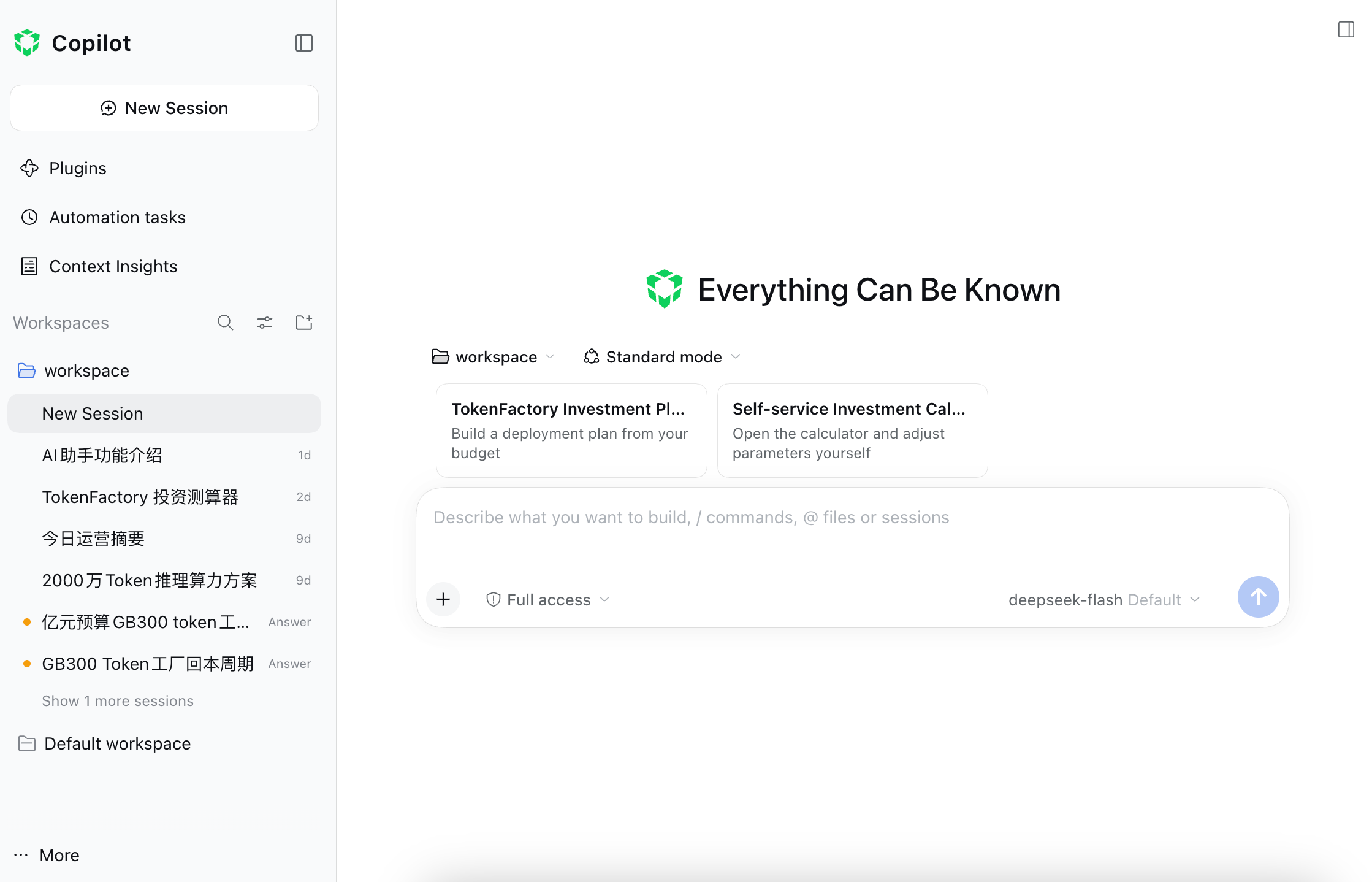
The UI entries, model name, and example prompts follow the installed version and configuration. New sessions use operations mode.
On first startup, DeepSeek Harness prints a one-time URL in the logs. Do not paste the token from that URL into a ticket or chat:
Warning
The browser UI has no per-user isolation. Anyone who can open the page uses the same agent. The default dsh.permissionMode is danger-full-access, so the agent can run commands inside the Pod. Keep the model key, the DCE CLI credential, and network access narrowly scoped. The Pod does not mount a ServiceAccount token.
The current Skills provide queries, analysis, and suggestions. Restart, deletion, scaling, and routing changes are still performed by the user in the platform.
Optional Settings
CLI Credentials
The Chart mounts hosts.yml read-only at $HOME/.config/dce/hosts.yml.
To use an existing Secret, set:
To let the Chart render the Secret, set the platform address and access key instead. When existingSecretRef is set, that Secret is used:
dceAuth is the credential used by the CLI. On the platform subpath, signing in to the page with a platform account is controlled by global.gproduct.proxy.dceLogin, which is enabled by default and is separate from dceAuth. global.gproduct.proxy.authnCheck defaults to false. Setting it to true also requires dceLogin to be enabled.
Session Persistence
persistence.enabled defaults to false. Sessions stay on an emptyDir and are discarded when the Pod is replaced. Enable a PVC to keep sessions. The default is 5Gi, ReadWriteOnce, mounted at /opt/data. The Deployment uses Recreate so two Pods do not mount the same volume.
Each start replaces the copilot-skills directory on the volume. Do not store custom files there.
Dedicated Host
Set global.gproduct.proxy.enabled to false to serve DCE Assistant at the root of dsh.entrypoint. This mode requires Ingress. It has no Ghippo authentication and no platform-account login, so restrict access at the gateway.
helm upgrade --install tokenfactory-copilot agentclaw/copilot \
  --namespace copilot-system \
  --version 0.3.0-rc2 \
  --set-string dsh.model.existingSecretRef=tokenfactory-copilot-credentials \
  --set dceAuth.enabled=true \
  --set-string dceAuth.existingSecretRef=tokenfactory-dce-hosts \
  --set global.gproduct.proxy.enabled=false \
  --set-string dsh.entrypoint='https://assistant.example.com' \
  --set ingress.enabled=true \
  --set-string ingress.className=nginx
Upgrade
Replace the three image tags together. A tag is v plus the Chart version, for example v0.3.0-rc2. The fields are image.tag, copilotArtifacts.skillsImage.tag, and copilotArtifacts.bigscreenImage.tag.
Upgrade with a complete values file, and keep the DCE CLI credential in that file:
helm upgrade tokenfactory-copilot agentclaw/copilot \
  --namespace copilot-system \
  --version 0.3.0-rc2 \
  --reset-values \
  -f values.yaml
Include dceAuth.enabled and dceAuth.existingSecretRef in values.yaml. Without --version, Helm selects the latest stable chart and skips versions that contain -rc. Set --version to the Chart version that matches the image tags in the values file. A tag is v plus that Chart version.
With --reuse-values, set those three tags explicitly. An existing release also keeps the previous global.gproduct.proxy value, so it stays on a dedicated host. To use the platform subpath, set global.gproduct.proxy.enabled to true.
When upgrading from an earlier version:
copilotArtifacts.clisImageandcopilotArtifacts.pluginsImagehave been removed. Delete them from values.- The model key moves to
dsh.model.existingSecretRefordsh.model.apiKey. While neither new key is set, the Chart still readsexistingSecretRefandsecrets.OPENAI_API_KEY. After either new key is set, that new key is used. - v0.1.x
hermes-agent.dceAuthstill applies when top-leveldceAuthhas nohost,oauthToken, orexistingSecretRef. After any of those top-level fields is set, the top-level value is used.
Starting with DSH 0.2.1, an OPENAI_API_KEY already saved in $DSH_HOME/.credentials.yaml on the volume takes precedence over the Secret. If someone saved that key in the UI, rotating the Secret has no effect until the OPENAI_API_KEY entry under refs in that file is deleted. No restart is required. When checking the file, look only at the key name and do not print the secret.