Enabling Insight Alert Notifications v1alpha2
Insight introduces a new templating system, which adjusts the data structure for rendering. Therefore, it is incompatible with the old version (v1alpha1). As a result, v1alpha2 is disabled by default. Operations personnel can enable it according to customer needs.
Note
After enabling it, you need to immediately migrate templates to the v1alpha2 syntax; otherwise, alert messages cannot be sent normally to WeCom, email, Feishu, etc. As a best practice for operations, be sure to back up old template data via SQL.
Why Introduce a New Template
The reason for introducing v1alpha2 is to adjust the data available to templates. In the v1alpha2 template, you can access more and more complete alert data.

Differences in Data Access Between the Two Versions
In the v1alpha1 version, the data accessible to templates has 2 limitations:
-
Except for the "email subject", the template can only format the data of a single Alert (blue part). Therefore, some line breaks and the
[1]FIRINGtext on the first line cannot be customized.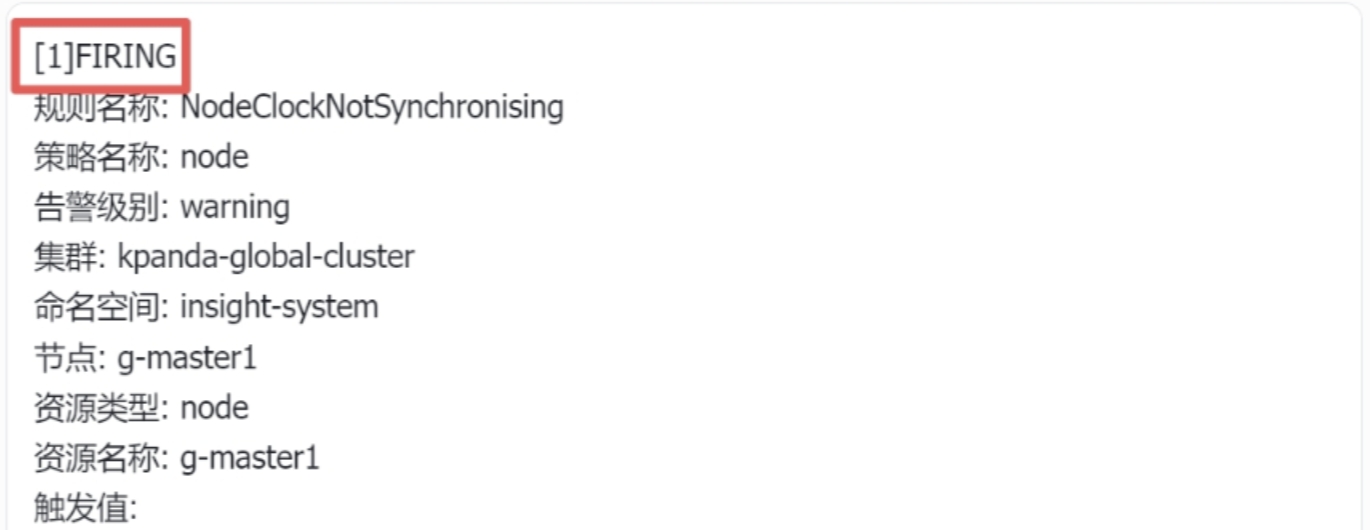
-
The "email subject" can only access data in CommonLabels (orange part).
In the v1alpha2 version, these 2 limitations are fixed. Any template can fully access the alert Data (purple part).
Because of the adjustment of the scope, v1alpha1 and v1alpha2 are incompatible. The specific difference is: you need to manually iterate through the Alerts data via the range keyword of go-templates in the template.
Upgrade Example
We use the email body and subject templates as examples to explain the differences between the 2 versions:
Email Body
The following is the diff between the old and new email body templates.
Line 2andLine 16add{{range .Alerts}}and{{end}}respectively, wrapping the old template in therangekeyword. Basically, most templates only need this.Line 15adds<br />as a line break. The rendered content will not be "stacked" together, but displayed group by group according to the Alert.
Email Subject
Note that the subject and body of the v1alpha2 email template share the same data structure, and no special processing is performed anymore, thereby reducing the burden.
Old template:
In the new template, you can notice that severity is adjusted to CommonLabels.severity, which is the original data structure.
More Examples
Notification templates for Feishu, DingTalk, and WeCom:
[{{ .Alerts | len -}}] {{.Status}}
{{range .Alerts}}
Rule Name:   {{ .Labels.alertname }}
Group Name:  {{ .Labels.alertgroup }}
Severity:    {{ .Labels.severity }}
Cluster:     {{ .Labels.cluster | toClusterName }}
{{if .Labels.namespace }}Namespace:  {{ .Labels.namespace }}
{{ end }}{{if .Labels.node }}Node:  {{ .Labels.node }}
{{ end }}Target Type: {{ .Labels.target_type }}
{{if .Labels.target }}Target:  {{ .Labels.target }}
{{ end }}Value:       {{ .Annotations.value }}
Starts At:   {{ .StartsAt }}
{{if ne "0001-01-01T00:00:00Z" .EndsAt }}Ends At:     {{ .EndsAt }}
{{ end }}Description: {{ .Annotations.description }}
{{end}}
How to Enable v1alpha2 in Insight
After confirming that you need to enable the v1alpha2 capability, you can enable it through the following 2 configurations. Note:
- Built-in templates: insight-server has a built-in set of Chinese and English templates. After enabling v1alpha2, the program will automatically update the built-in templates to the new version, with no migration required;
- Customer-created templates: Due to compatibility issues, insight-server will not migrate customer-created templates by default. Therefore, before template migration, all alert notifications will be invalid, because the templates cannot be parsed correctly and notification content cannot be generated correctly, so external webhooks, emails, and WeCom cannot be notified.
Note
Note that if the customer cannot accept no alert notifications during the migration period, this solution is not feasible.
Method 1: (Recommended) Upgrade via Helm Command
-
Add the following parameter to the Helm upgrade command:
-
Besides the Helm command upgrade, you can also edit the Helm values file, as follows:
Method 2: Temporarily Adjust the Configuration File (configmap)
-
Edit the insight-server configuration file (configmap) insight-server-config, and adjust the configuration file as follows:
-
After editing and saving, restart insight-server.