Enable Big Log and Big Trace Modes
The Insight Module supports switching log to Big Log mode and trace to Big Trace mode, in order to enhance data writing capabilities in large-scale environments.
This page introduces following methods for enabling these modes:
- Enable or upgrade to Big Log and Big Trace modes through the installer (controlled by the same parameter value in
manifest.yaml) - Manually enable Big Log and Big Trace modes through Helm commands
Logs
This section explains the differences between the normal log mode and the Big Log mode.
Log Mode
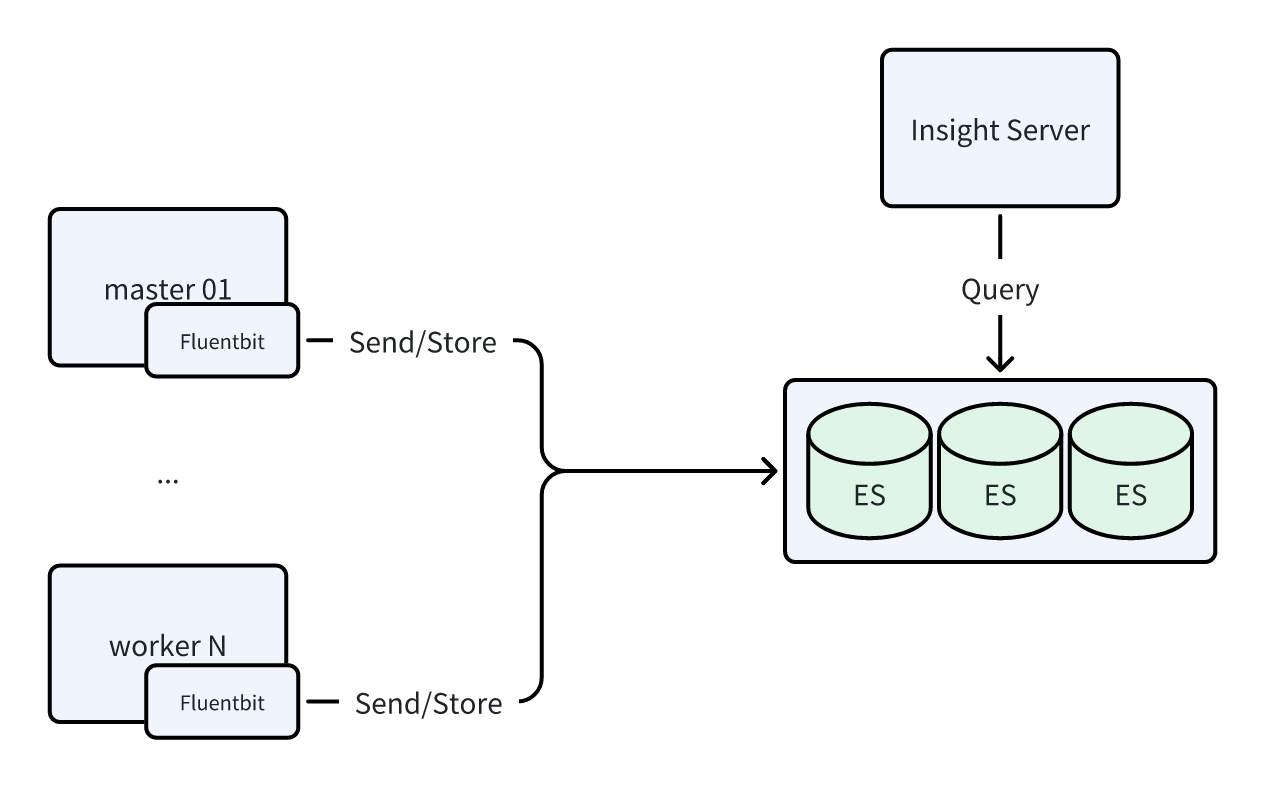
Components: Fluentbit + Elasticsearch
This mode is referred to as the ES mode, and the data flow diagram is shown below:
Big Log Mode
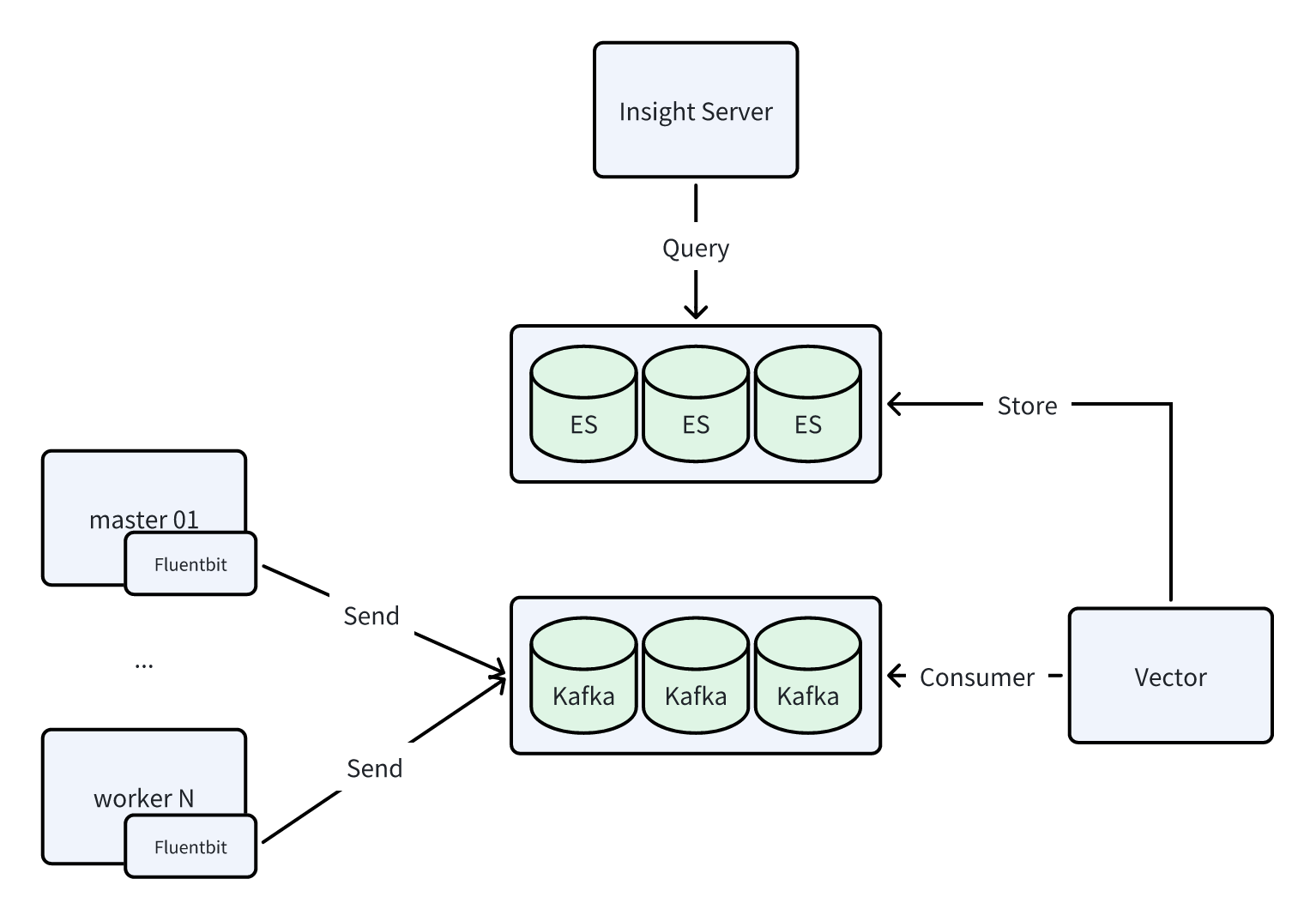
Components: Fluentbit + Kafka + Vector + Elasticsearch
This mode is referred to as the Kafka mode, and the data flow diagram is shown below:
Traces
This section explains the differences between the normal trace mode and the Big Trace mode.
Trace (OTLP) Mode
This mode is referred to as the OTLP mode. Note: The trace architecture has been adjusted since version 0.38.x. The data flow diagrams are shown below:
Components: Agent opentelemetry-collector + Global opentelemetry-collector + Jaeger-collector + Elasticsearch 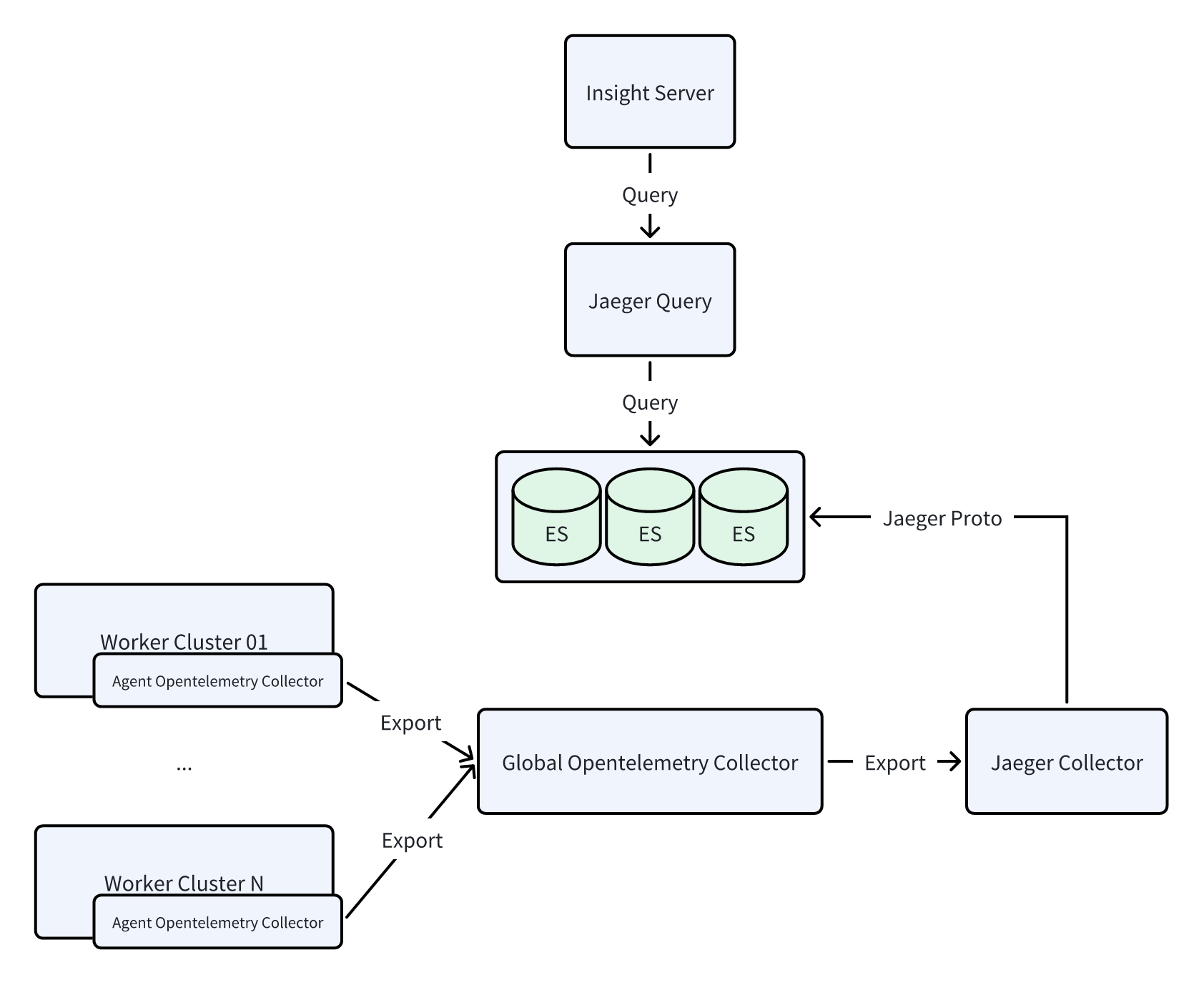
Components: Agent opentelemetry-collector + Global opentelemetry-collector + Elasticsearch
Big Trace Mode
This mode is referred to as the Kafka mode.
Note: The trace architecture has been adjusted since version 0.38.x. The data flow diagrams are shown below:
Components: Agent opentelemetry-collector + Kafka + Global opentelemetry-collector + Jaeger-collector + Elasticsearch 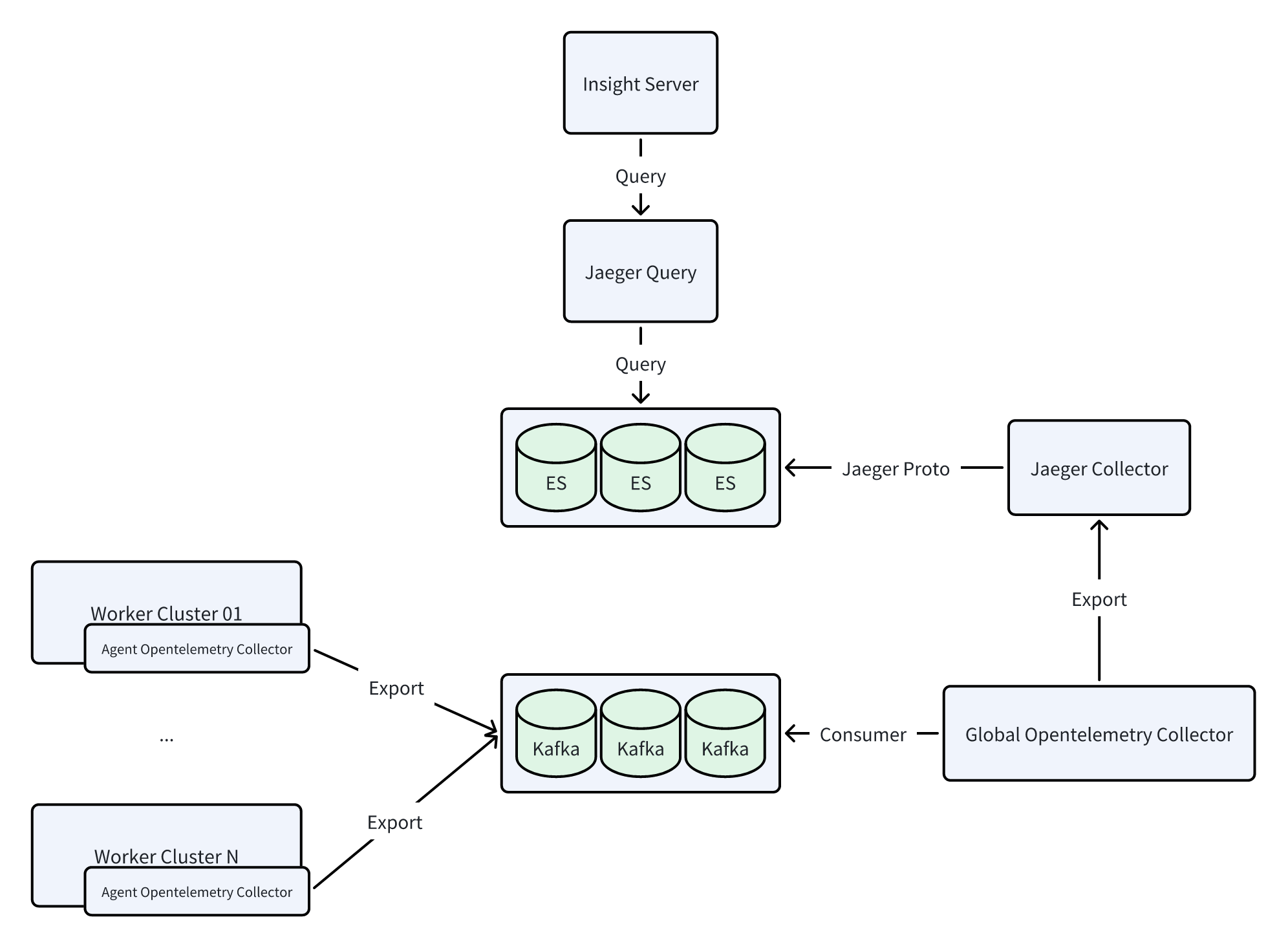
Components: Agent opentelemetry-collector + Kafka + Global opentelemetry-collector + Elasticsearch
Enabling via Installer
When deploying/upgrading DCE using the installer, the manifest.yaml file includes the infrastructures.kafka field. To enable observable Big Log and Big Trace modes, Kafka must be activated:
apiVersion: manifest.daocloud.io/v1alpha1
kind: DCEManifest
...
infrastructures:
  ...
  kafka:
    enable: true # Default is false
    cpuLimit: 1
    memLimit: 2Gi
    pvcSize: 15Gi
Enable
When using a manifest.yaml that enables kafka during installation, Kafka middleware will be installed by default, and Big Log and Big Trace modes will be enabled automatically. The installation command is:
Upgrade
The upgrade also involves modifying the kafka field. However, note that since the old environment was installed with kafka: false, Kafka is not present in the environment. Therefore, you need to specify the upgrade for middleware to install Kafka middleware simultaneously. The upgrade command is:
Note
After the upgrade is complete, you need to manually restart the following components:
- insight-agent-fluent-bit
- insight-agent-opentelemetry-collector
- insight-opentelemetry-collector
Enabling via Helm Commands
Prerequisites: Ensure that there is a usable Kafka and that the address is accessible.
Use the following commands to retrieve the values of the old versions of Insight and insight-agent (it's recommended to back them up):
helm get values insight -n insight-system -o yaml > insight.yaml
helm get values insight-agent -n insight-system -o yaml > insight-agent.yaml
Enabling Big Log
There are several ways to enable or upgrade to Big Log mode:
-
First, modify the Insight Helm app:
In the kpanda-global-cluster management cluster, switch to Helm Apps from the left navigation bar, and select and update the insight app.
Fill in the Kafka-related configuration and click to confirm the update.
-
Update the Insight-Agent Helm app in the worker cluster:
In the Container Management module, find the corresponding worker cluster, select Helm Apps from the left navigation bar, and find and update insight-agent.
In Logging Settings, select kafka for output and fill in the correct brokers address.
Note that after the upgrade is complete, you need to manually restart the insight-agent-fluent-bit component.
First, run the following Insight upgrade command, ensuring the Kafka brokers address is correct:
helm upgrade insight insight-release/insight \
  -n insight-system \
  -f ./insight.yaml \
  --set global.kafka.brokers="10.6.216.111:30592" \
  --set global.kafka.enabled=true \
  --set vector.enabled=true \
  --version 0.30.1
Then, run the following insight-agent upgrade command, ensuring the Kafka brokers address is correct:
Follow these steps to modify the YAML and then run the helm upgrade command:
-
Modify
insight.yaml -
Upgrade the Insight component:
-
Modify
insight-agent.yaml -
Upgrade the insight-agent:
Enabling Big Trace
There are several ways to enable or upgrade to Big Trace mode:
-
First, modify the Insight Helm app:
In the kpanda-global-cluster management cluster, switch to Helm Apps from the left navigation bar, and select and update the insight app.
Fill in the Kafka-related configuration and click to confirm the update.
-
Update the Insight-Agent Helm app in the worker cluster:
In the Container Management module, find the corresponding worker cluster, select Helm Apps from the left navigation bar, and find and update insight-agent.
In Trace Settings, select kafka for output and fill in the correct brokers address.
Note that after the upgrade is complete, you need to manually restart the insight-agent-opentelemetry-collector and insight-opentelemetry-collector component.
First, run the following Insight upgrade command, ensuring the Kafka brokers address is correct:
helm upgrade insight insight-release/insight \
  -n insight-system \
  -f ./insight.yaml \
  --set global.kafka.brokers="10.6.216.111:30592" \
  --set global.kafka.enabled=true \
  --set global.tracing.kafkaReceiver.enabled=true \
  --version 0.30.1
Then, run the following insight-agent upgrade command, ensuring the Kafka brokers address is correct:
Follow these steps to modify the YAML and then run the helm upgrade command:
-
Modify
insight.yaml -
Upgrade the Insight component:
-
Modify
insight-agent.yaml -
Upgrade the insight-agent:
How to Consume Logs and Trace Data in Kafka?
For the specific process, refer to Using Kafka and Elasticsearch for Large-Scale Log Processing.
When using the Kafka mode, Insight currently collects four types of data to Kafka: logs, Kube audit, Kube events, and traces. The following are the Kafka Topic names corresponding to each data type:
| Type | Topic Name | Format |
|---|---|---|
| Logs | Default: insight-logs | JSON |
| Kube Events | Default: insight-event | JSON |
| Kube Audit | Default: insight-kube-audit | JSON |
| Traces | Default: insight-otlp-spans | Protobuf |
The following are sample data of each type in the Kafka Topic:
Logs
{
    "@timestamp": 1764739584.504833,
    "kubernetes": {
        "container_name": "ebpf-instrument",
        "container_image": "i.sanxian.tech/open-telemetry/opentelemetry-ebpf-instrumentation/ebpf-instrument:v0.1.0",
        "namespace_name": "otel-ebpf-inst",
        "pod_name": "my-opentelemetry-ebpf-instrumentation-zgmkl",
        "pod_ip": "10.233.110.39"
    },
    "_p": "F",
    "time": "2025-12-03T05:26:24.504832869Z",
    "log": "time=2025-12-03T05:26:24.504Z level=INFO msg=\"failed to upload metrics: failed to send metrics to http://insight-agent-opentelemetry-collector.insight-system.svc.cluster.local:4318/v1/metrics: 404 Not Found (body: 404 page not found)\"",
    "tag": "kube.containers",
    "cluster_uuid": "c1ff703c-dc97-44d3-917a-23588b7882cb",
    "cluster_name": "insight-dev"
}
Kube Events
{
    "resourceLogs": [
        {
            "resource": {},
            "scopeLogs": [
                {
                    "scope": {
                        "name": "github.com/open-telemetry/opentelemetry-collector-contrib/receiver/k8sobjectsreceiver",
                        "version": "0.137.0-dev"
                    },
                    "logRecords": [
                        {
                            "observedTimeUnixNano": "1764736302355133267",
                            "body": {
                                "stringValue": "{\"@timestamp\":\"2025-12-03T04:31:42.355133267Z\",\"apiVersion\":\"v1\",\"cluster_name\":\"kpanda-global-cluster\",\"cluster_uuid\":\"a32bf78c-48e6-46a0-9618-a00c235de31e\",\"count\":601,\"eventTime\":null,\"firstTimestamp\":\"2025-12-01T02:31:31Z\",\"involvedObject\":{\"apiVersion\":\"hwameistor.io/v1alpha1\",\"kind\":\"LocalDiskNode\",\"name\":\"cluster-bm-master1\",\"resourceVersion\":\"152713502\",\"uid\":\"29461f1d-cd47-4962-80ba-a7ce9eb24dd9\"},\"kind\":\"Event\",\"lastTimestamp\":\"2025-12-03T04:31:42Z\",\"message\":\"Insufficient storage capacity\",\"metadata\":{\"creationTimestamp\":\"2025-12-01T02:31:31Z\",\"name\":\"cluster-bm-master1.187cf69935559781\",\"namespace\":\"default\",\"resourceVersion\":\"155466075\",\"uid\":\"2558a5c9-ecce-4e07-b930-37195f77326b\"},\"reason\":\"StorageUnAvailable\",\"reportingComponent\":\"\",\"reportingInstance\":\"\",\"source\":{\"component\":\"localdiskmanager/cluster-bm-master1\"},\"time\":\"2025-12-03T04:31:42.355133267Z\",\"type\":\"Warning\"}"
                            }
                        }
                    ]
                }
            ]
        }
    ]
}
Kube Audit
{
    "@timestamp": 1764730101.93227,
    "cluster_uuid": "a32bf78c-48e6-46a0-9618-a00c235de31e",
    "cluster_name": "kpanda-global-cluster",
    "log": "{\"kind\":\"Event\",\"apiVersion\":\"audit.k8s.io/v1\",\"level\":\"RequestResponse\",\"auditID\":\"b2b57298-3ca4-4acf-b182-8e81abb84d1c\",\"stage\":\"ResponseStarted\",\"requestURI\":\"/api/v1/namespaces/insight-system/pods/prometheus-insight-agent-kube-prometh-prometheus-0/portforward\",\"verb\":\"create\",\"user\":{\"username\":\"admin\",\"groups\":[\"system:authenticated\"]},\"sourceIPs\":[\"127.0.0.1\",\"10.64.0.247\"],\"userAgent\":\"kubectl/v1.27.16 (darwin/arm64) kubernetes/cbb86e0\",\"objectRef\":{\"resource\":\"pods\",\"namespace\":\"insight-system\",\"name\":\"prometheus-insight-agent-kube-prometh-prometheus-0\",\"apiVersion\":\"v1\",\"subresource\":\"portforward\"},\"responseStatus\":{\"metadata\":{},\"code\":101},\"requestReceivedTimestamp\":\"2025-12-03T02:41:53.616485Z\",\"stageTimestamp\":\"2025-12-03T02:41:53.646835Z\",\"annotations\":{\"authorization.k8s.io/decision\":\"allow\",\"authorization.k8s.io/reason\":\"RBAC: allowed by ClusterRoleBinding \\\"kpanda-user-admin-admin\\\" of ClusterRole \\\"role-template-cluster-admin\\\" to User \\\"admin\\\"\"}}"
}
Traces
Refer to OTLP Trace Protobuf