Notification Settings
On the Notification Settings page, you can configure how to send messages to users through email, WeCom, DingTalk, Webhook, and SMS.
Email Group
-
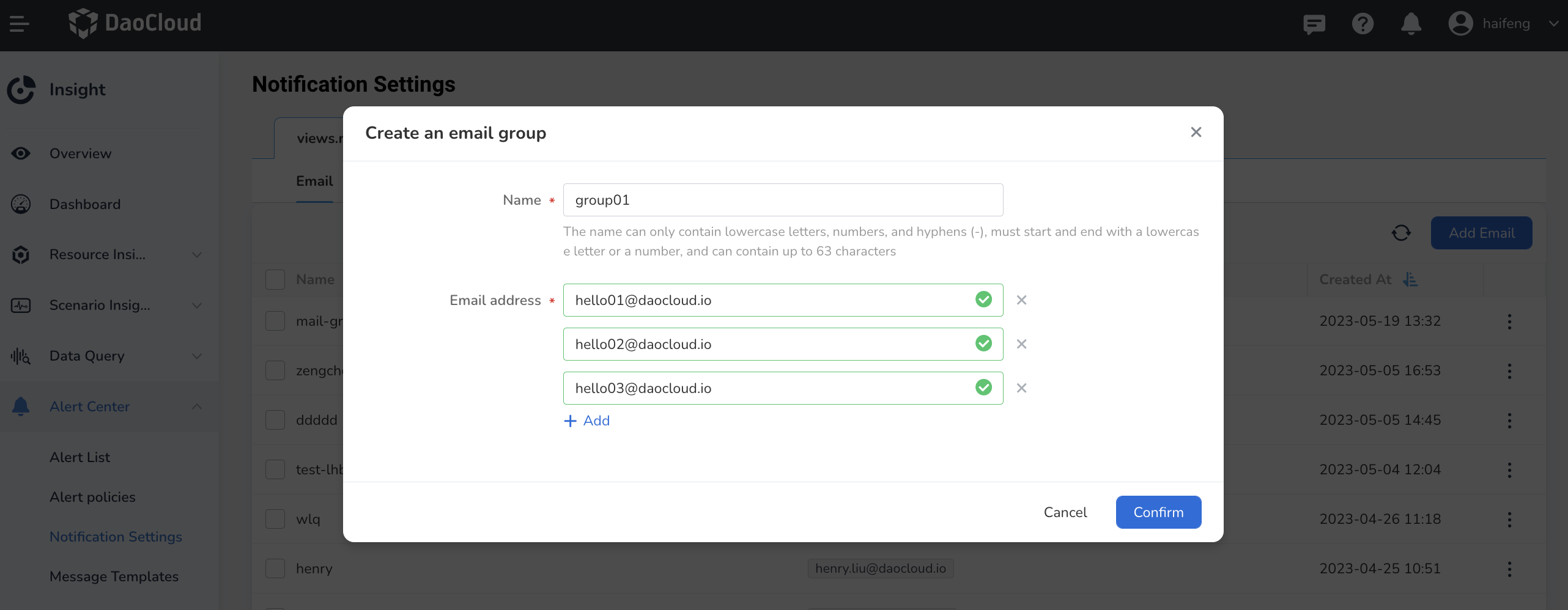
After entering Insight, click Alert Center -> Notification Settings in the left navigation bar. By default, the email notification object is selected.
-
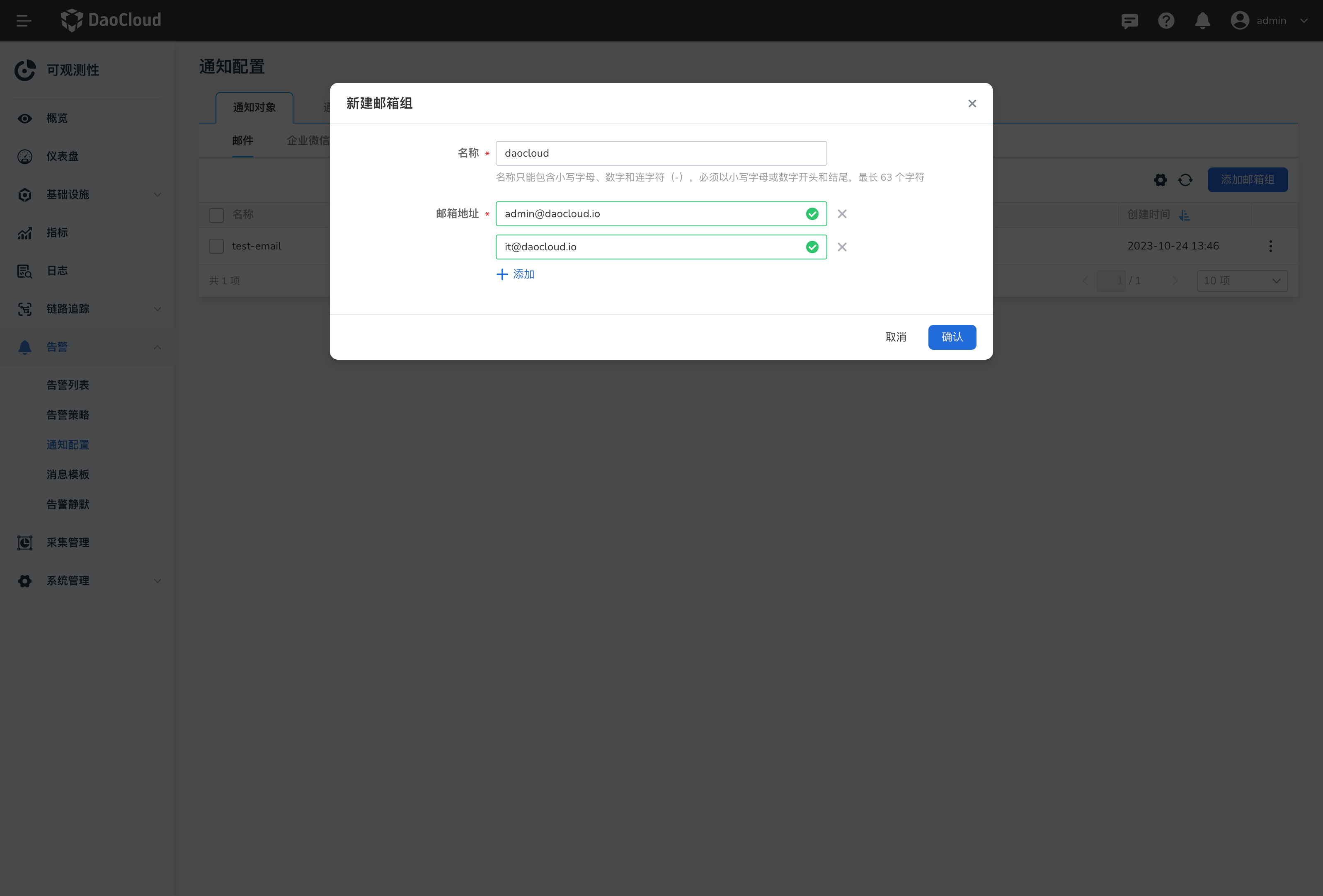
Click Add email group and add one or more email addresses.
-
After the configuration is complete, the notification list will automatically return. Click ┇ on the right side of the list to edit or delete the email group.
WeCom
-
In the left navigation bar, click Alert Center -> Notification Settings -> WeCom.
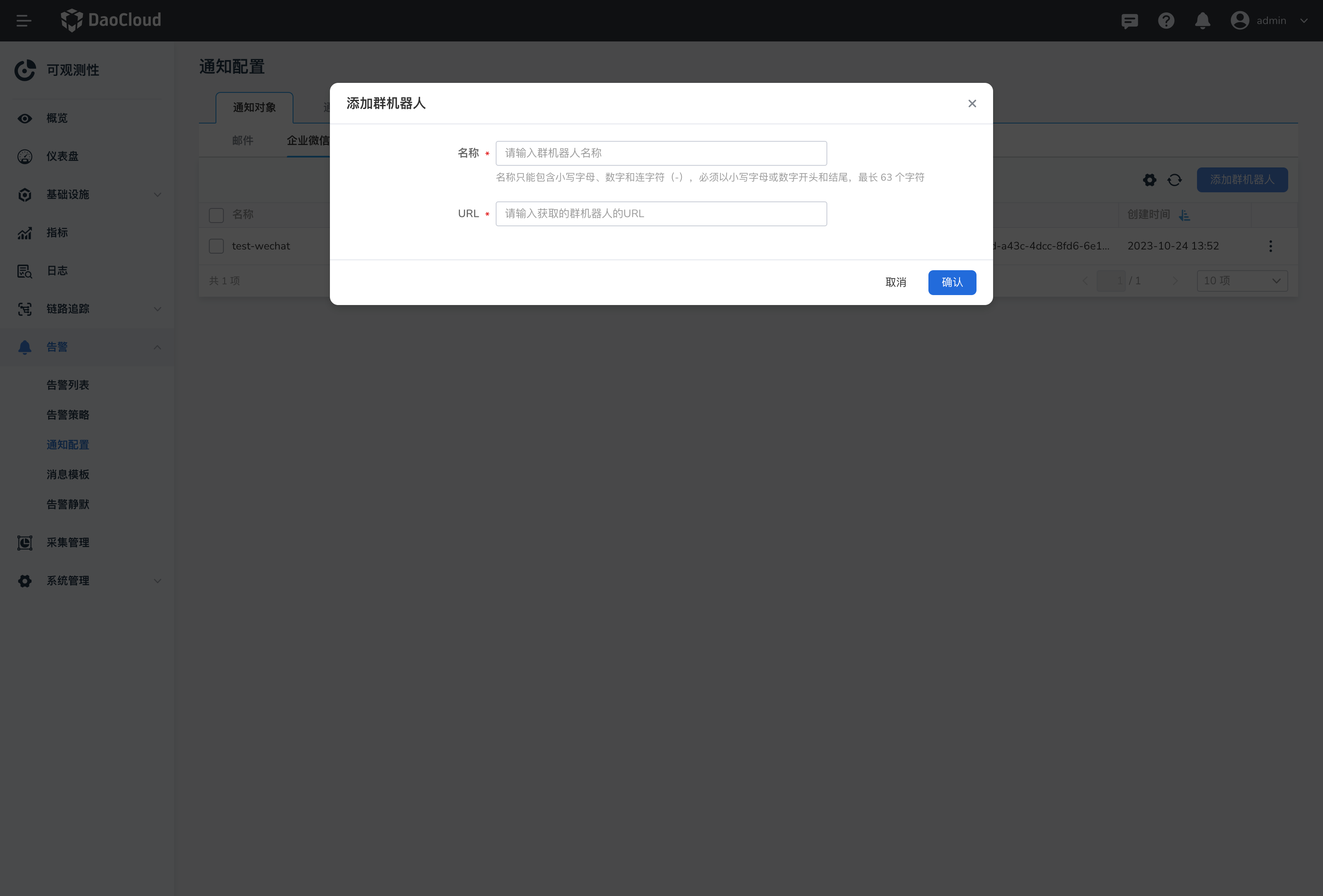
For the URL of the WeCom group robot, please refer to the official document of WeCom: How to use group robots.
-
Click Add Group Robot and add one or more group robots.
-
After the configuration is complete, the notification list will automatically return. Click ┇ on the right side of the list, select Send Test Information, and you can also edit or delete the group robot.
DingTalk
-
In the left navigation bar, click Alert Center -> Notification Settings -> DingTalk. Click Add Group Robot and add one or more group robots.

For the URL of the DingTalk group robot, please refer to the official document of DingTalk: Custom Robot Access.
Note
The signature method is a two-way security authentication between the DingTalk robot and the developer. If signature verification is enabled when creating the DingTalk robot, you need to enter the key generated by DingTalk here. Refer to DingTalk Custom Robot Security Settings.
-
After the configuration is complete, the notification list will automatically return. Click ┇ on the right side of the list, select Send Test Information, and you can also edit or delete the group robot.
Lark
-
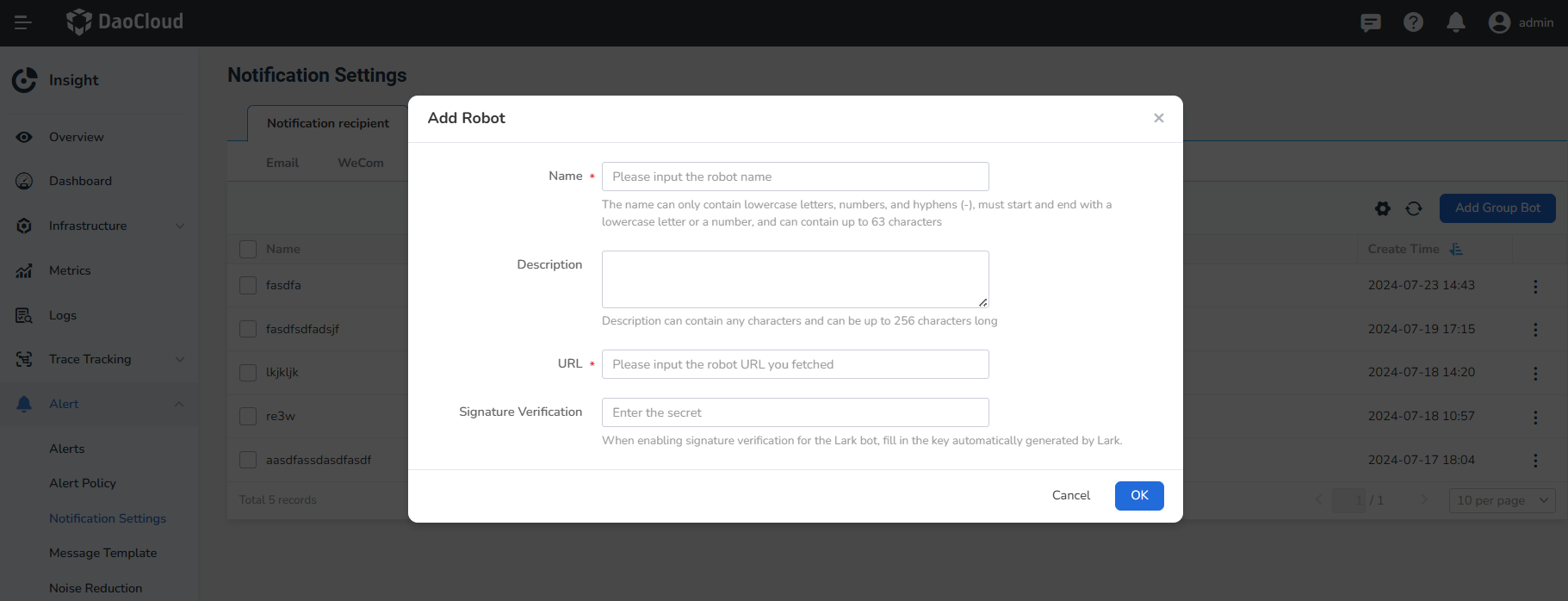
In the left navigation bar, click Alert Center -> Notification Settings -> Lark. Click Add Group Bot and add one or more group bots.
Note
When signature verification is enabled for the Lark group bot, you need to fill in the corresponding signature key when adding a Lark notification. Please refer to the Customizing Bot User Guide.
-
After configuration, you will be automatically redirected to the list page. Click ┇ on the right side of the list and select Send Test Message. You can edit or delete group bots.
Webhook
-
In the left navigation bar, click Alert Center -> Notification Settings -> Webhook.
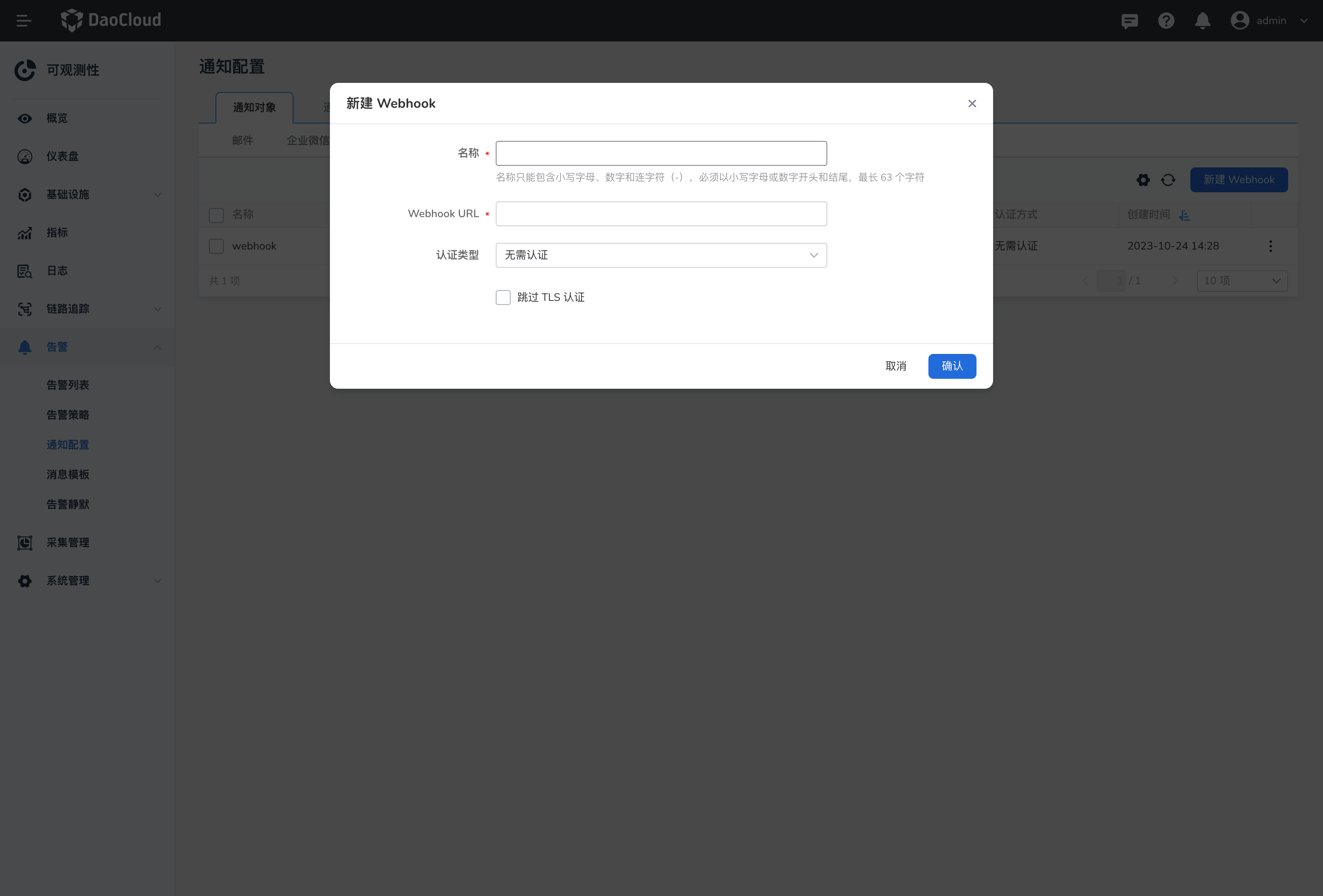
For the Webhook URL and more configuration methods, please refer to the webhook document.
-
Click New Webhook and add one or more Webhooks.

HTTP Headers: Optional. Set request headers. You can add multiple Headers.Note
For the Webhook URL and more configuration methods, please refer to the webhook document.
-
After the configuration is complete, the notification list will automatically return. Click ┇ on the right side of the list, select Send Test Information, and you can also edit or delete the Webhook.
Message
Note
Alert messages are sent to the personal message sector. Click the 🔔 icon at the top to view the notification messages.
-
In the left navigation bar, click Alert Center -> Notification Settings -> Message, and click Create.
- Message notifications allow adding multiple users.
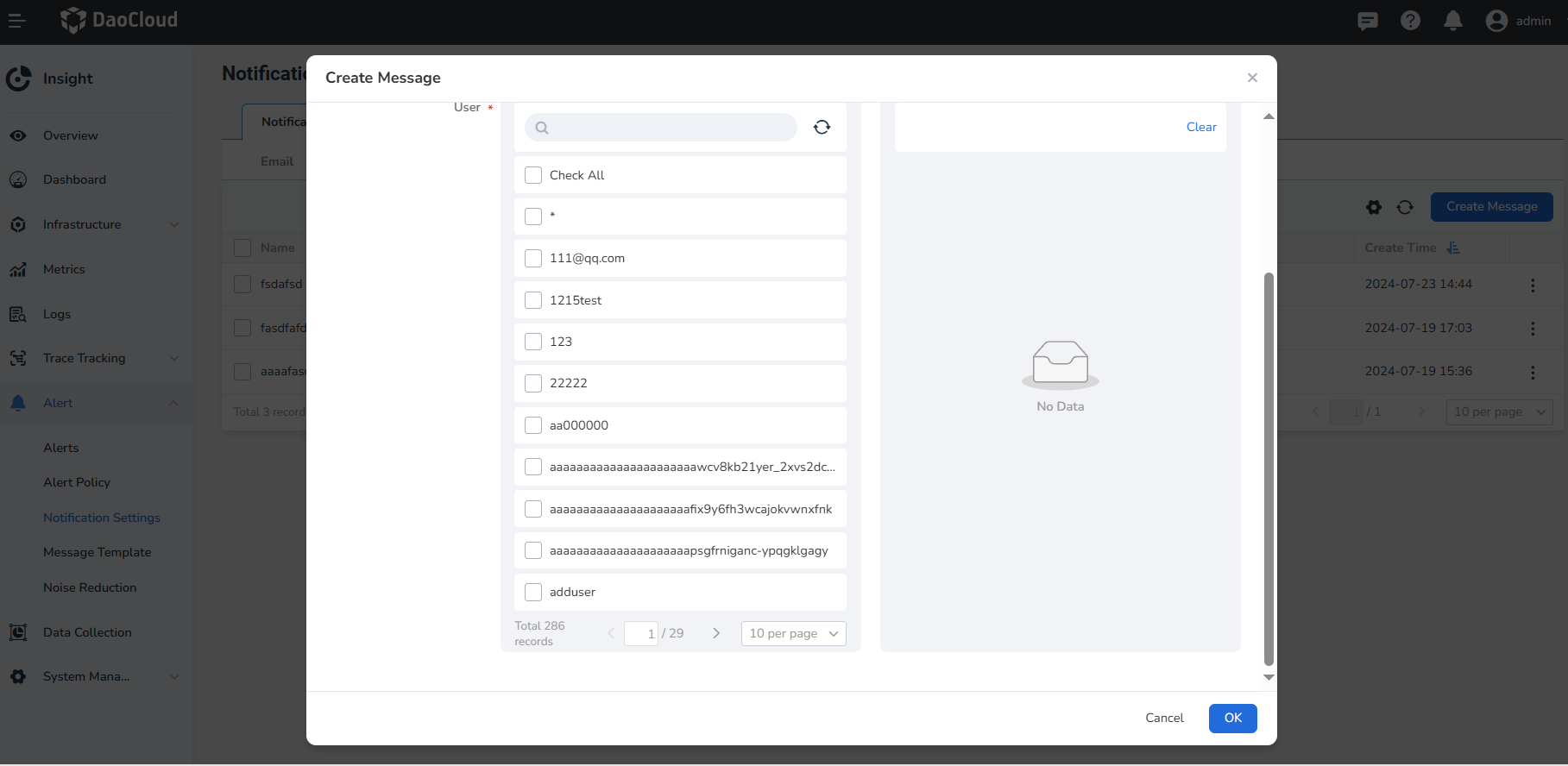
-
After configuration, you will be automatically redirected to the message notification list. Click ┇ on the right side of the list and select Send Test Message.
SMS Group
-
In the left navigation bar, click Alert Center -> Notification Settings -> SMS. Click Add SMS Group and add one or more SMS groups.

-
Enter the name, the object receiving the message, phone number, and notification server in the pop-up window.
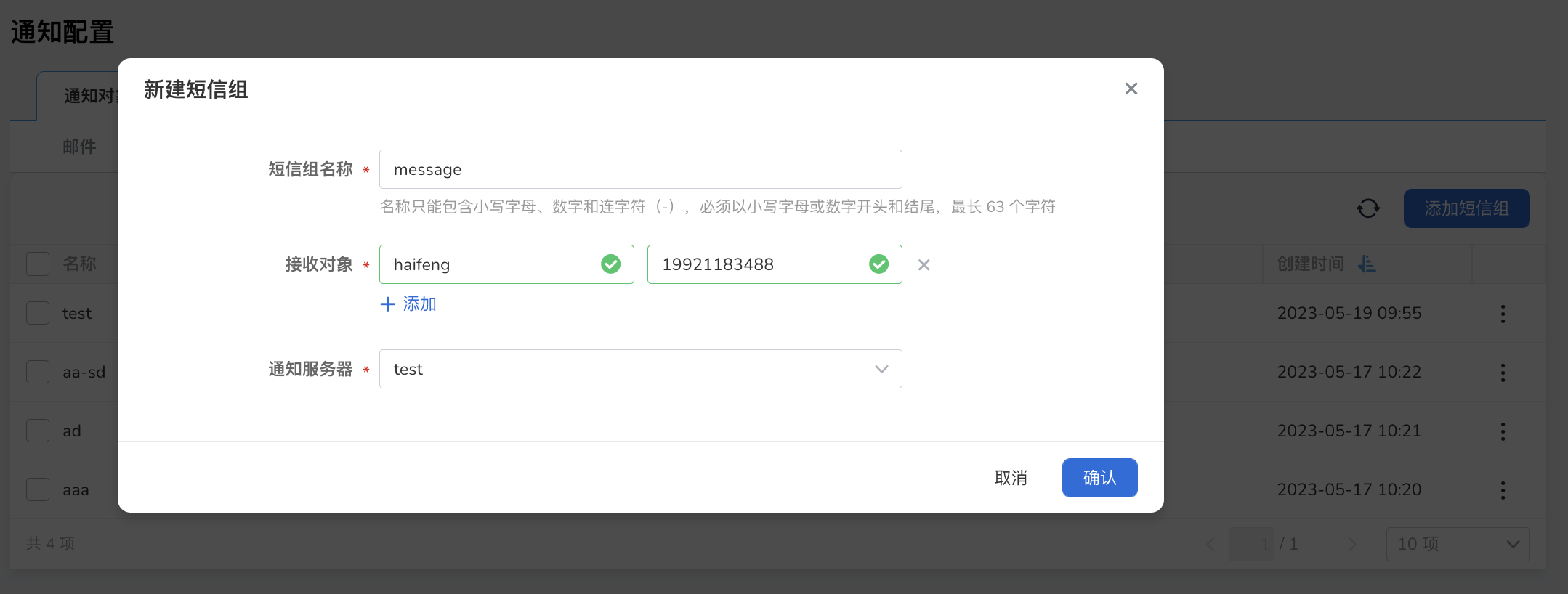
The notification server needs to be created in advance under Notification Settings -> Notification Server. Currently, two cloud servers, Alibaba Cloud and Tencent Cloud, are supported. Please refer to your own cloud server information for the specific configuration parameters.
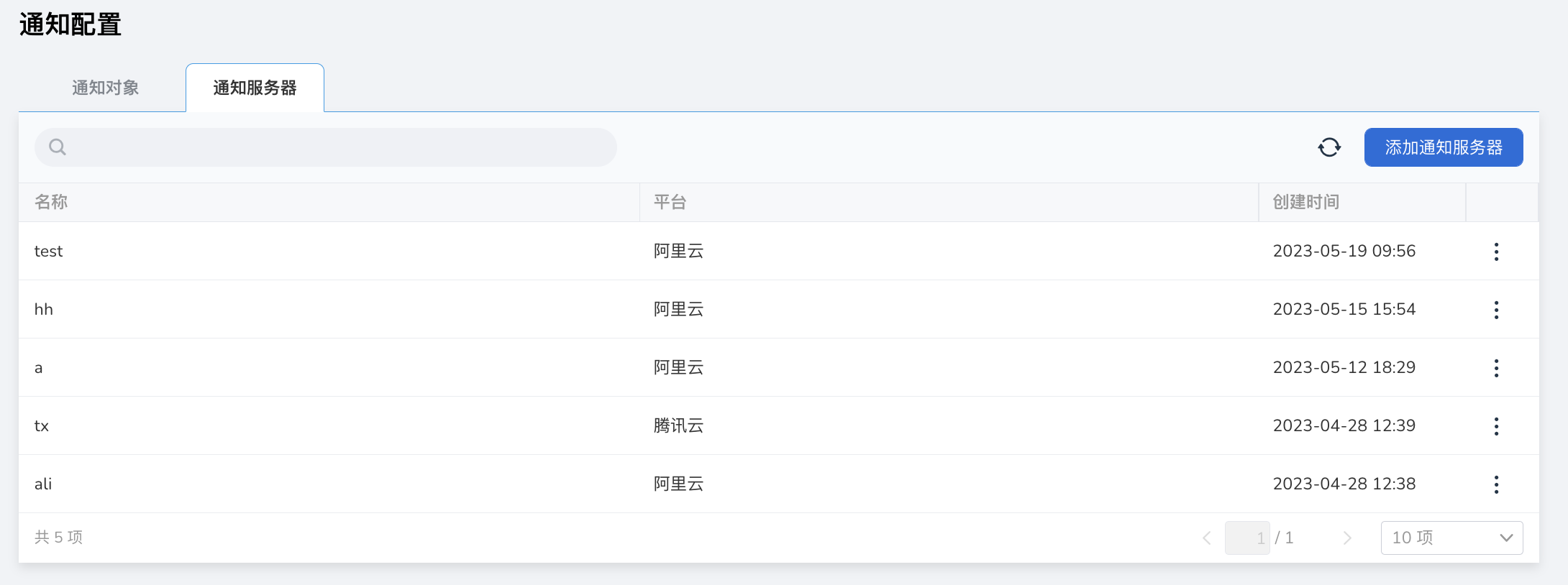
-
After the SMS group is successfully added, the notification list will automatically return. Click ┇ on the right side of the list to edit or delete the SMS group.