Upgrade Product Components
Upgrading product components includes upgrading functional modules and infrastructure modules.
- Functional modules consist of more than a dozen sub-modules, including Container Management, Global Management, Observability, and more. They mainly refer to the
componentssection in the manifest-cloud.yaml file. - Infrastructure modules specifically refer to the
infrastructuressection in the manifest-cloud.yaml file.
Warning
- Since the product contains many modules, it is recommended to upgrade components version by version using the installer. Do not skip multiple versions when upgrading!
- Upgrading Product components may overwrite your business data. Please back up your data first. This is important!
Prerequisites
- You need to have a proper cluster environment. See Offline Install d.run AI OS.
- Ensure that your bootstrap machine is still available.
- Confirm the target version you want to upgrade to. See Release Notes.
Offline Upgrade Procedure
This procedure demonstrates how to upgrade from v0.20.0 to v0.21.0.
Step 1: Download the Offline Package
You can download the latest version from the Download Center.
This document uses v0.21.0 as an example.
| CPU Architecture | Version | Download URL |
|---|---|---|
| AMD64 | v0.21.0 | https://qiniu-download-public.daocloud.io/DaoCloud_Enterprise/dce5/offline-v0.21.0-amd64.tar |
| ARM64 | v0.21.0 | https://qiniu-download-public.daocloud.io/DaoCloud_Enterprise/dce5/offline-v0.21.0-arm64.tar |
After downloading, extract the offline package. The following example uses the AMD64 offline package:
Step 2: Configure clusterConfig.yaml
Note
- Ensure that the cluster configuration file clusterConfig.yaml uses the same parameters as those used during installation.
- Currently, only the
builtinmode ofimagesAndChartshas been tested.
The file is located in the extracted offline package directory offline/sample. The following is an example configuration:
apiVersion: provision.daocloud.io/v1alpha4
kind: ClusterConfig
metadata:
spec:
  clusterName: my-cluster
  loadBalancer:
    type: metallb
    istioGatewayVip: 172.30.**.**/32
    insightVip: 172.30.**.**/32
  masterNodes:
    - nodeName: "g-master1"
      ip: 172.30.**.**
      ansibleUser: "root"
      ansiblePass: "*****"
  workerNodes:
    - nodeName: "g-worker1"
      ip: 172.30.**.**
      ansibleUser: "root"
      ansiblePass: "*****"
    - nodeName: "g-worker2"
      ip: 172.30.**.**
      ansibleUser: "root"
      ansiblePass: "*****"

  fullPackagePath: "/home/installer/offline"
  osRepos:
    type: builtin
    isoPath: "/home/installer/CentOS-7-x86_64-DVD-2207-02.iso"
    osPackagePath: "/home/installer/os-pkgs-centos7-v0.4.4.tar.gz"
  imagesAndCharts:
    type: builtin

  addonPackage:
  binaries:
    type: builtin  # (1)!
official-service(if omitted or empty),builtin, orexternal
Step 3: Configure manifest-cloud.yaml (Optional)
The file is located in the extracted offline package directory offline/sample.
Configure Product Functional Modules
The functional modules specifically refer to the components section in the manifest-cloud.yaml file.
If some product components do not need to be upgraded, you can disable them under the corresponding component configuration. With the following configuration, Kpanda (Container Management) will not be upgraded during the update:
Configure Infrastructure Modules
Infrastructure modules specifically refer to the infrastructures section in the manifest-cloud.yaml file. The following configuration enables the hwameiStor component in the infrastructure modules:
  infrastructures:
    hwameiStor:
      enable: true
      version: v0.10.4
      policy: drbd-disabled
Step 4: Start Upgrade
Upgrade Functional Modules
Note
If the upgraded component depends on a database, you need to create database information before running the upgrade command. Follow these steps:
- Confirm that the newly added product components in the manifest are enabled.
-
Run the following command to execute Step 11:
Run the upgrade command:
./offline/dce5-installer cluster-create -c ./offline/sample/clusterConfig.yaml -m ./offline/sample/manifest-cloud.yaml --upgrade gproduct
Upgrade Infrastructure Modules
Run the upgrade command:
./offline/dce5-installer cluster-create -c ./offline/sample/clusterConfig.yaml -m ./offline/sample/manifest-cloud.yaml --upgrade infrastructure
Upgrade
Run the upgrade command:
./offline/dce5-installer cluster-create --help

provision DaoCloud 5.0 clusters and install software stacks

Usage:
  dce5-installer cluster-create [flags]

Flags:
  -c, --clusterConfig string   The cluster config file
  -y, --dry-run                Dump installer scripts only
  -h, --help                   help for cluster-create
  -m, --manifest string        manifest BOM file
      --max-tasks int          Controls the maximum number of concurrent tasks. Must be positive number. (default 4)
      --multi-arch             Whether to use the multi-arch image import mode.
      --serial                 Disable concurrent run
  -u, --upgrade string         Choose the component which you want to upgrade, for example  tinder,cluster,infrastructure,hwameistor,middleware,gproduct,addon .

Global Flags:
  -s, --customized-script string   (Optional)Your override script path
  -d, --debug                      Enable debug output
  -l, --logfile string             The installation log to be dump (default "/var/log/dce5.log")
  -z, --minimized-replicas         Whether to minimized all components replicas as small as possible.
  -j, --steps string               (Optional)Debug Only, to specific a range of steps to be executed(format, 2+;  1,2,4; 3 ) (default "1+")
  -t, --tinder-host-ip string      (Optional)The desired host IP on tinder node if it is not on default route.

./offline/dce5-installer cluster-create -c ./offline/sample/clusterConfig.yaml -m ./offline/sample/manifest-cloud.yaml --upgrade infrastructure,gproduct
Upgrade parameter descriptions:
install-apporcluster-createindicates the installation mode. If the original environment was installed usingcluster-create, use the same command for upgrades.-
--upgradecan be abbreviated as-u. The following upgrade targets are currently supported:- Functional modules (
gproduct) - Infrastructure modules (
infrastructure) - Local storage module (
hwameistor)
- Functional modules (
-
To upgrade both product functional modules and infrastructure modules together, specify
--upgrade infrastructure,gproduct. - Starting from installer v0.12.0, the
--multi-archparameter is supported. When multiple architecture images exist in the current environment, adding this parameter during the upgrade process prevents overwriting existing multi-architecture images.
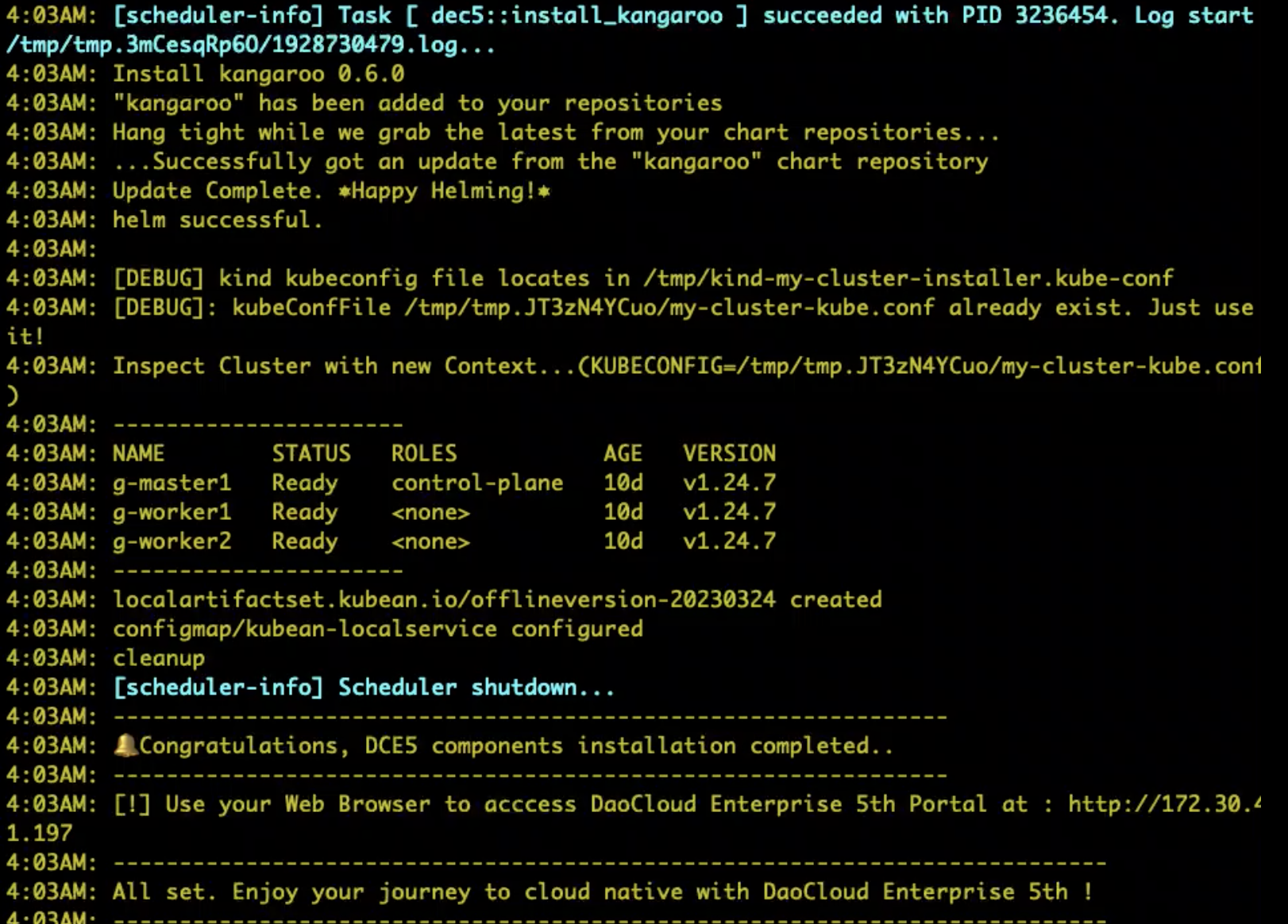
Step 5: Upgrade Successful Message
Note
For d.run AI OS, use the product manifest -m ./offline/sample/manifest-cloud.yaml. If the upgrade fails because the DCE manifest.yaml was used, switch to this manifest and run the command again.