Use Ascend NPU
This section explains how to use Ascend NPU on the DCE platform.
Prerequisites
- The current NPU node has the Ascend driver installed.
- The current NPU node has the Ascend-Docker-Runtime component installed.
- The NPU MindX DL suite is installed on the current cluster.
- No virtualization is performed on the NPU card in the current cluster, and it is not occupied by other applications.
Refer to the Ascend NPU Component Installation Document to install the basic environment.
Quick Start
This document uses the AscentCL Image Classification Application example from the Ascend sample library.
-
Download the Ascend repository
Run the following command to download the Ascend demo repository, and remember the storage location of the code for subsequent use.
-
Prepare the base image
This example uses the Ascent-pytorch base image, which can be obtained from the Ascend Container Registry.
-
Prepare the YAML file
ascend-demo.yamlapiVersion: batch/v1 kind: Job metadata: name: resnetinfer1-1-1usoc spec: template: spec: containers: - image: ascendhub.huawei.com/public-ascendhub/ascend-pytorch:23.0.RC2-ubuntu18.04 # Inference image name imagePullPolicy: IfNotPresent name: resnet50infer securityContext: runAsUser: 0 command: - "/bin/bash" - "-c" - | source /usr/local/Ascend/ascend-toolkit/set_env.sh && TEMP_DIR=/root/samples_copy_$(date '+%Y%m%d_%H%M%S_%N') && cp -r /root/samples "$TEMP_DIR" && cd "$TEMP_DIR"/inference/modelInference/sampleResnetQuickStart/python/model && wget https://obs-9be7.obs.cn-east-2.myhuaweicloud.com/003_Atc_Models/resnet50/resnet50.onnx && atc --model=resnet50.onnx --framework=5 --output=resnet50 --input_shape="actual_input_1:1,3,224,224" --soc_version=Ascend910 && cd ../data && wget https://obs-9be7.obs.cn-east-2.myhuaweicloud.com/models/aclsample/dog1_1024_683.jpg && cd ../scripts && bash sample_run.sh resources: requests: huawei.com/Ascend910: 1 # Number of the Ascend 910 Processors limits: huawei.com/Ascend910: 1 # The value should be the same as that of requests volumeMounts: - name: hiai-driver mountPath: /usr/local/Ascend/driver readOnly: true - name: slog mountPath: /var/log/npu/conf/slog/slog.conf - name: localtime # The container time must be the same as the host time mountPath: /etc/localtime - name: dmp mountPath: /var/dmp_daemon - name: slogd mountPath: /var/slogd - name: hbasic mountPath: /etc/hdcBasic.cfg - name: sys-version mountPath: /etc/sys_version.conf - name: aicpu mountPath: /usr/lib64/aicpu_kernels - name: tfso mountPath: /usr/lib64/libtensorflow.so - name: sample-path mountPath: /root/samples volumes: - name: hiai-driver hostPath: path: /usr/local/Ascend/driver - name: slog hostPath: path: /var/log/npu/conf/slog/slog.conf - name: localtime hostPath: path: /etc/localtime - name: dmp hostPath: path: /var/dmp_daemon - name: slogd hostPath: path: /var/slogd - name: hbasic hostPath: path: /etc/hdcBasic.cfg - name: sys-version hostPath: path: /etc/sys_version.conf - name: aicpu hostPath: path: /usr/lib64/aicpu_kernels - name: tfso hostPath: path: /usr/lib64/libtensorflow.so - name: sample-path hostPath: path: /root/samples restartPolicy: OnFailureSome fields in the above YAML need to be modified according to the actual situation:
- atc ... --soc_version=Ascend910 uses Ascend910, adjust this field depending on your actual situation. You can use the npu-smi info command to check the GPU model and add the Ascend prefix.
- samples-path should be adjusted according to the actual situation.
- resources should be adjusted according to the actual situation.
-
Deploy a Job and check its results
Use the following command to create a Job:
Check the Pod running status:

After the Pod runs successfully, check the log results. The key prompt information on the screen is shown in the figure below. The Label indicates the category identifier, Conf indicates the maximum confidence of the classification, and Class indicates the belonging category. These values may vary depending on the version and environment, so please refer to the actual situation:
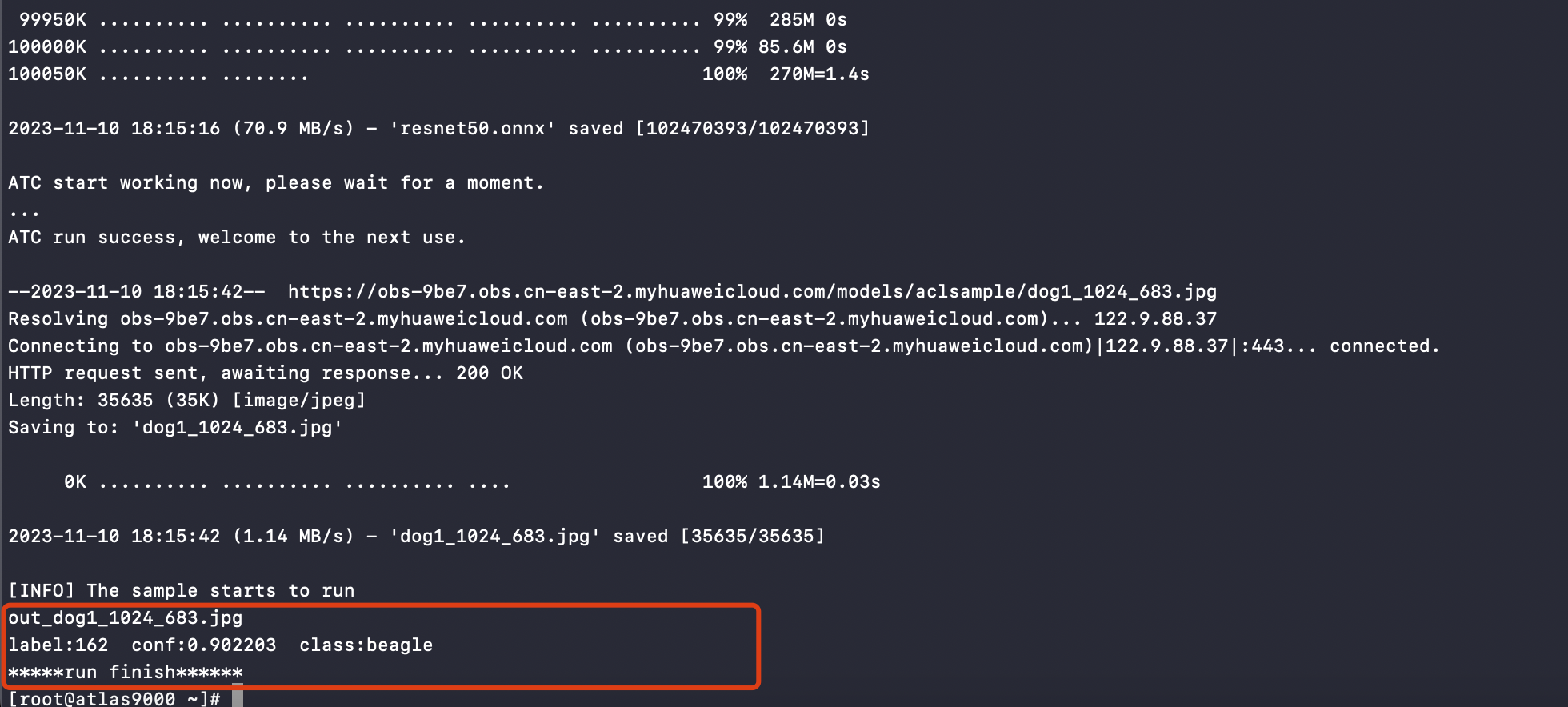
Result image display:

UI Usage
-
Confirm whether the cluster has detected the GPU card. Click Clusters -> Cluster Settings -> Addon Plugins , and check whether the proper GPU type is automatically enabled and detected. Currently, the cluster will automatically enable GPU and set the GPU type to Ascend .
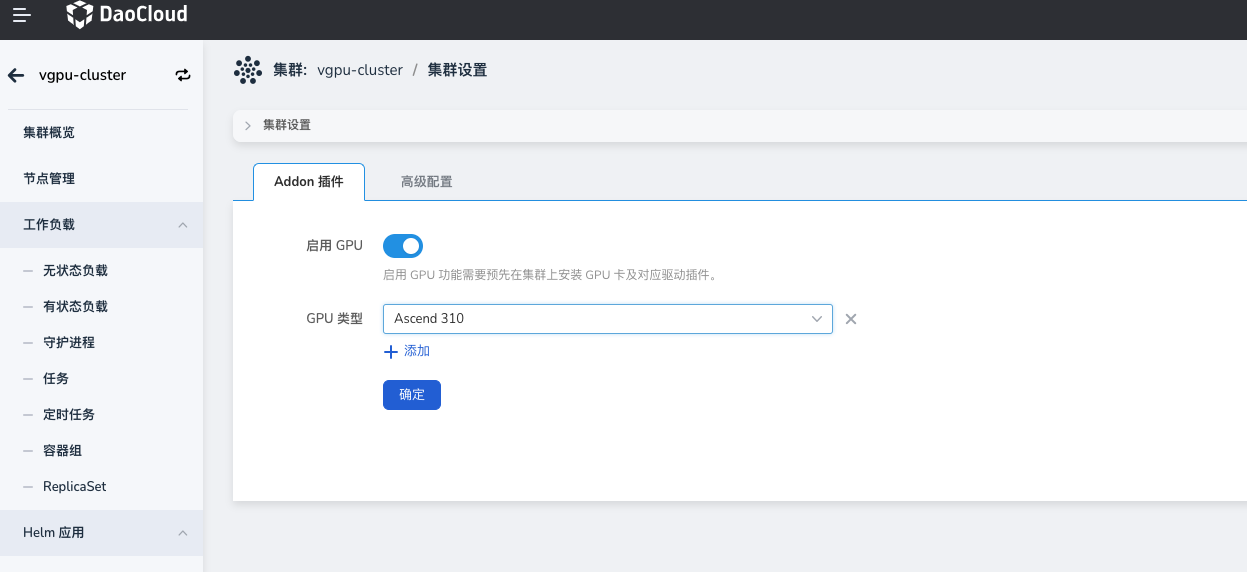
-
Deploy the workload. Click Clusters -> Workloads , deploy the workload through an image, select the type (Ascend), and then configure the number of physical cards used by the application:
Number of Physical Cards (huawei.com/Ascend910) : This indicates how many physical cards the current Pod needs to mount. The input value must be an integer and less than or equal to the number of cards on the host.
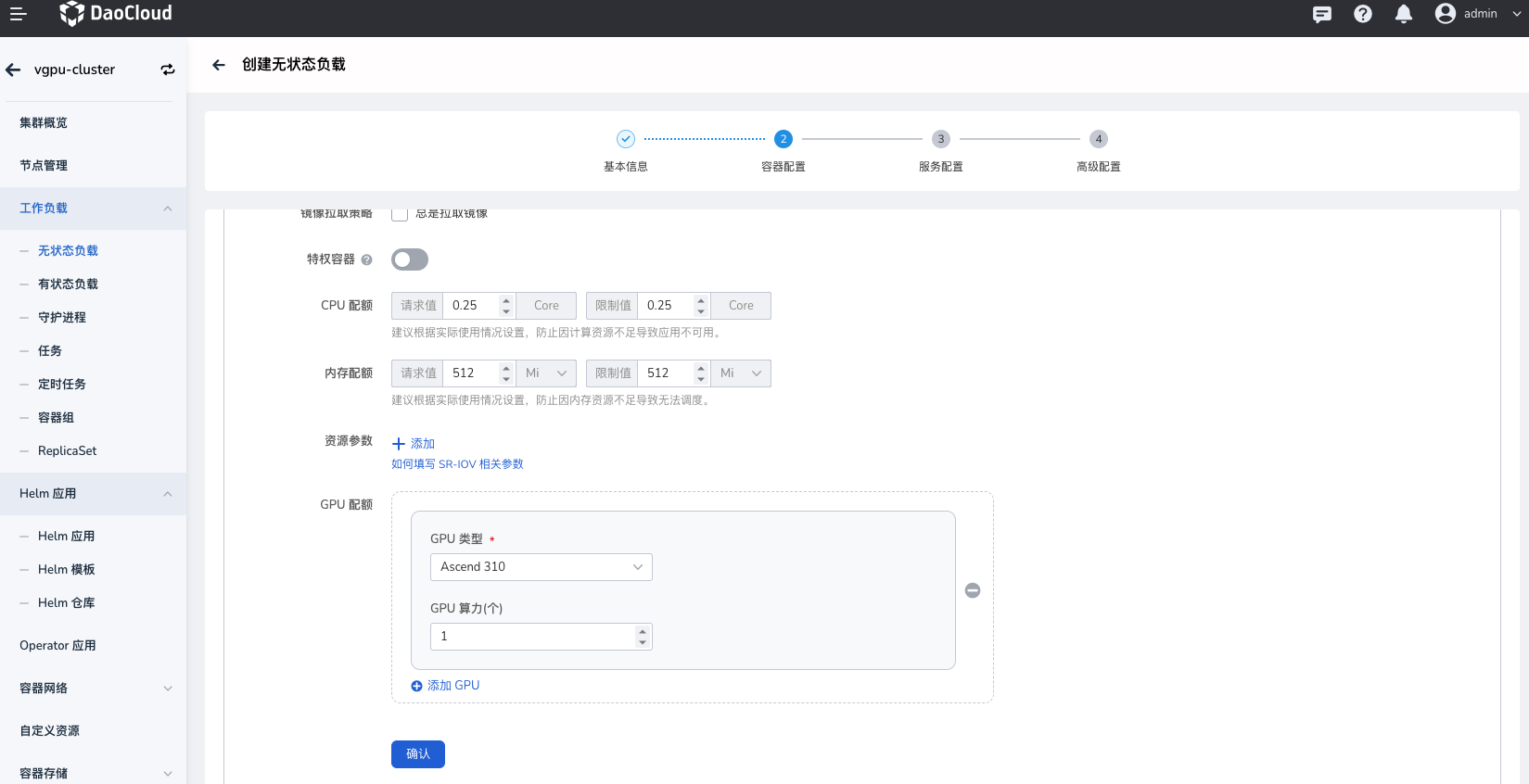
If there is an issue with the above configuration, it will result in scheduling failure and resource allocation issues.