Train Models in AI Lab - User
The previous tutorials use ready-made models from the Model Gallery. To train models with your own data and code, use AI Lab for the complete workflow of dataset management, Notebook debugging, and distributed training. This tutorial walks through the minimal pipeline with a Tensorflow training job on Fashion-MNIST.
Prerequisites
- A work cluster with GPU nodes has been created. See Create a Work Cluster.
- Sign in to the console with a user who has the AI Lab role, and the workspace is bound to a namespace.
- A StorageClass with
ReadWriteManyaccess mode (NFS or JuiceFS recommended) exists in the cluster for dataset mounting.
Note
AI Lab (baize) is enabled in the manifest by default. If the module is not shown in the console, see Install AI Lab.
Steps
-
Prepare datasets: in Data Management -> Datasets, click Create and create three datasets:
Dataset Purpose Data Source Training code Store the training script tensorflow/tf-fashion-mnist-sample(sample repo)Training data The Fashion-MNIST dataset github.com/zalandoresearch/fashion-mnist Empty dataset (PVC) Store training artifacts Empty source; the PVC is provisioned by the platform -
Prepare the environment: create a CONDA environment in Environment Dependencies with Tensorflow preinstalled. After the environment is warmed up, it can be mounted into Notebooks and training jobs without building images:
-
Debug the script in a Notebook:
- Click Create in Notebooks, associate the three datasets (mount paths follow the hints on the creation page) and bind the Tensorflow environment.
-
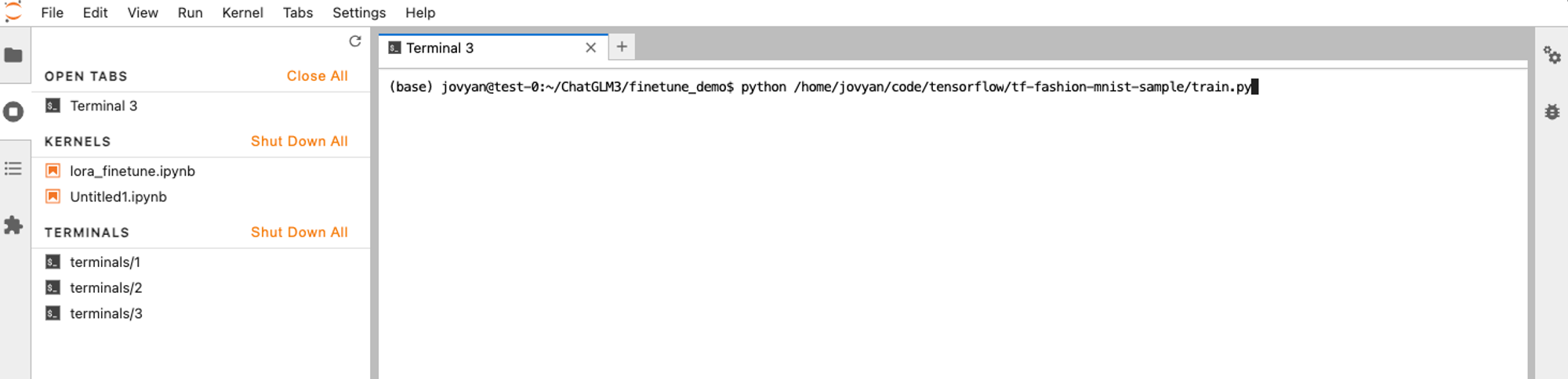
After the Notebook is created, open it from the access address in the list and run the following command in the terminal:
-
Submit a training job:
-
Create a single-node Tensorflow job under Job Center -> Training Jobs. Use the default image and the following command:
-
Enable Job Analysis (Tensorboard) in the advanced settings and click OK to submit.
-
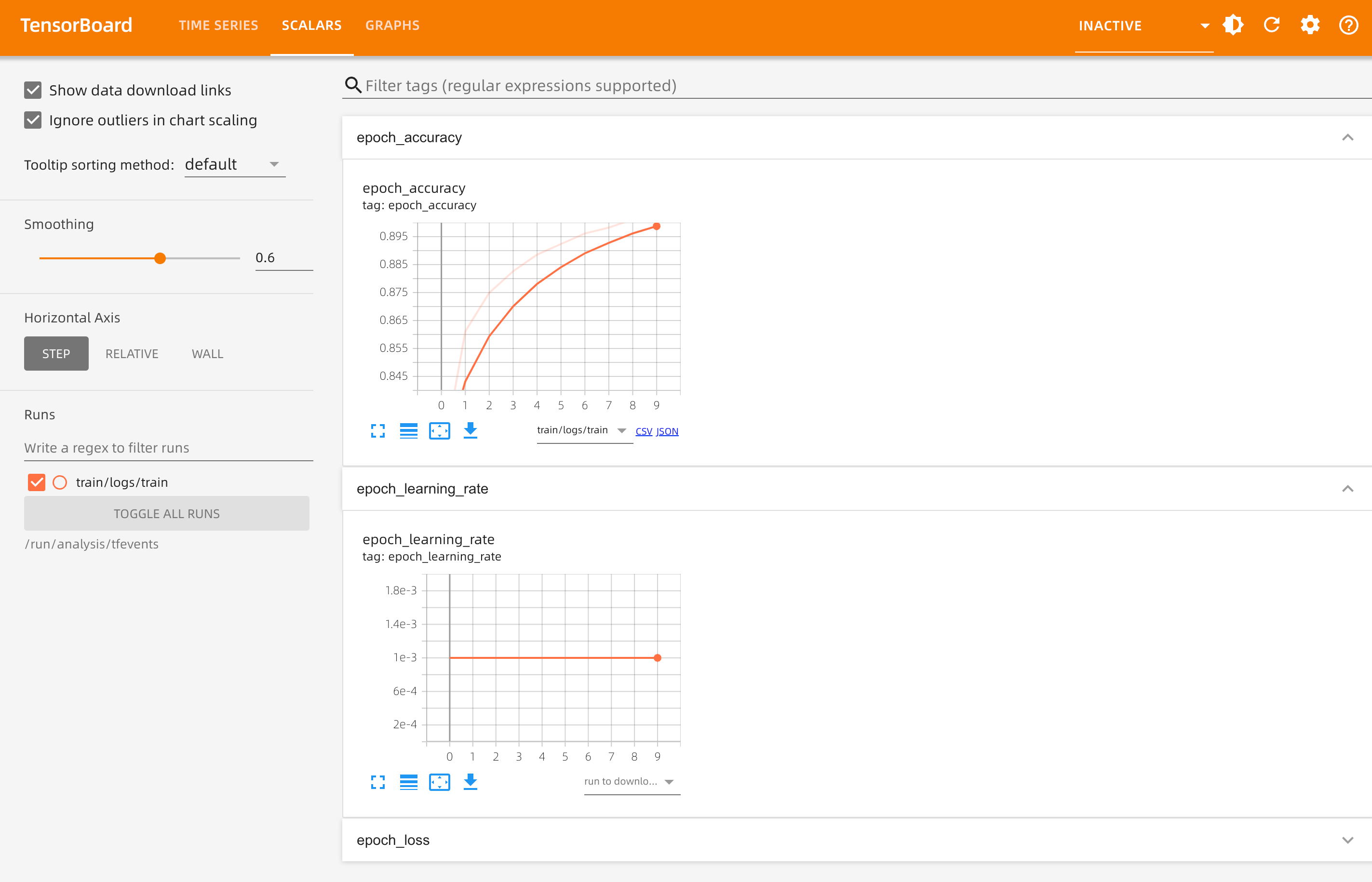
When the job status changes to Succeeded, view the training curves and tune the job under Job Analysis in the left navigation.
-
Verify
The training job is Succeeded, the Loss/Accuracy curves are visible in Job Analysis, and the output dataset contains the model and logs, which means the training pipeline works end to end.
Next step
To publish the trained model as an inference service, see Create Model and then deploy it in LLM Studio. For the complete usage of Notebooks (SSH access, idle shutdown, etc.), see Create Notebook and Create Job.