Using OEM Before Installation
Configure Images and Text
Create the directory structure manually as shown in the following image:
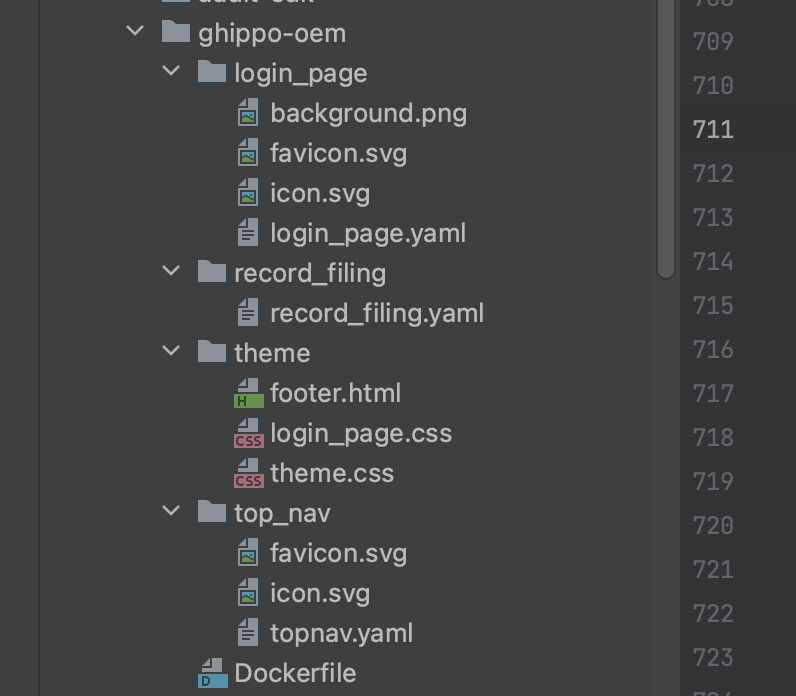
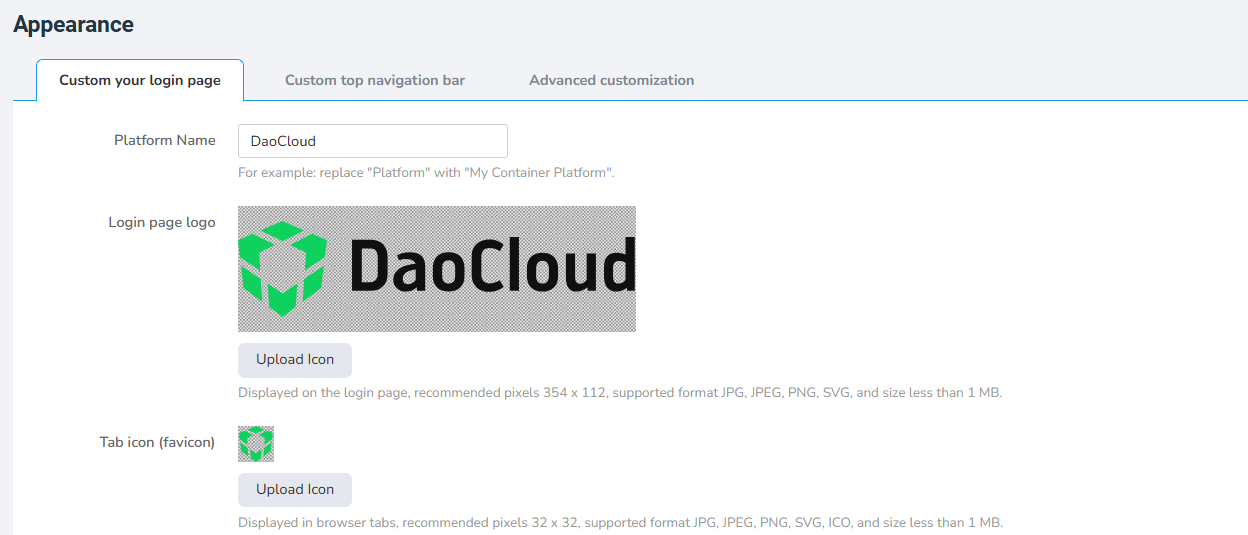
The files in login_page correspond to the OEM settings for the login page.
If no configuration is required, the files in record_filing (copyright information) and theme (custom styles) can be empty, but the files must still be created.
The files in top_nav correspond to the top navigation bar settings.
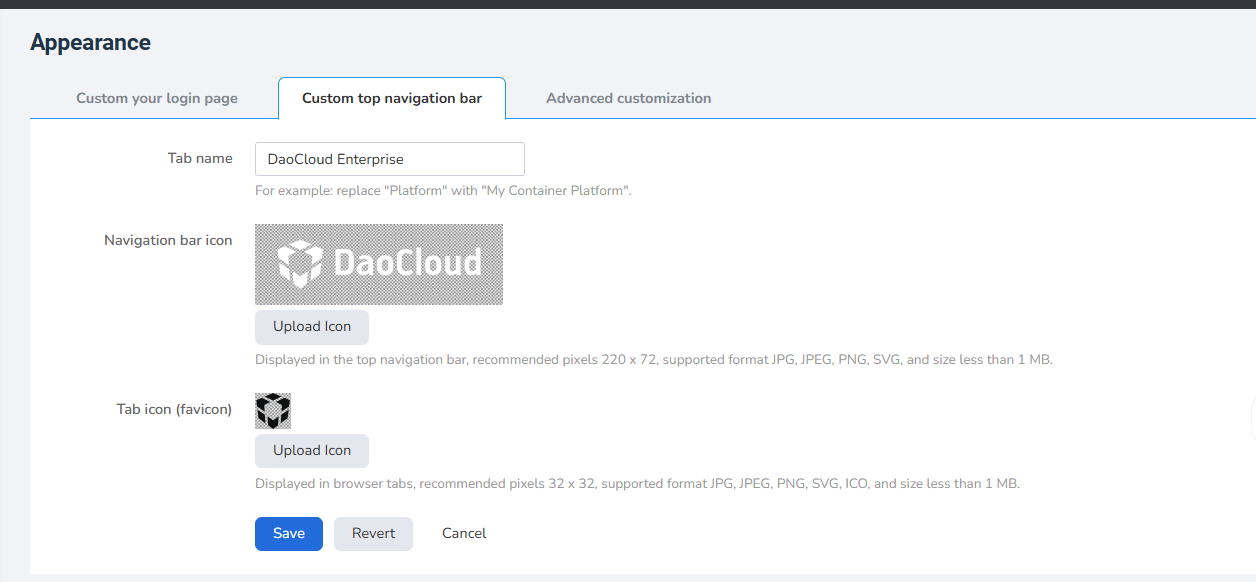
login_page/favicon.*: browser tab icon.login_page/icon.*: login page icon.top_nav/favicon.*: browser tab icon.top_nav/icon.*: top navigation bar icon.
The icon filenames must not be changed. They must use the favicon.* and icon.* prefixes. Supported file types include svg, jpg, and png.
Modify the corresponding values in the .yaml files to configure the text.
record_filing:
enabled: false
icp:
  copyright: "© 2009-2023 daocloud.com All rights reserved"
  names:
    - name: "Shanghai A2-20080101"
      link: false
police:
  - name: "Shanghai B2-20080101-4"
    link: false
topnav.yaml:
login_page.yaml:
Dockerfile:
Build and Push the Image
After completing the above steps, run the following commands to build the image. Replace xxx with the image registry currently in use, then push the image to the registry:
Ghippo Installation Parameters
Set --set apiserver.oem.enabled=true to enable OEM.
Configure the OEM image address with the following parameters:
--set apiserver.oem.image.registry: configure the image registry.--set apiserver.oem.image.repository: configure the image repository.--set apiserver.oem.image.tag: configure the image tag.
These parameters must match the image that was built. Follow the Ghippo installation process to complete the OEM configuration.
Using Istio to Implement the Nginx Subpath Function
Istio does not support the Subpath function itself, but Subpath can be implemented through an EnvoyFilter CRD.
Modify the YAML file below and replace /mysubpath with the required path, for example /dce5:
apiVersion: networking.istio.io/v1alpha3
kind: EnvoyFilter
metadata:
  name: subpath-envoy-filter
  namespace: istio-system
spec:
  workloadSelector:
    labels:
      istio: ingressgateway
  configPatches:
    - applyTo: HTTP_FILTER
      match:
        context: GATEWAY
        listener:
          filterChain:
            filter:
              name: envoy.filters.network.http_connection_manager
              subFilter:
                name: envoy.filters.http.router
      patch:
        operation: INSERT_BEFORE
        value:
          name: envoy.lua
          typed_config:
            "@type": type.googleapis.com/envoy.extensions.filters.http.lua.v3.Lua
            inlineCode: |-
              function envoy_on_request(request_handle)
                local path = request_handle:headers():get(":path")
                local mysubpath = "/mysubpath"
                if string.sub(path,1,string.len(mysubpath)) ~= mysubpath then
                    return
                end
                local _, _, rest = string.find(path, "/[^/]+/(.*)")
                if rest then
                  request_handle:headers():replace(":path", "/" .. rest)
                end
              end
---
apiVersion: security.istio.io/v1beta1
kind: AuthorizationPolicy
metadata:
  name: mysubpath
  namespace: istio-system
spec:
  rules:
    - to:
        - operation:
            paths:
              - /mysubpath*
    - from:
        - source:
            requestPrincipals:
              - "*"
  selector:
    matchLabels:
      app: istio-ingressgateway
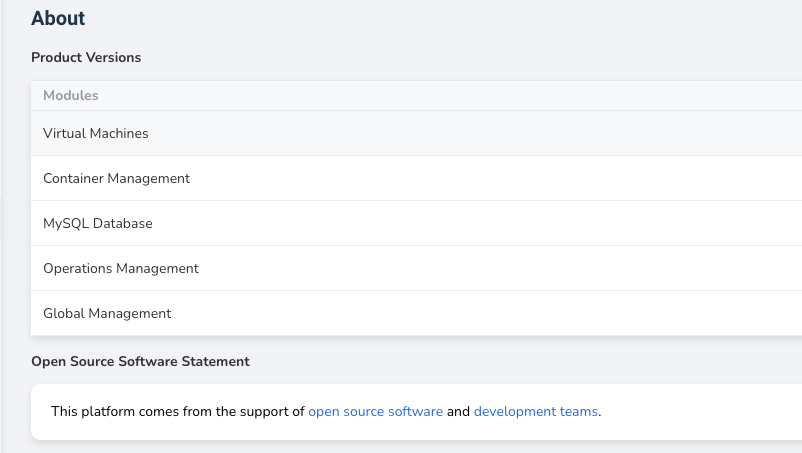
Hiding “About - Technical Team”
During Ghippo installation, set global.enabledComponents.developers to false to hide “Technical Team” from the “About” page.