Global Management FAQs
This page collects troubleshooting ideas and solutions for common issues encountered while using Global Management (Ghippo).
istio-ingressgateway cannot start after restarting the cluster (virtual machine)
The error message is as shown in the following image:

Possible cause:
The jwtsUri address of the RequestAuthentication CR cannot be accessed, causing istiod to be unable to push the configuration to istio-ingressgateway (This bug can be avoided in Istio 1.15: istio/istio#39341).
Solution:
-
Back up the RequestAuthentication ghippo CR.
-
Delete the RequestAuthentication ghippo CR.
-
Restart Istio.
-
Reapply the RequestAuthentication ghippo CR.
Warning
Before applying the RequestAuthentication ghippo CR, make sure that ghippo-apiserver and ghippo-keycloak are started correctly.
Infinite login loop with a 401 or 403 error
Possible cause:
The MySQL database connected to ghippo-keycloak has failed, causing OIDC Public keys to be reset.
In Global Management v0.11.1 and later versions, follow the steps below to restore normal operation using helm to update the Global Management configuration file.
# Update the Helm repository
helm repo update ghippo

# Back up the ghippo parameters
helm get values ghippo -n ghippo-system -o yaml > ghippo-values-bak.yaml

# Get the version of the currently deployed ghippo
version=$(helm get notes ghippo -n ghippo-system | grep "Chart Version" | awk -F ': ' '{ print $2 }')

# Run the update so that the configuration file takes effect
helm upgrade ghippo ghippo/ghippo \
  -n ghippo-system \
  -f ./ghippo-values-bak.yaml \
  --version ${version}
Keycloak cannot start
MySQL is ready with no errors reported. After Global Management is installed, Keycloak cannot start (restarted more than 10 times).

Checks:
- If the database is MySQL, check whether the keycloak database character encoding is UTF8.
- Check the network from Keycloak to the database, and check whether database resources are sufficient, including but not limited to resource limits, storage space, and physical machine resources.
Solution:
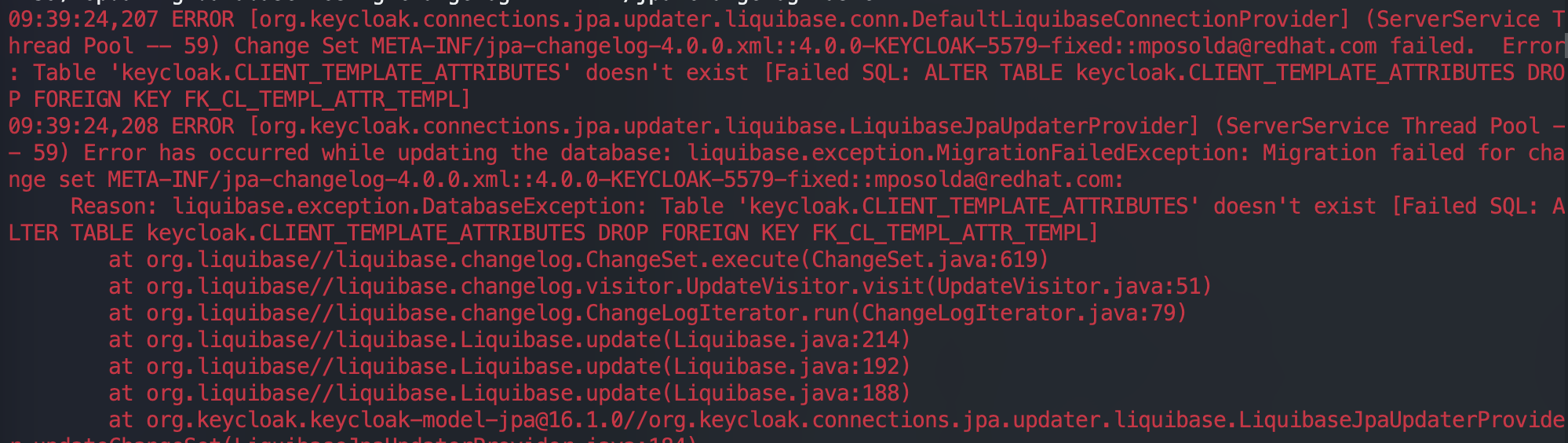
- Check whether MySQL resource usage has reached the limit.
- Check whether the number of tables in the keycloak database in MySQL is 95. (The number of Keycloak database tables may vary across versions. You can compare it with the number of Keycloak database tables in a development or test environment of the same version.) If the number is smaller, the database table initialization has failed (command to query the number of tables:
show tables;). -
Delete the keycloak database and recreate it:
-
Restart the Keycloak Pod to resolve the issue.
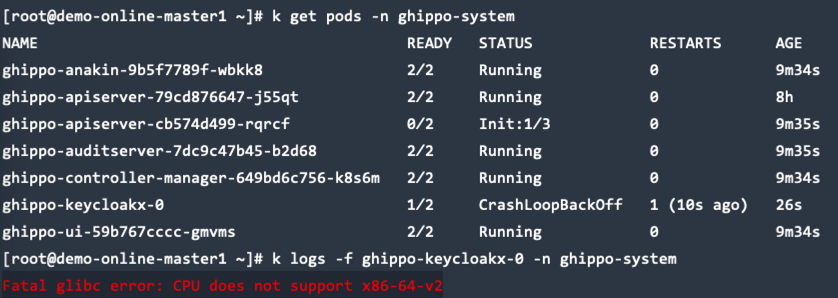
Keycloak cannot start and reports that the CPU does not support x86-64-v2
Keycloak cannot start normally, the keycloak pod status is CrashLoopBackOff, and the keycloak log shows the following message:
Checks:
Run the following check script to query the feature level of the x86-64 architecture of the current node CPU:
cat <<"EOF" > detect-cpu.sh
#!/bin/sh -eu

flags=$(cat /proc/cpuinfo | grep flags | head -n 1 | cut -d: -f2)

supports_v2='awk "/cx16/&&/lahf/&&/popcnt/&&/sse4_1/&&/sse4_2/&&/ssse3/ {found=1} END {exit !found}"'
supports_v3='awk "/avx/&&/avx2/&&/bmi1/&&/bmi2/&&/f16c/&&/fma/&&/abm/&&/movbe/&&/xsave/ {found=1} END {exit !found}"'
supports_v4='awk "/avx512f/&&/avx512bw/&&/avx512cd/&&/avx512dq/&&/avx512vl/ {found=1} END {exit !found}"'

echo "$flags" | eval $supports_v2 || exit 2 && echo "CPU supports x86-64-v2"
echo "$flags" | eval $supports_v3 || exit 3 && echo "CPU supports x86-64-v3"
echo "$flags" | eval $supports_v4 || exit 4 && echo "CPU supports x86-64-v4"
EOF

chmod +x detect-cpu.sh
sh detect-cpu.sh
Run the following command to view the features of the current CPU. If the output contains sse4_2, your processor supports SSE 4.2.
Solution:
You need to upgrade the CPU of your virtual machine or physical machine to support x86-64-v2 or later, and make sure the x86 CPU instruction set supports SSE 4.2. For how to upgrade, consult your virtual machine platform provider or physical machine provider.
See also: keycloak/keycloak#17290
A CRD not updated error appears when upgrading Global Management separately
If the upgrade failure includes the following message, refer to the "Update ghippo CRD" steps in Offline Upgrade to complete the CRD installation.
A database migration error appears when upgrading Global Management separately
Pod fails to start, and the following log message appears:
Cause:
The SQL migration fails due to issues such as abnormal environment conditions, inconsistent database state, or SQL syntax errors. The real database error message is only output the first time the Pod reports the failure; subsequent restarts will show the error above.
Solution:
- Log in to MySQL and select the database corresponding to the failed service (possible databases include
auditandghippo). -
Update the
dirtyfield in theschema_migrationstable: -
Restart the failed service.
-
If the SQL migration still fails after the restart, it may be due to an actual issue in the SQL statements. In this case, report a bug and contact the development team for resolution.