Create a flow control rule
The principle of the flow control rule is to monitor the QPS metric of application or service traffic. When the metric reaches the threshold, the traffic is controlled according to the preset rule, preventing application crashes due to excessive traffic processing in a short period of time. After the flow control rule is used, the system can gradually process the accumulated requests in the following idle period. When the metric falls below the threshold again, normal traffic request control is resumed.
Video tutorial: Sentinel Flow Control Rules
You can create a flow control rule as follows:
-
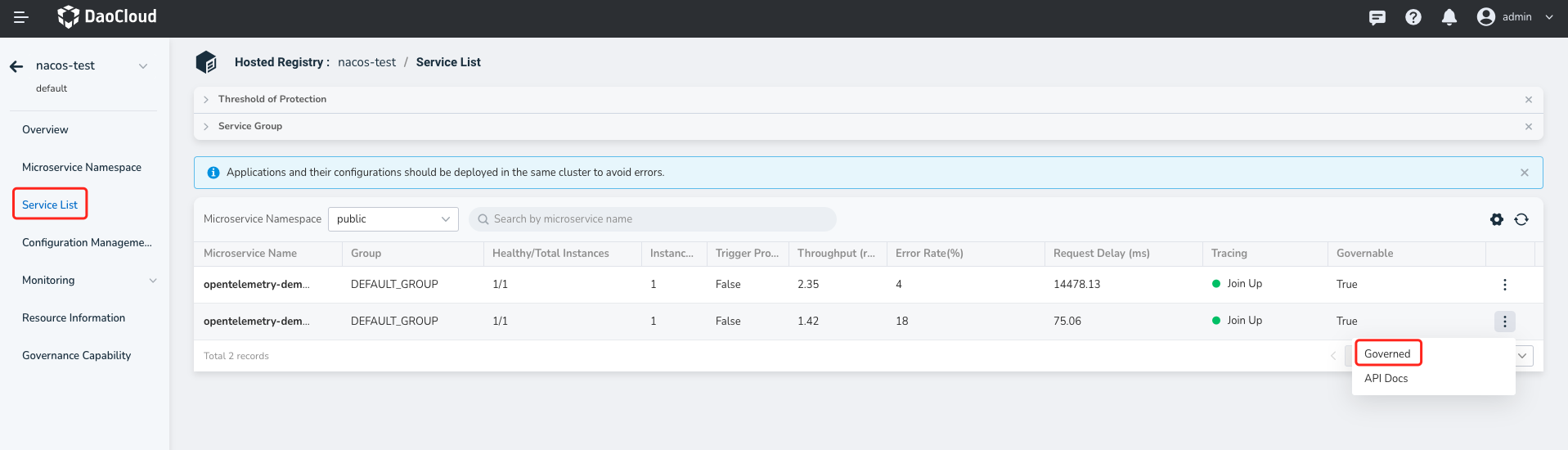
Click the name of the target hosting registry, then click Microservice List in the left navigation bar, and click more buttons on the far right to select Traffic Governance .
Note that the microservice you want to govern should have the "Can be governed" status set to "Yes" in order to proceed with the following steps.
-
Select
Flow Control Rulesand click Create Rules on the right.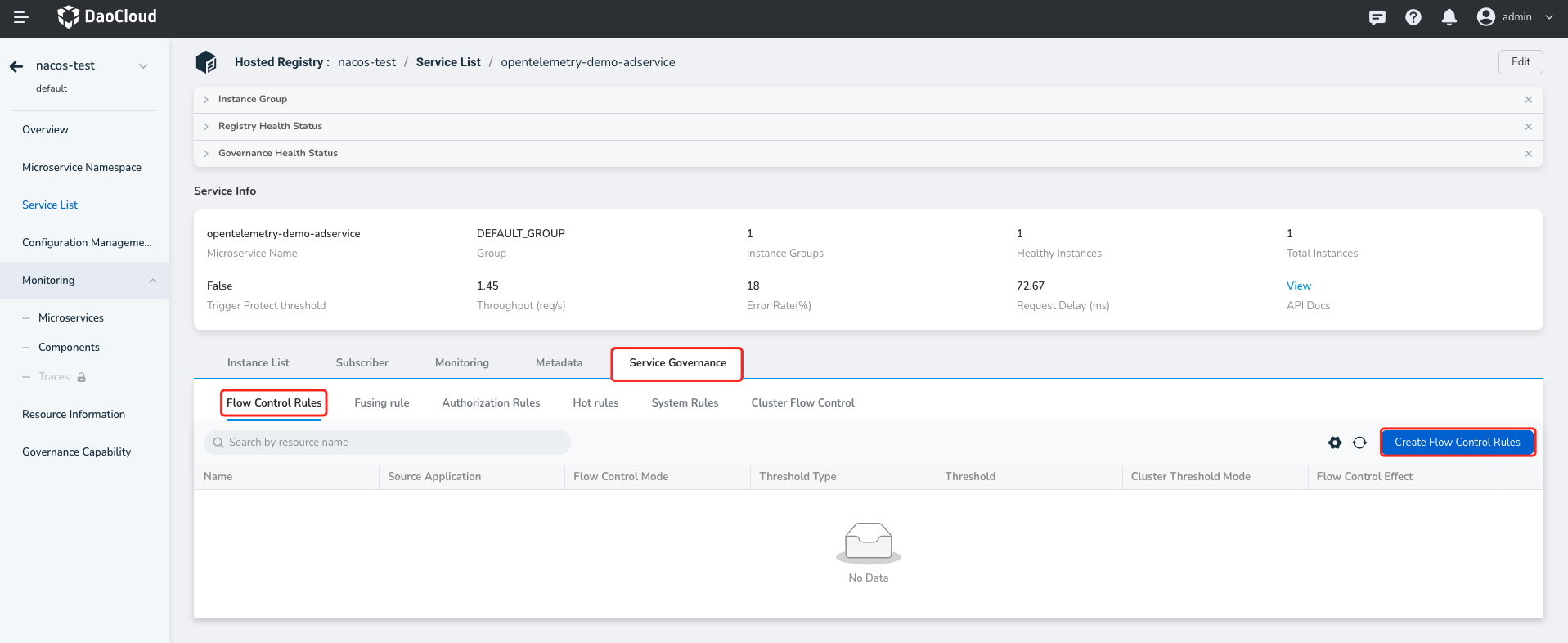
-
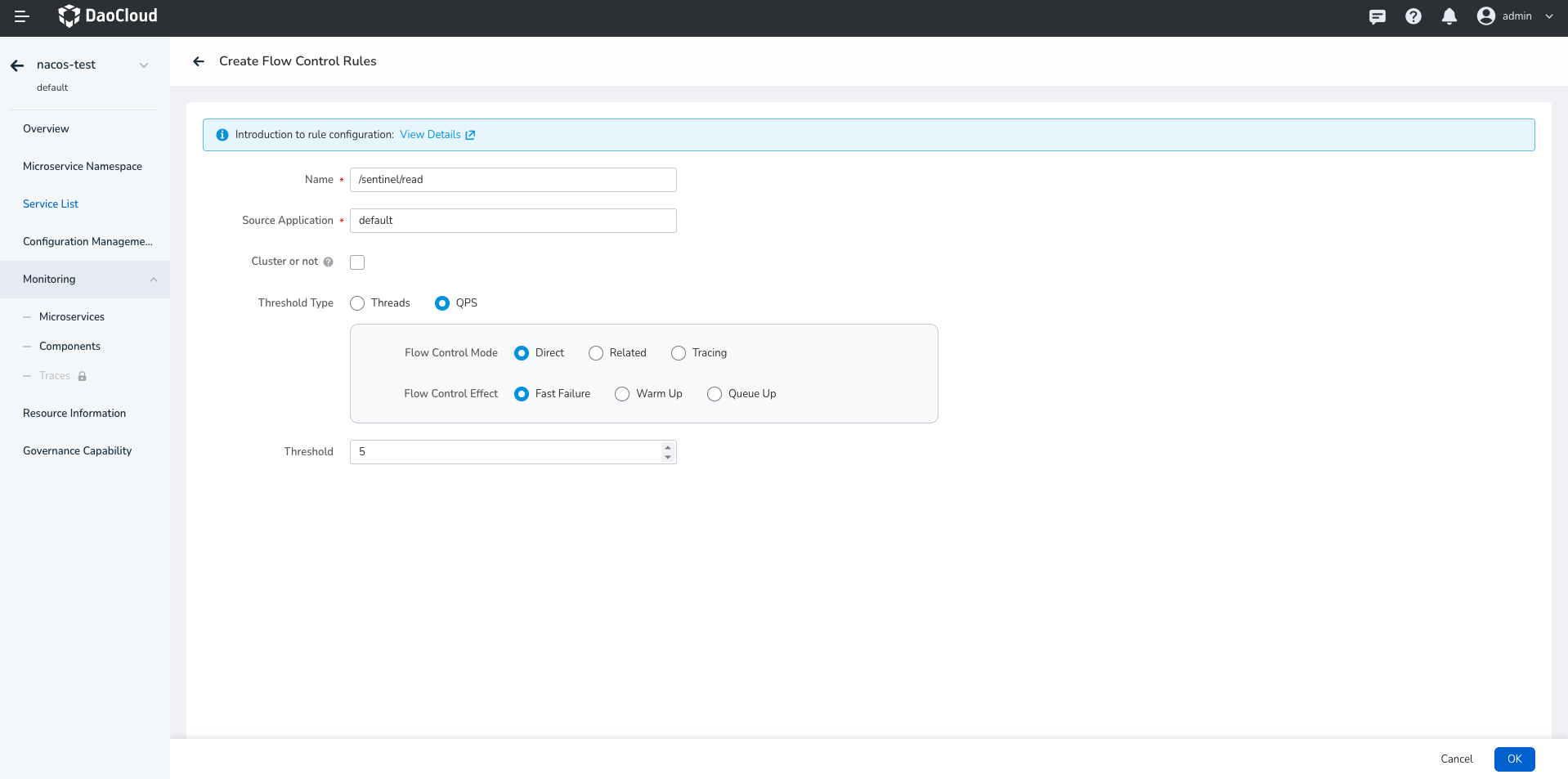
Follow the instructions below to fill in the rule configuration and click OK in the lower right corner.
- Resource Name: Specify the resource for which you want to control the traffic, such as a specific API endpoint, function, or variable within the current service.
- Source Application: Sentinel can limit the traffic for callers. The flow control rule takes effect only when the request comes from a specific caller, and requests from other callers are not constrained by this rule. The default value is
default, which means that sources are not distinguished and requests from all callers are limited. - Threshold Type - QPS: QPS refers to the number of requests per second. When the requests responded by the resource per second reach the configured threshold, the flow control rule takes effect and starts to limit the requests received by the service.
- Threshold Type - Thread Count: The traffic is limited when the number of threads calling the interface reaches a certain threshold.
- Cluster: Whether to apply the configured rule to the cluster where the service is located.
- Flow Control Mode - Direct: Directly perform flow control on the resource specified in the
Resource Namefield above. - Flow Control Mode - Associated: When a resource and its associated resource are called at the same time, if the calls to the associated resource reach the threshold set above, flow control is performed on the original resource. The associated mode is suitable for the case where resources have different priorities, to limit the traffic of the lower-priority resource and protect the higher-priority resource.
- Flow Control Mode - Link: If the QPS of the resource specified in the
Resource Namefield above exceeds the configured threshold, flow control is performed on the entry resource. The entry resource is the context name of the entry of the call link. - Flow Control Effect - Fast Fail: When the requests responded by the resource reach the configured threshold, subsequent call requests are directly rejected. The threshold type must be set to QPS, otherwise this effect does not take effect.
- Flow Control Effect - WARM_UP: Gradually increase the QPS to the configured threshold within the configured warm-up time, and then keep it at this threshold. The threshold type must be set to QPS, otherwise this effect does not take effect. In this way, the passing traffic increases slowly to gradually warm up the system, preventing an idle system from being overwhelmed by a sudden influx of a large amount of traffic.
- Flow Control Effect - Queue Wait: When the QPS exceeds the threshold, subsequent requests queue up and wait for a response, and the requests fail after the configured timeout (in milliseconds). The threshold type must be set to QPS, otherwise this effect does not take effect. This is suitable for handling intermittent burst traffic, where a large number of requests rush in within a certain second and the following seconds are idle, such as message queues.
-
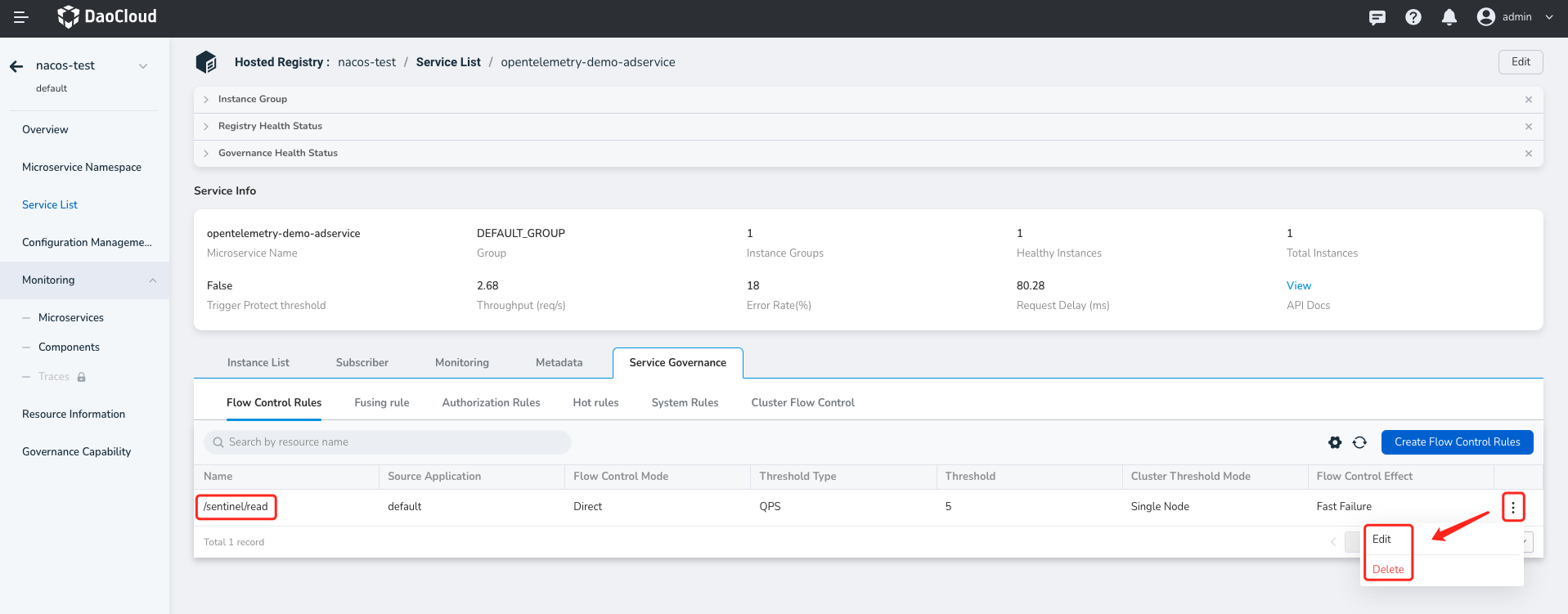
After the rule is created, you can view it in the flow control rule list. Click More on the right to edit the update rule or delete it.
Refer to the video tutorial: Sentinel Flow Control Rules.