Alert Policies
An alert policy is a set of rules and conditions defined in the observability system, used to detect and trigger alerts so that the relevant personnel or systems can be notified in time when the system is abnormal or reaches a preset threshold.
Each alert policy is a collection of alert rules. It supports setting alert rules for resources such as clusters, nodes, and workloads, as well as logs and events. When an alert object reaches the threshold set by any rule under the policy, an alert is automatically triggered and a notification is sent.
View Alert Policies
- Click Observability in the top navigation bar.
-
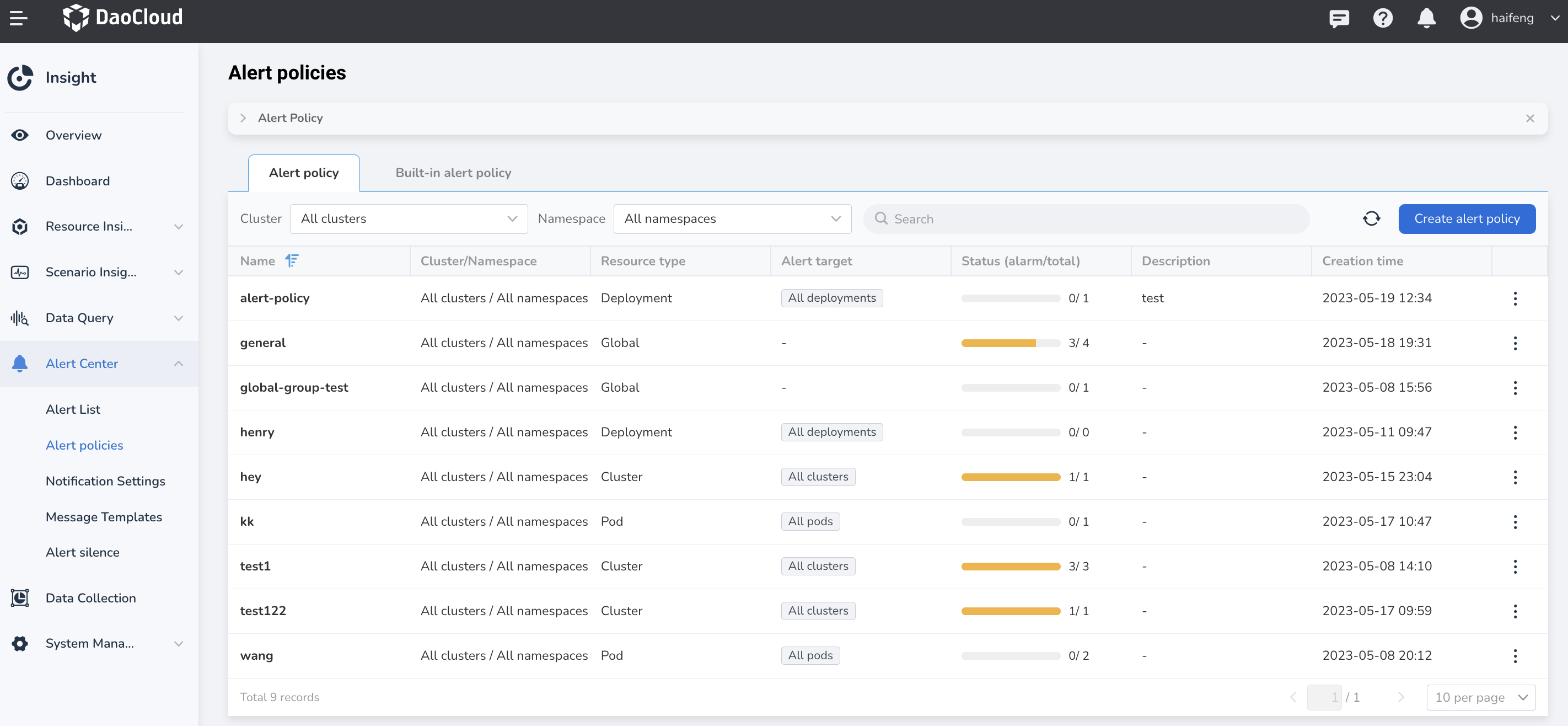
In the left navigation bar, select Alert Center -> Alert Policies.
- Cluster: Click the cluster drop-down box to switch clusters.
- Namespace: Click the namespace drop-down box to switch namespaces.
-
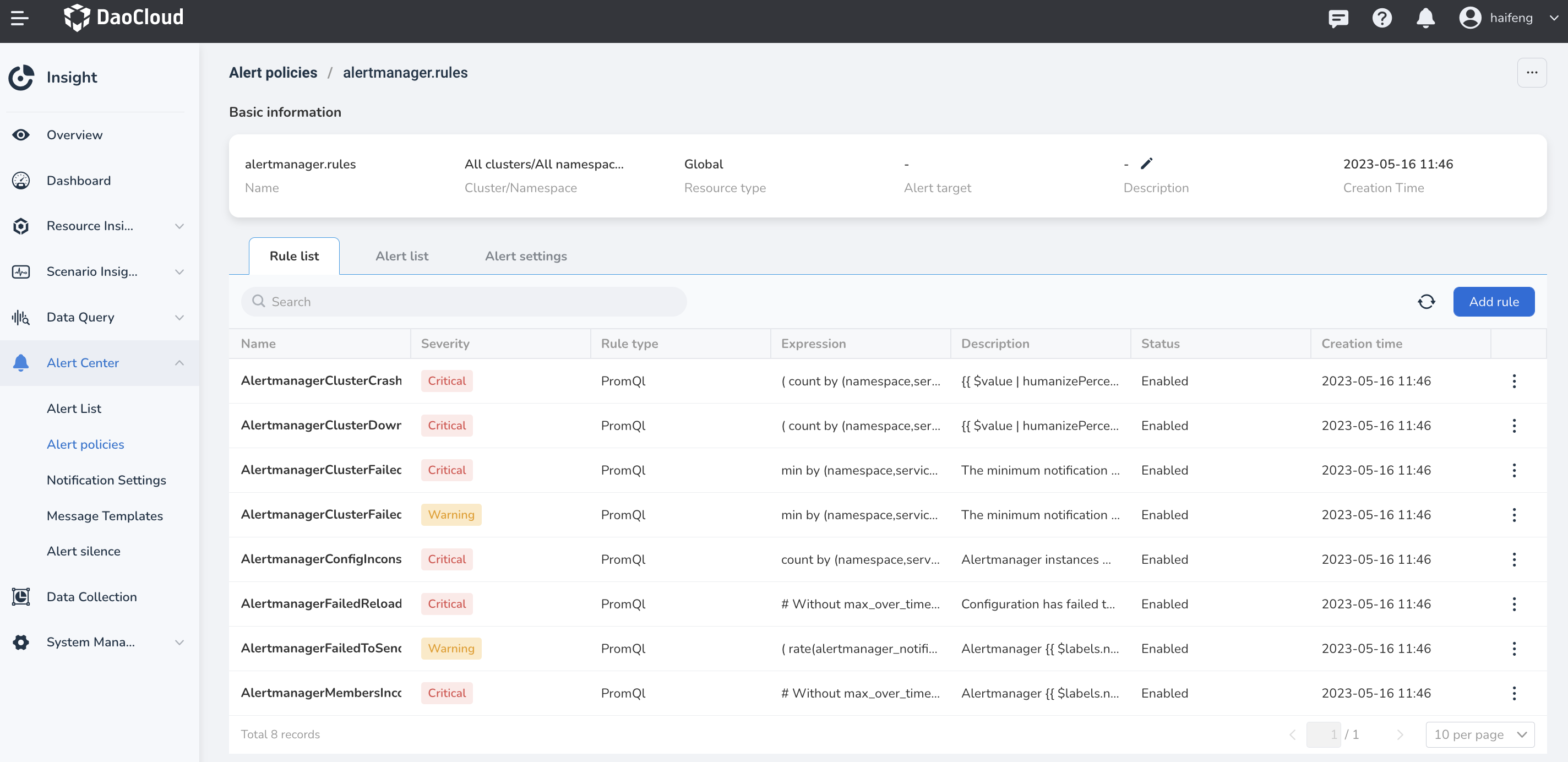
Click the alert policy name to view the basic information, rules, and notification configuration of the policy.
- In the rule list, you can view the rule type, rule expression, level, status, and other information.
- In the policy details, you can add, edit, or delete the alert rules under it.
Create Alert Policies
-
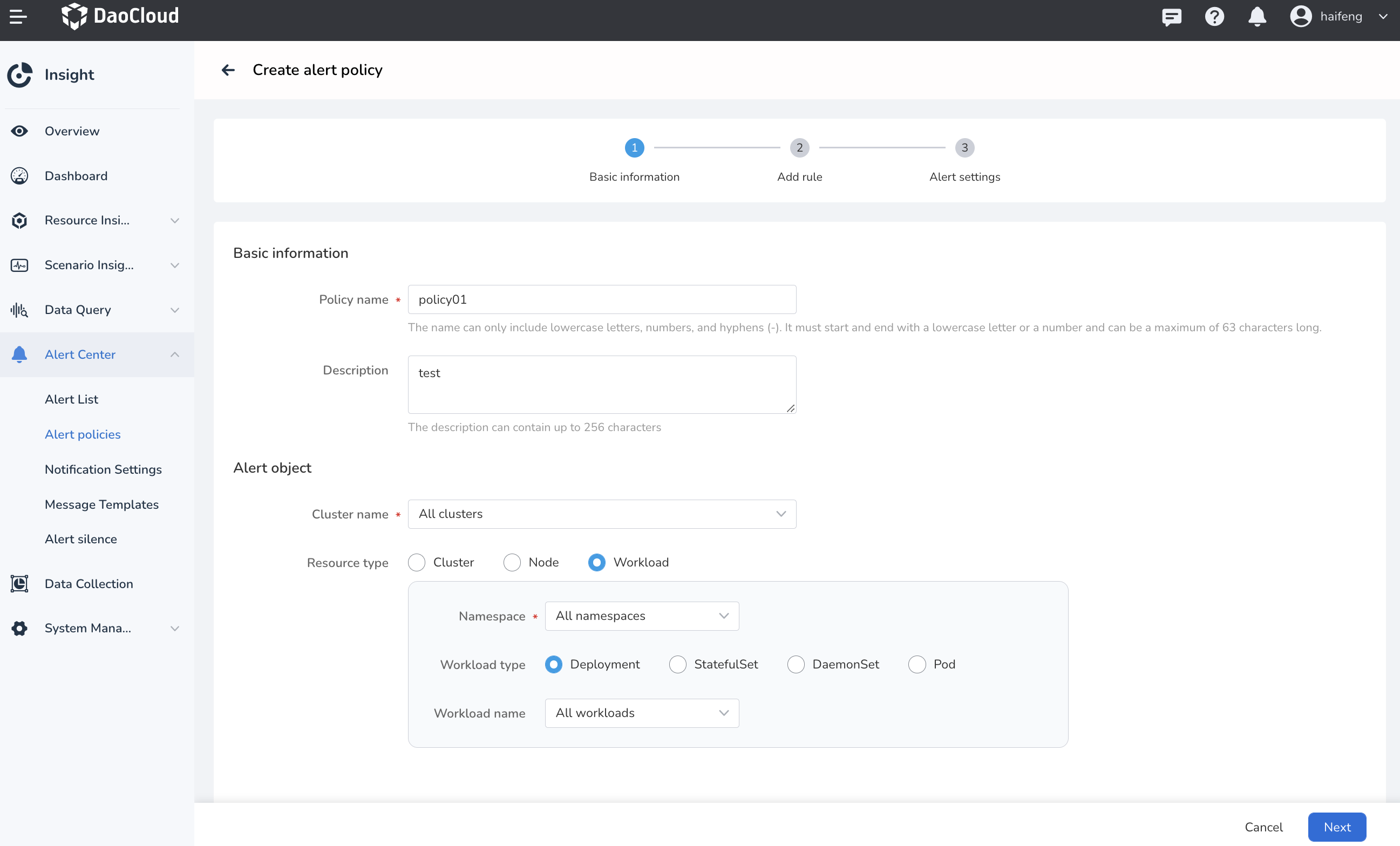
Fill in the basic information, select one or more clusters, nodes, or workloads as the alert objects, and click Next .
Note
- Selecting
all clusters, nodes, or workloads: The created alert rules take effect for all clusters with insight-agent installed. - Selecting a single or multiple clusters, nodes, or workloads: The created alert rules only take effect for the selected resource objects.
- In addition, users can only set alert rules for clusters and namespaces they have permission to.
- Selecting
Manually Add Rules
-
In the second step of creating an alert policy, click
Add Rulein the upper-right corner of the list.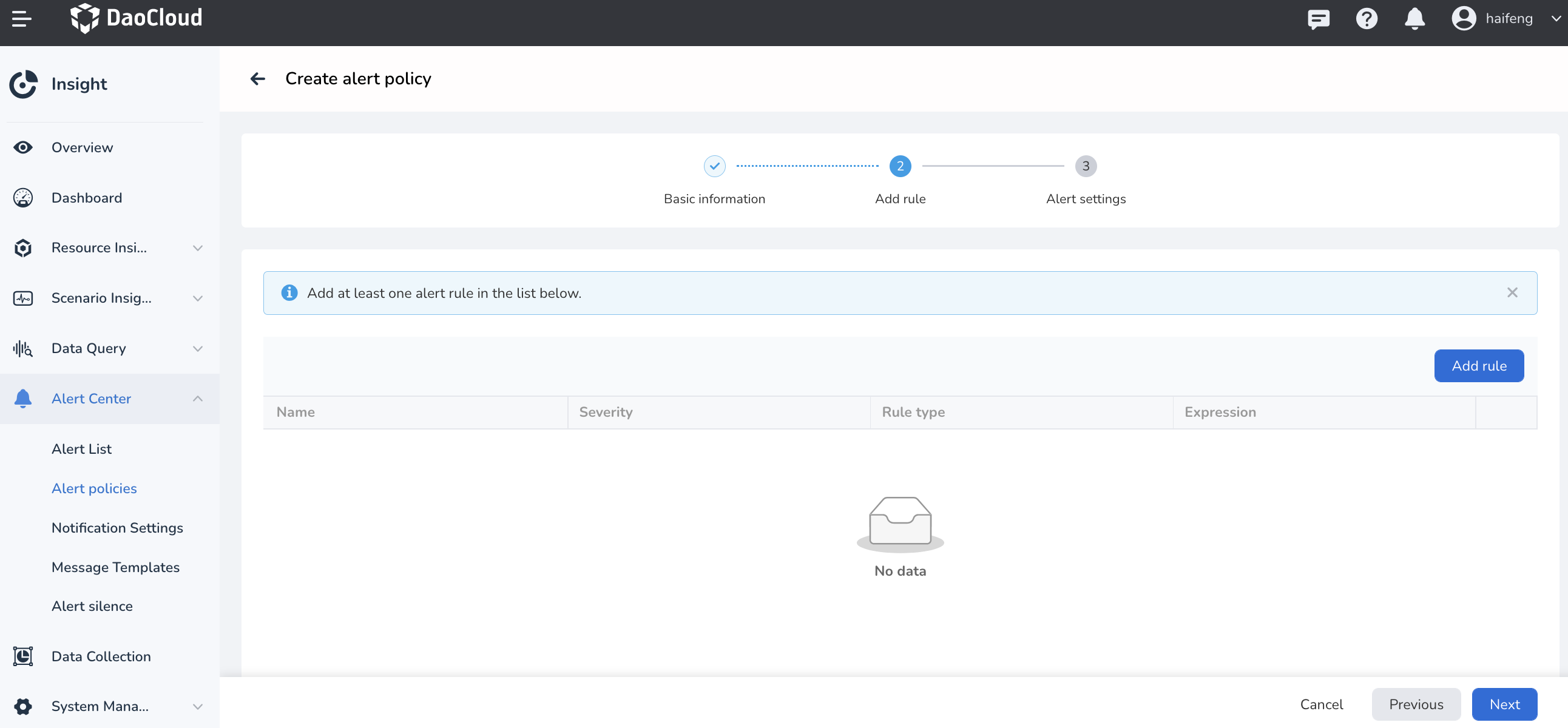
-
Create an alert rule in the pop-up window, fill in the parameters, and click OK .
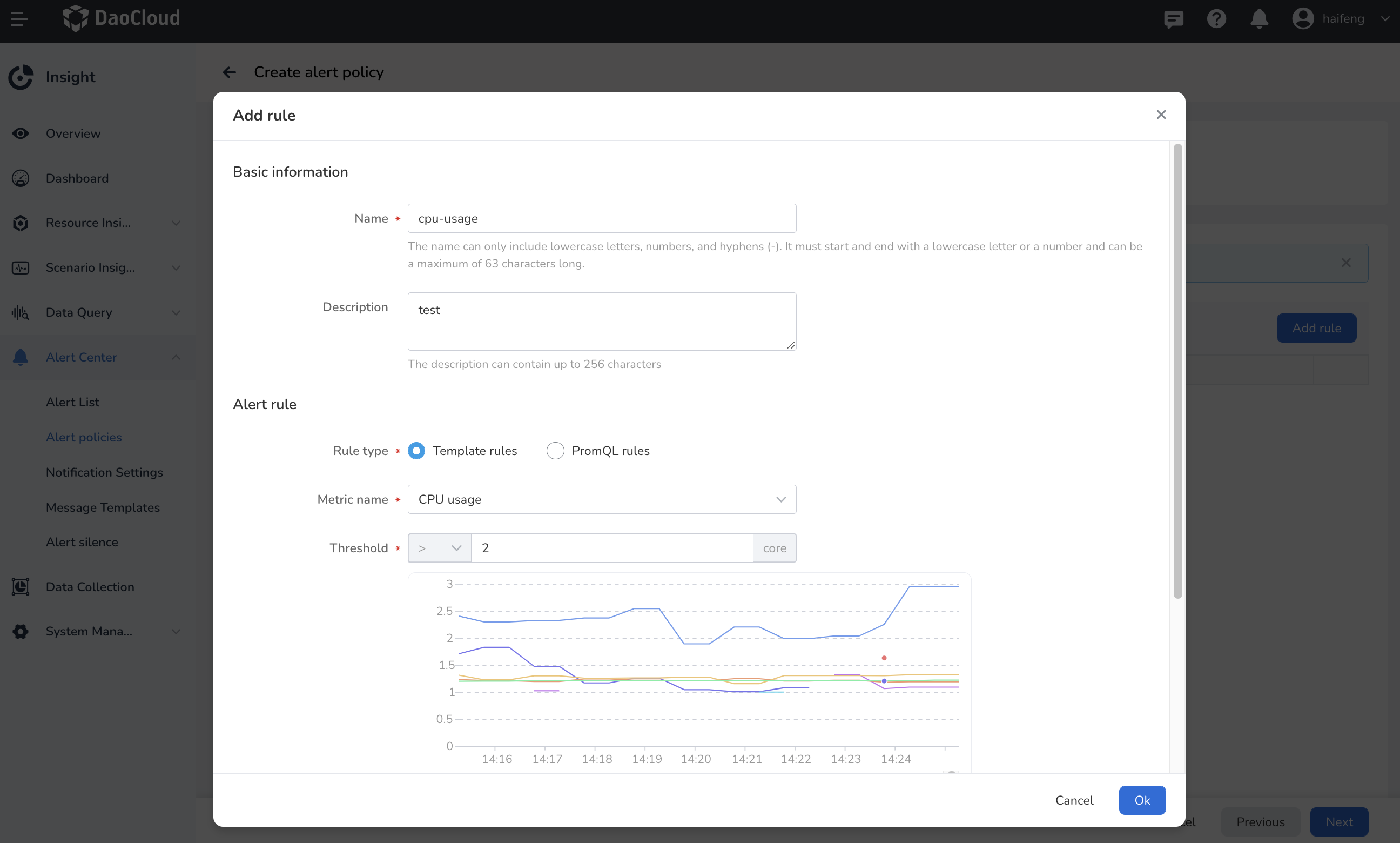
- Template rules: Pre-defined basic metrics, and you can set metrics to monitor by CPU, memory, disk, and network.
- PromQL rules: Input a PromQL expression. For details, please query Prometheus expressions.
- Duration: After the alert is triggered and the duration reaches the set value, the alert policy will become a triggering state.
- Alert level: Including emergency, warning, and information levels.
- Advanced settings: Custom tags and annotations.
Info
The system defines built-in labels. If the
keyvalue of a custom label is the same as that of a built-in label, the custom label does not take effect. The built-in labels are:severity,rule_id,source,cluster_name,group_id,target_type, andtarget.
Create Log Rules
After filling in the basic information, click Add Rule and select Log Rule as the rule type.
Note
Creating log rules is supported only when the resource object is selected as a node or workload.
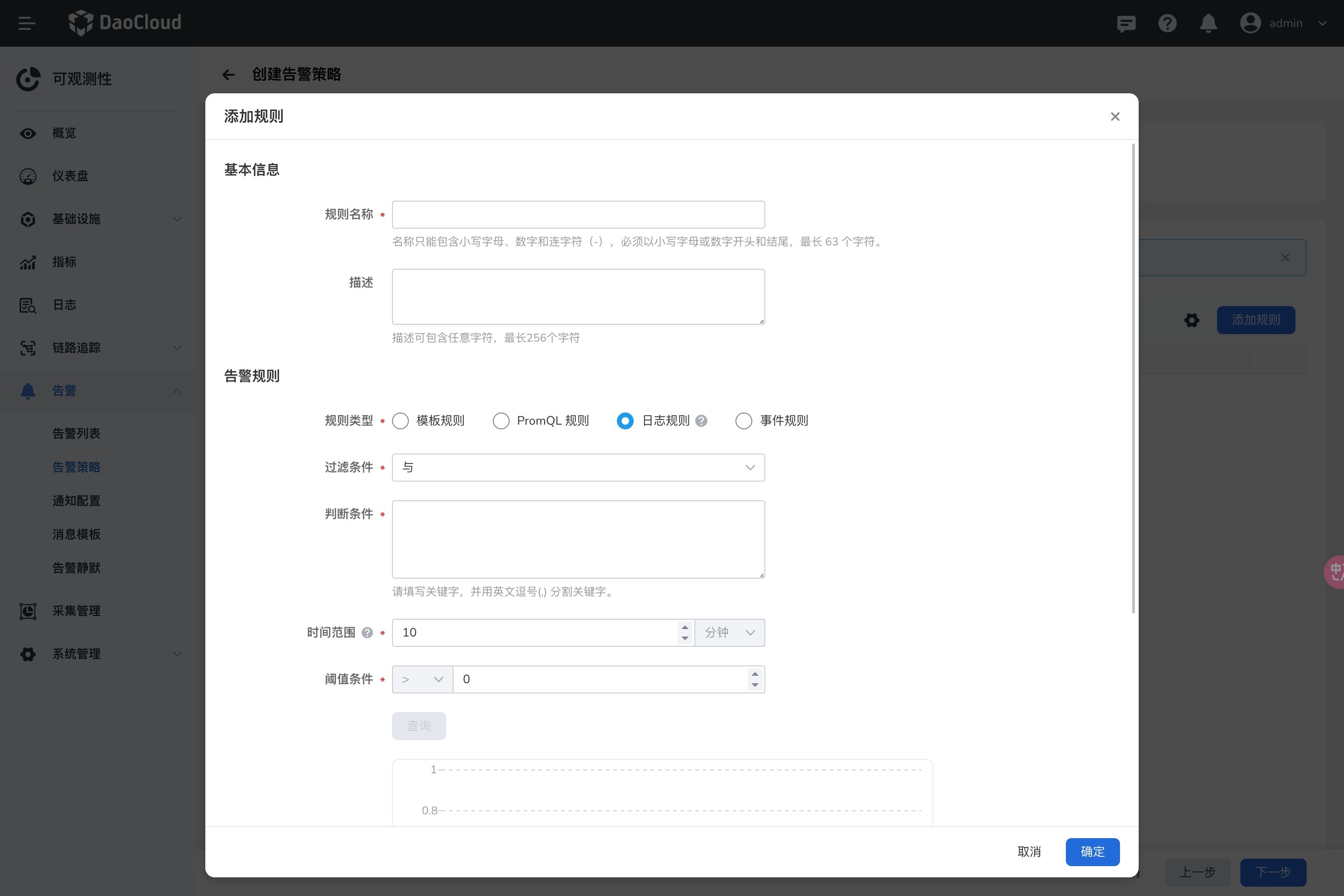
Field Explanation:
- Filter Condition : Field used to query log content, supports four filtering conditions: AND, OR, regular expression matching, and fuzzy matching.
- Condition : Based on the filter condition, enter keywords or matching conditions.
- Time Range : Time range for log queries.
- Threshold Condition : Enter the alert threshold value in the input box. When the set threshold is reached, an alert will be triggered. Supported comparison operators are: >, ≥, =, ≤, <.
- Alert Level : Select the alert level to indicate the severity of the alert.
Create Event Rules
After filling in the basic information, click Add Rule and select Event Rule as the rule type.
Note
Creating event rules is supported only when the resource object is selected as a workload.
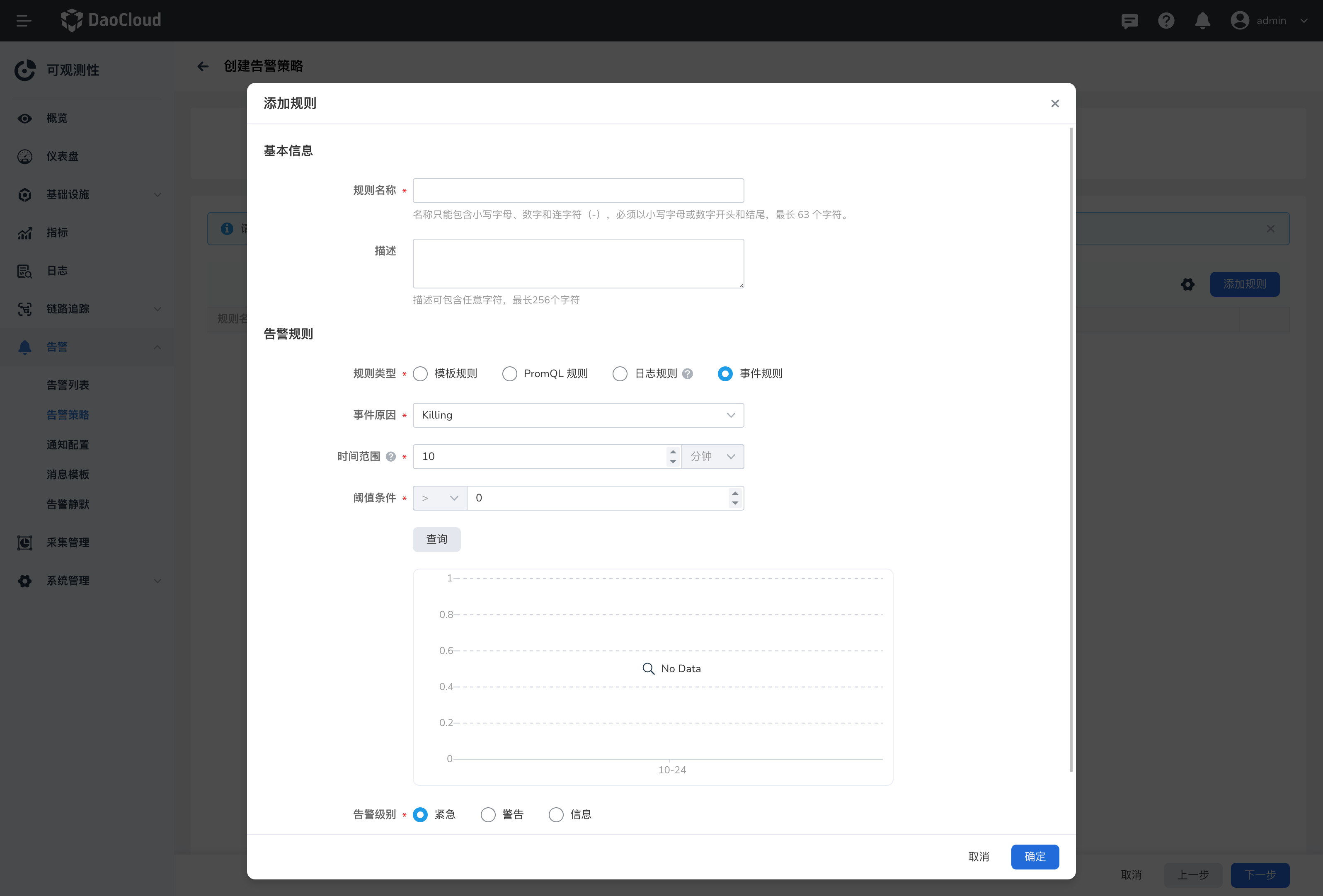
Field Explanation:
- Event Rule : Only supports selecting the workload as the resource object.
- Event Reason : Different event reasons for different types of workloads, where the event reasons are combined with "AND" relationship.
- Time Range : Detect data generated within this time range. If the threshold condition is reached, an alert event will be triggered.
- Threshold Condition : When the generated events reach the set threshold, an alert event will be triggered.
- Trend Chart : By default, it queries the trend of event changes within the last 10 minutes. The value at each point represents the total number of occurrences within a certain period of time (time range) from the current time point to a previous time.
Import Rule Templates
-
Click Import Template to batch import alert rules from alert templates already created by the platform administrator.

-
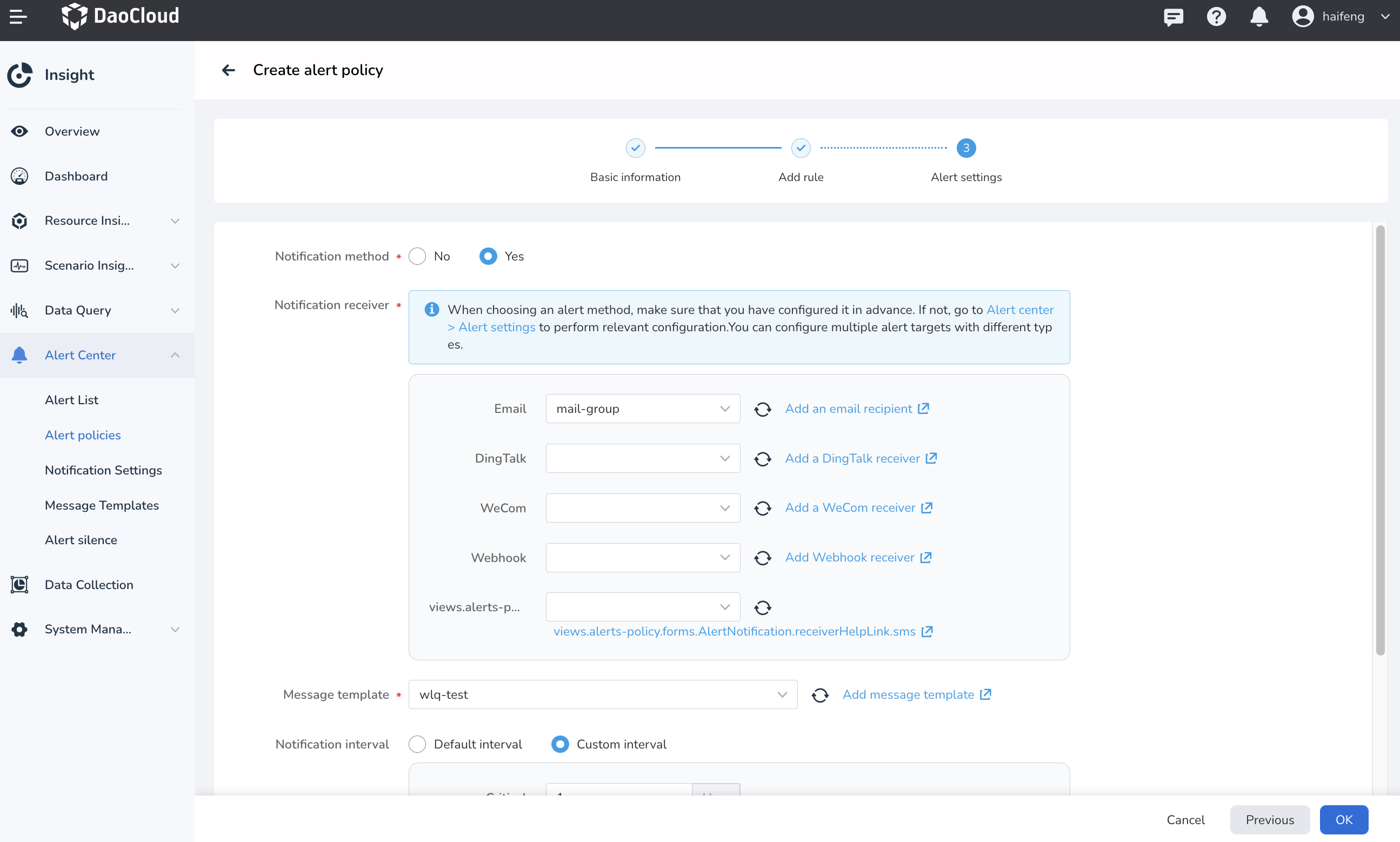
After clicking Next , configure notifications.
-
After the configuration is complete, click the OK button to return to the Alert Policy list.
Tip
The newly created alert policy is in the Not Triggered state. Once the threshold conditions and duration specified in the rules are met, it will change to the Triggered state.
Warning
Deleted alert policies will be completely removed, so please proceed with caution.
Import Alert Policies via YAML
-
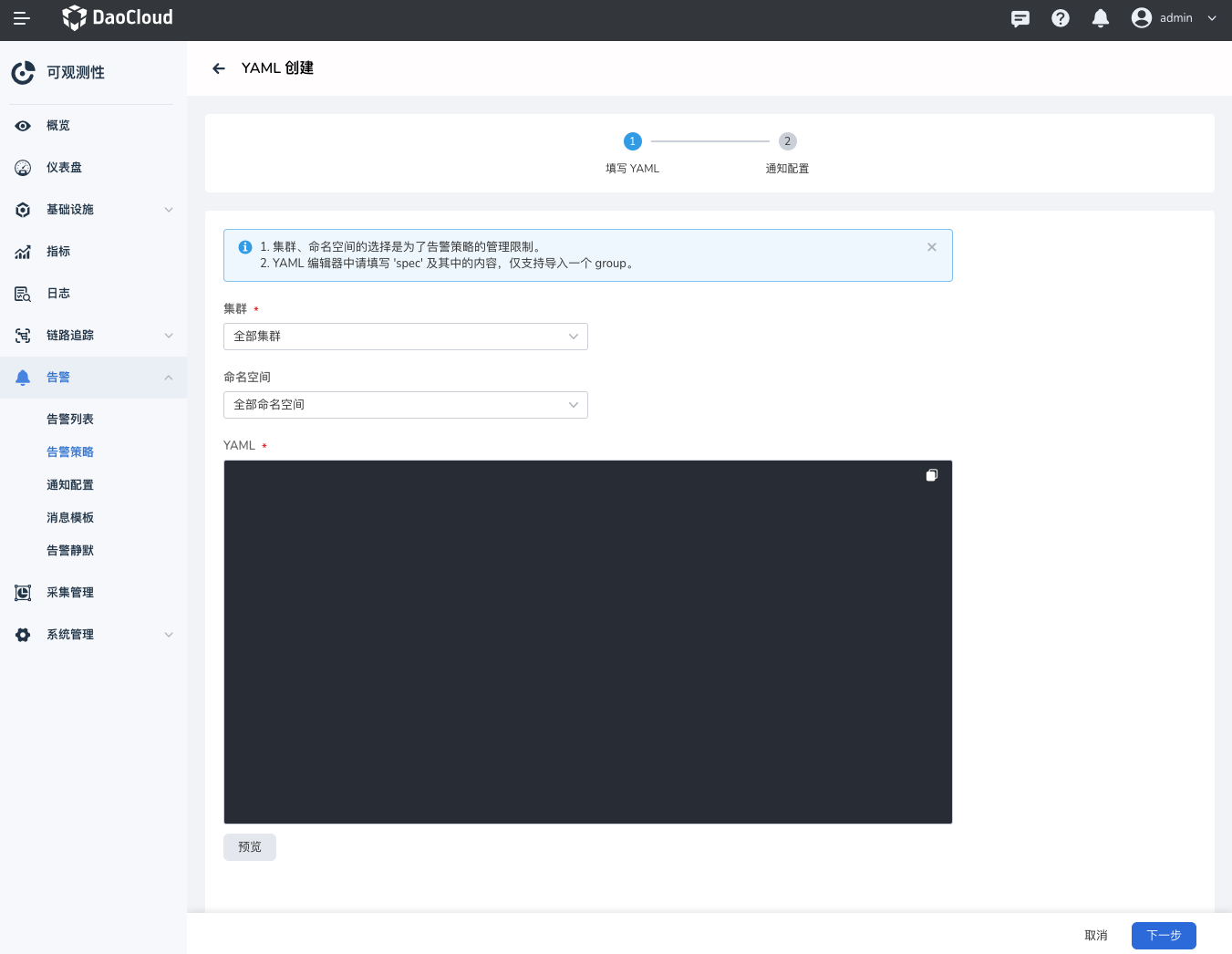
Go to the alert policy list and click Create from YAML.
-
The selection of cluster and namespace is for the management permission of the alert policy.
- In the YAML editor, please fill in spec and its content; only one group can be imported.
- The alert rule name must comply with the specification: the name can only contain uppercase and lowercase letters, digits, underscores (_), and hyphens (-), must start with a letter, and can be up to 63 characters long.
- The severity field is required and must comply with the specification: critical, warning, info.
-
The expr expression is required.
-
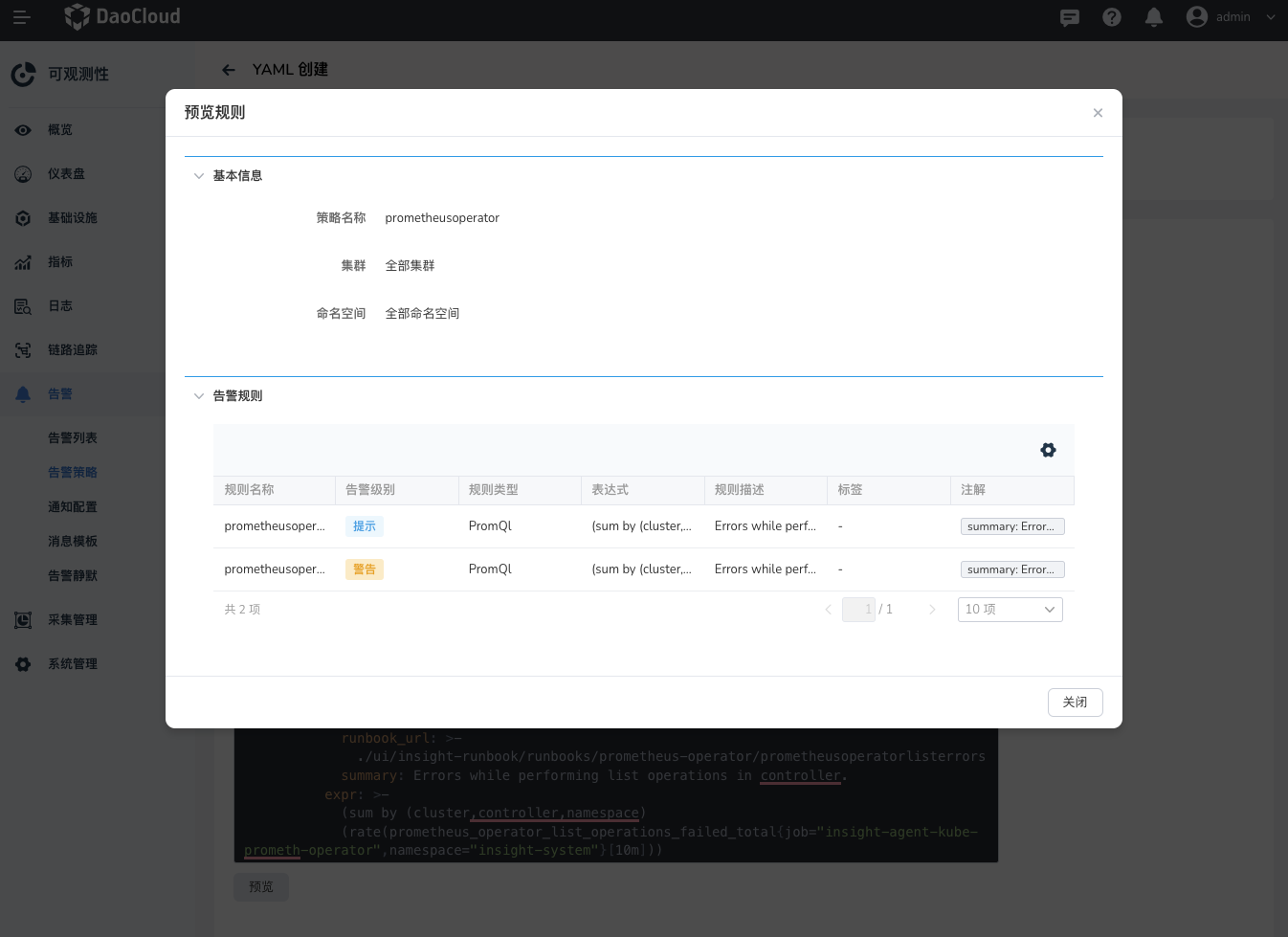
After importing the YAML file, click Preview to validate the format of the imported YAML and quickly confirm the imported alert rules.