Log Query
By default, Insight collects node logs, container logs, and Kubernetes audit logs. In the log query page, you can search for standard output (stdout) logs within the permissions of your login account. This includes node logs, product logs, and Kubernetes audit logs. You can quickly find the desired logs among a large volume of logs. Additionally, you can use the source information and contextual raw data of the logs to assist in troubleshooting and issue resolution.
Steps
- Click the primary navigation bar to enter Insight.
-
In the left navigation bar, select Log Query.
- By default, the last 24 hours are queried;
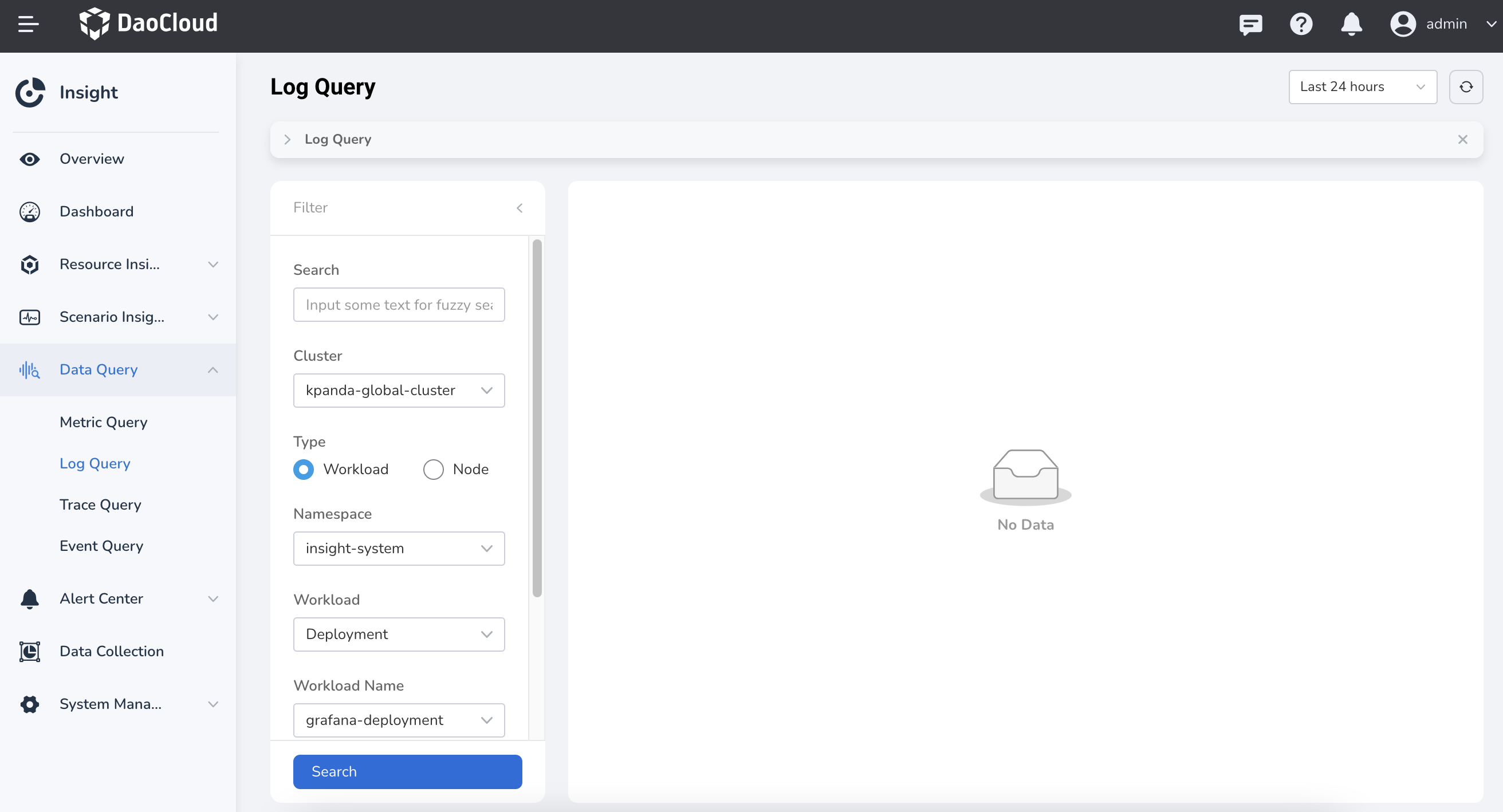
- When you enter for the first time, by default it queries the container logs of the clusters or namespaces that you have permission to access based on your login account permissions;
-
The top Tab defaults to Normal Query.
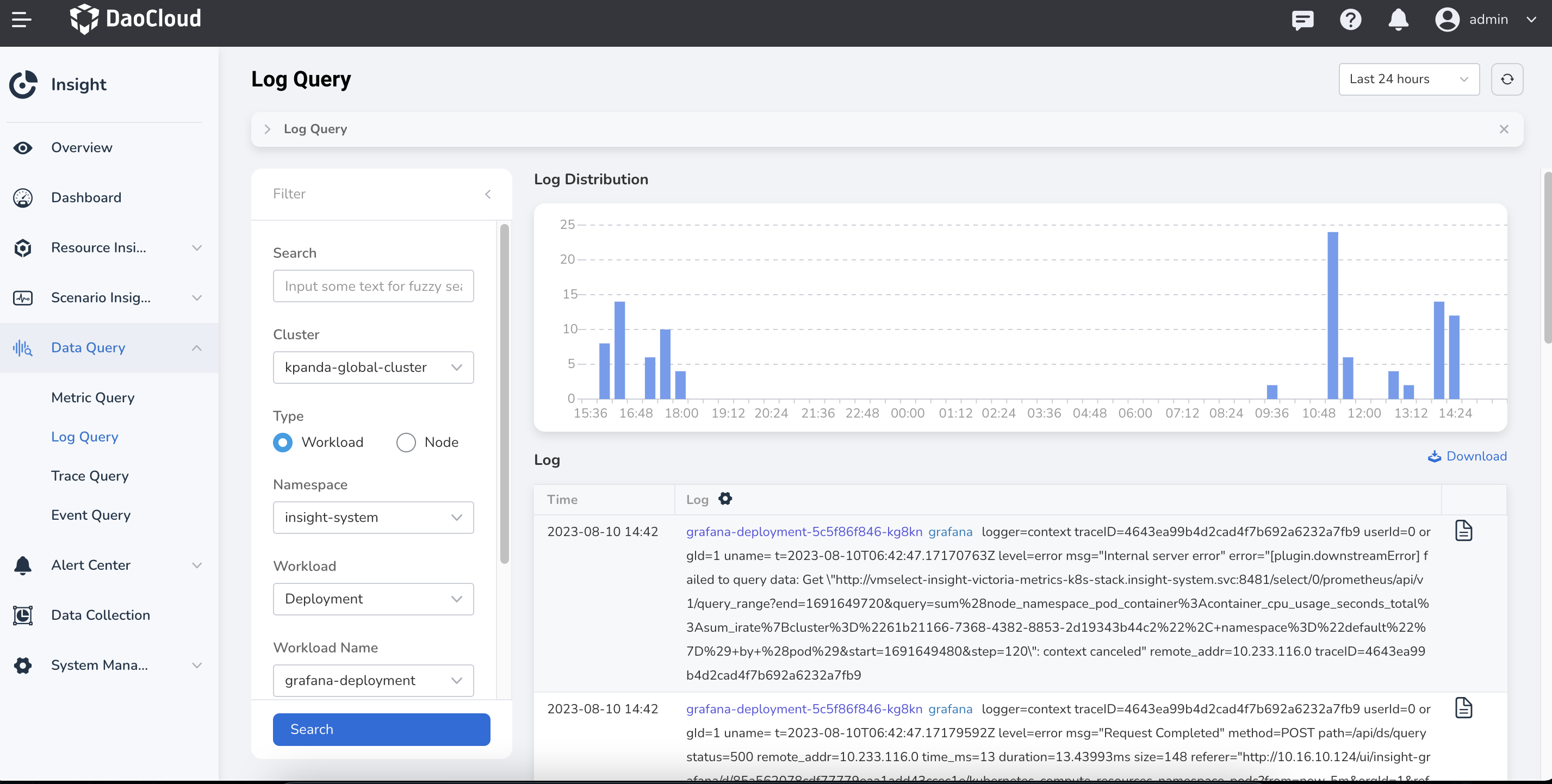
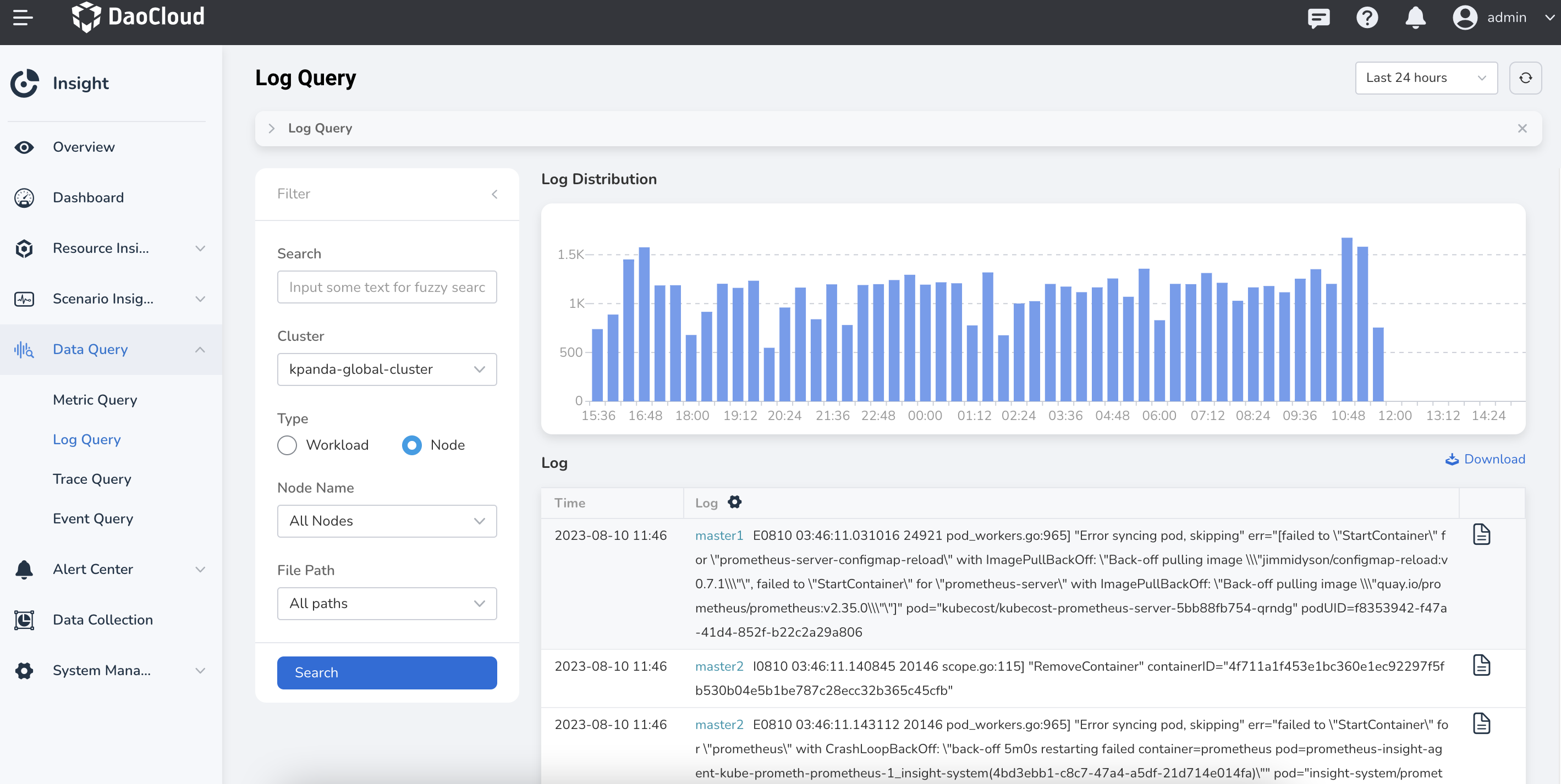
- Click Filter to expand the filter panel, where you can switch log search conditions and types.
-
Log types:
- Container Log: Records the activities and events inside containers in the cluster, including application output, error messages, warnings, and debugging information, etc. Supports filtering logs by cluster, namespace, pod, and container.
- Node Log: Records the system-level logs of each node in the cluster. These logs contain information about the node's operating system, kernel, services, and components. Supports filtering logs by cluster, node, and file path.
-
Supports fuzzy search for a single keyword.
-
Switch the top Tab to select Lucene Syntax Query.
When you enter for the first time, by default it selects the container logs of the clusters or namespaces that you have permission to query based on your login account permissions.
Lucene Syntax Explanation:
- Use logical operators (AND, OR, NOT, "") to query multiple keywords. For example: keyword1 AND (keyword2 OR keyword3) NOT keyword4.
- Use a tilde (~) for fuzzy queries. You can optionally specify a parameter after the "~" to control the similarity of the fuzzy query. If not specified, it defaults to 0.5. For example: error~.
- Use wildcards (*, ?) as single-character placeholders to match any character.
- Use square brackets [ ] or curly braces { } for range queries. Square brackets [ ] represent a closed interval and include the boundary values. Curly braces { } represent an open interval and exclude the boundary values. Range queries are applicable only to fields that can be sorted, such as numeric fields and date fields. For example:
timestamp:[2022-01-01 TO 2022-01-31]. - For more information, please refer to the Lucene Syntax Explanation.
Other Operations
View Log Context
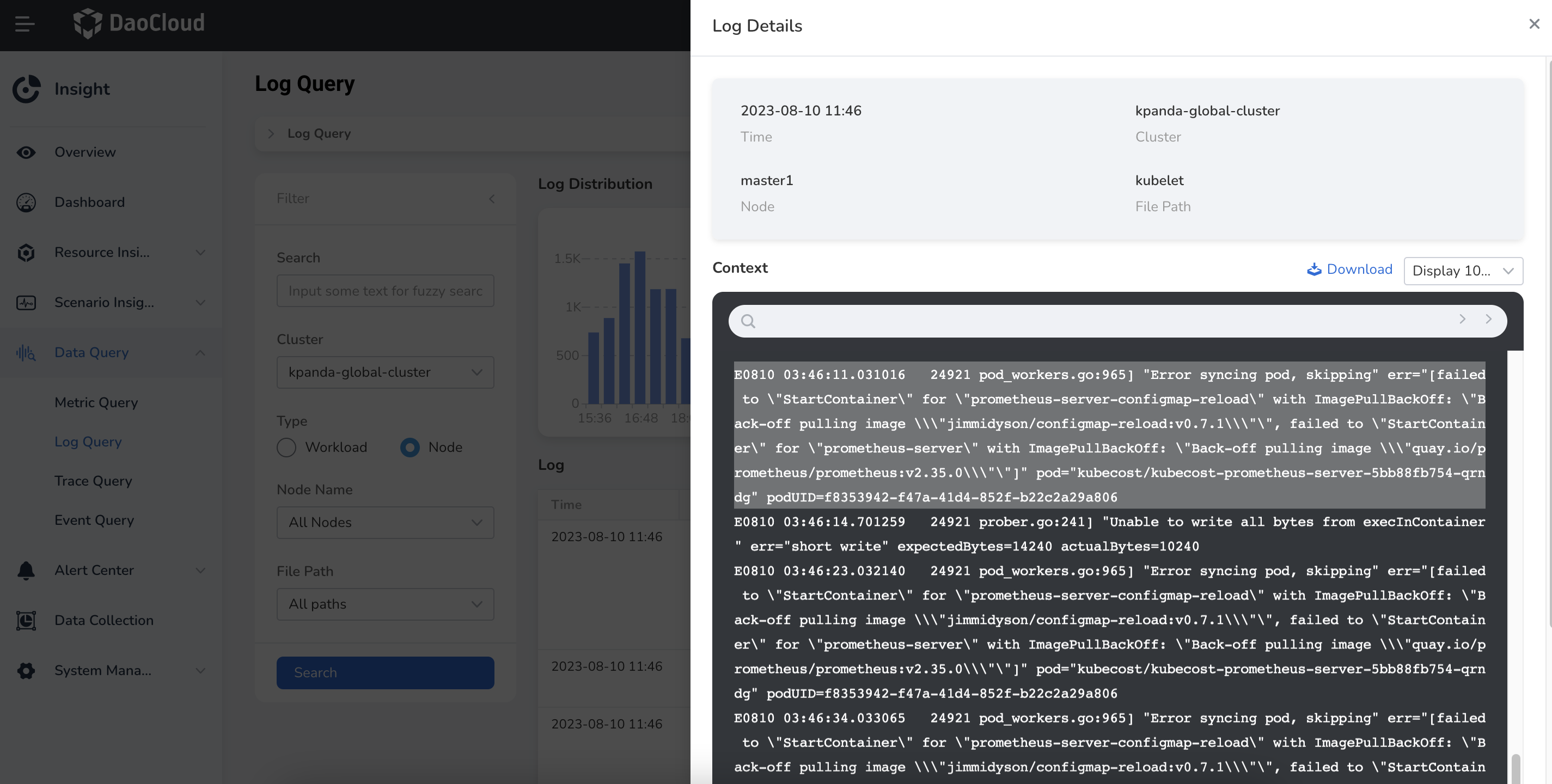
Click the button after a log, and in the panel that slides out on the right, you can view the default 100 lines of context for that log.
- You can switch Display Rows to view more context.
- You can click the icon after the search box to enable the display of time information in the context.
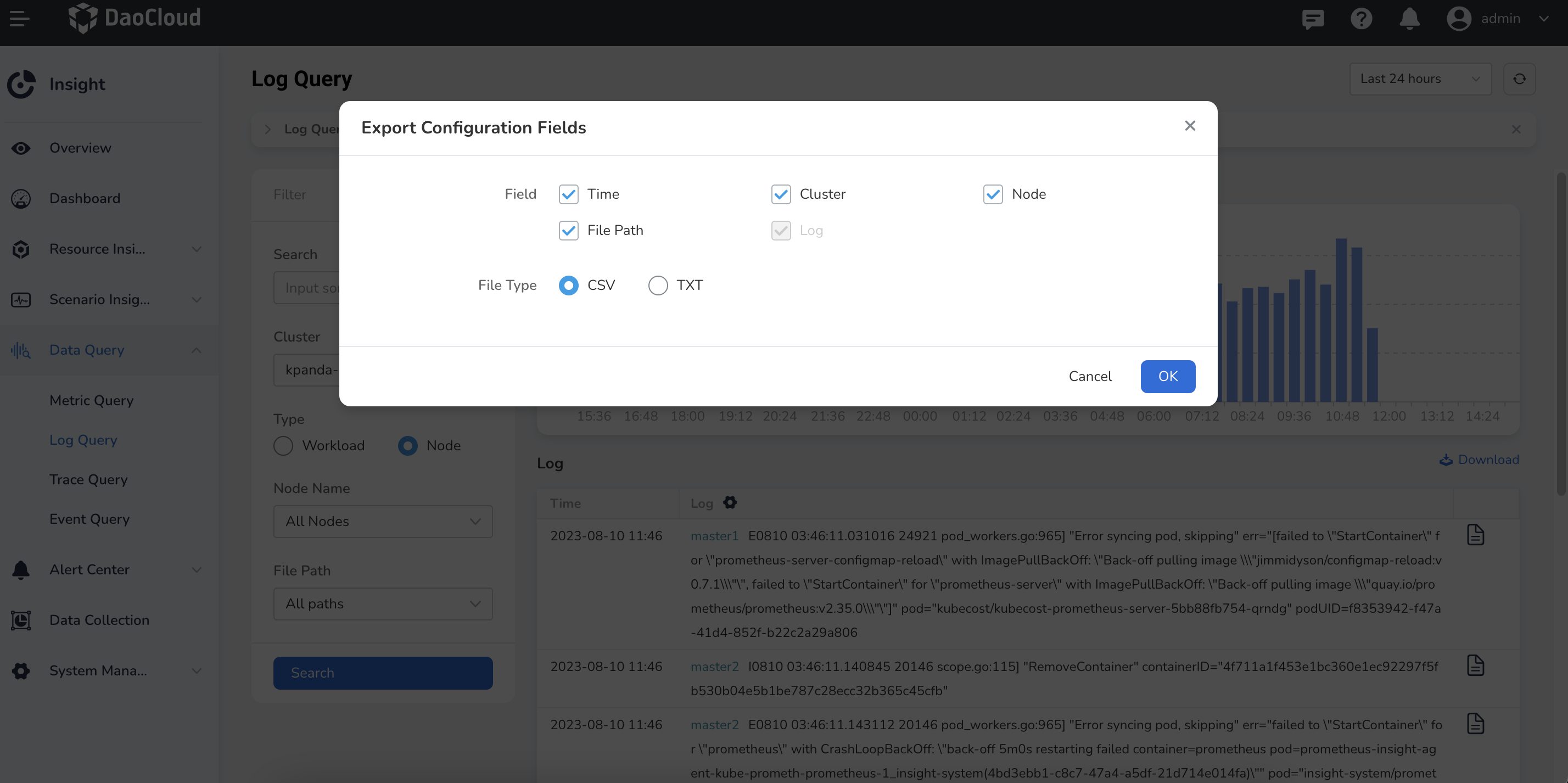
Export Log Data
Click the download button in the upper right corner of the list.
- You can configure the exported log fields. The configurable fields vary depending on the log type, and the Log Content field is mandatory.
- You can export the log query results in .txt or .csv format.
Note
If you need to specify that the logs of certain pods are not collected, please refer to: Container Log Blacklist.