Node Monitoring
Through node monitoring, you can get an overview of the current health status of the nodes in the selected cluster and the number of abnormal pod; on the current node details page, you can view the number of alerts and the trend of resource consumption such as CPU, memory, and disk.
Prerequisites
The cluster has insight-agent installed and the application is in running state.
Steps
-
Go to the Insight product module.
-
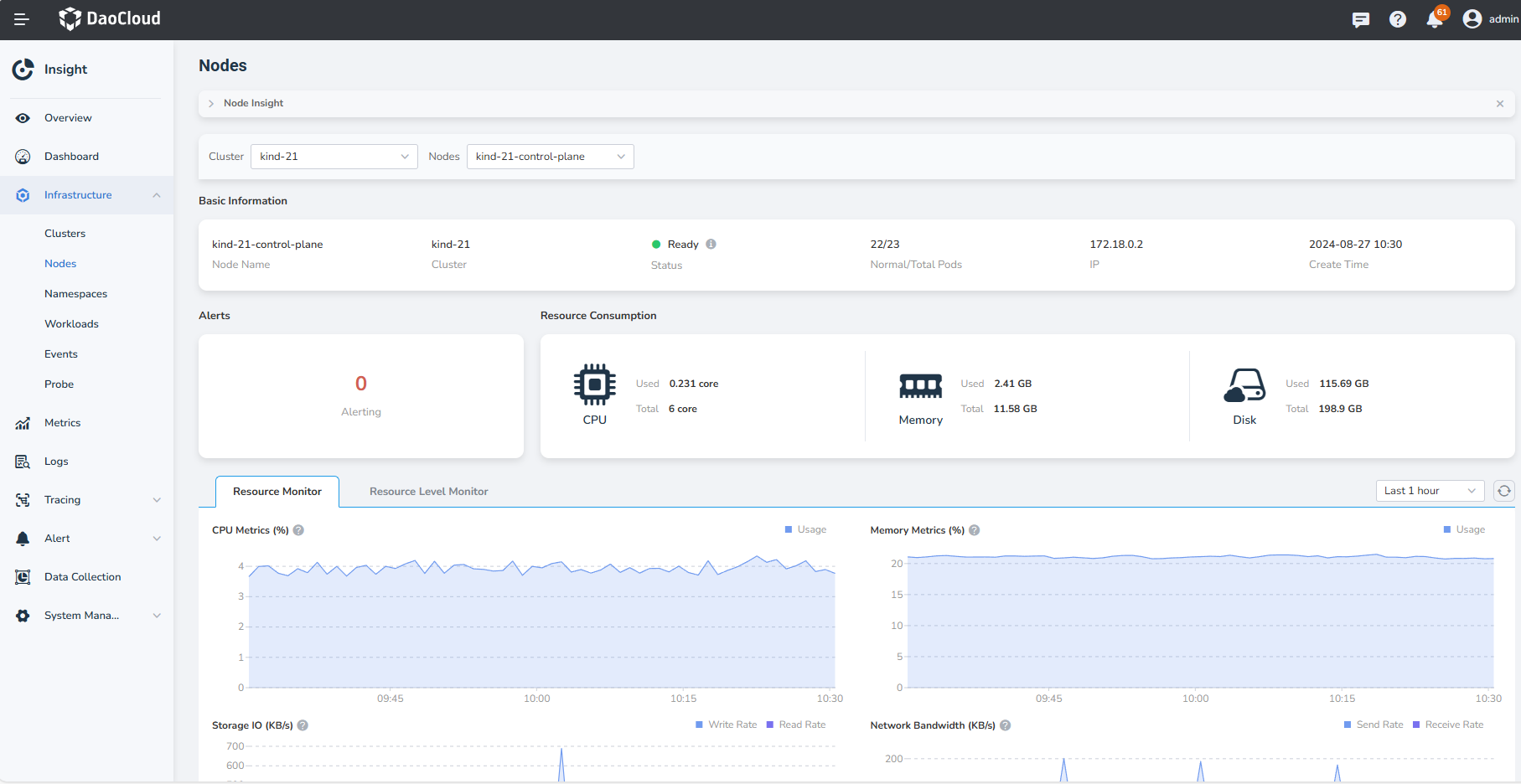
Select Infrastructure -> Nodes from the left navigation bar. On this page, you can view the following information:
- Cluster: Uses the dropdown at the top to switch between clusters.
- Nodes: Shows a list of nodes within the selected cluster. Click a specific node to view detailed information.
- Alert: Displays the number of alerts generated in the current cluster.
- Resource Consumption: Shows the actual usage and total capacity of CPU, memory, and disk for the selected node.
- Metric Explanations: Describes the trends in CPU, memory, disk I/O, and network traffic for the selected node.
-
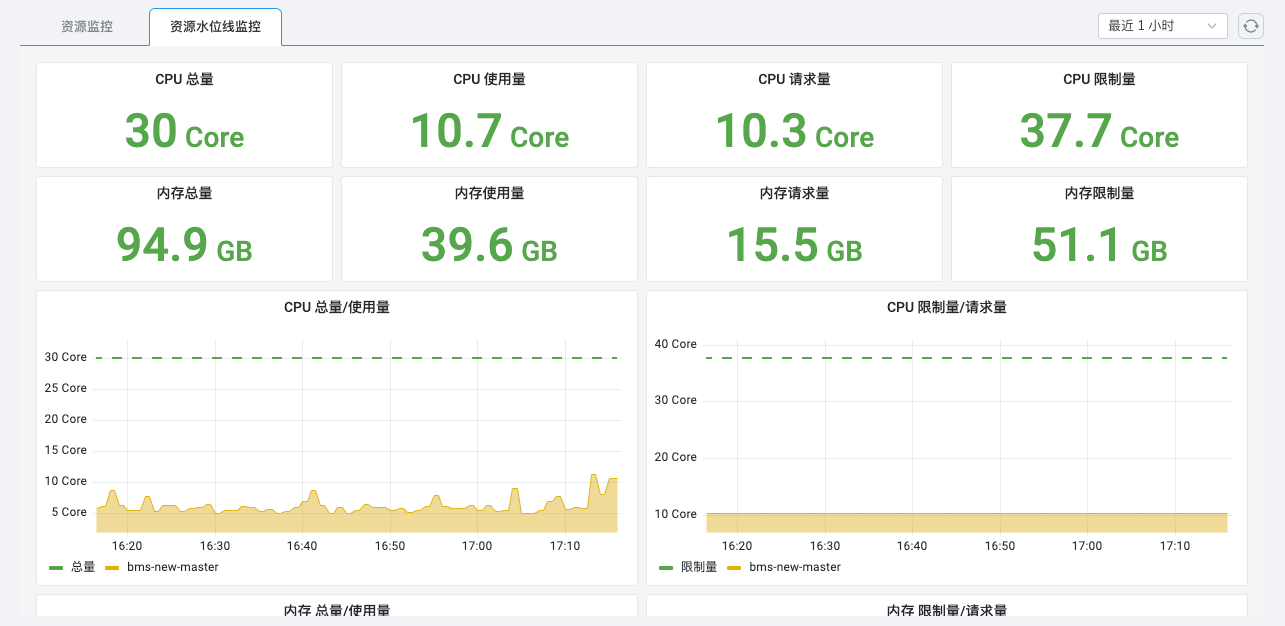
Click Resource Level Monitor, you can view more metrics of the current node.
-
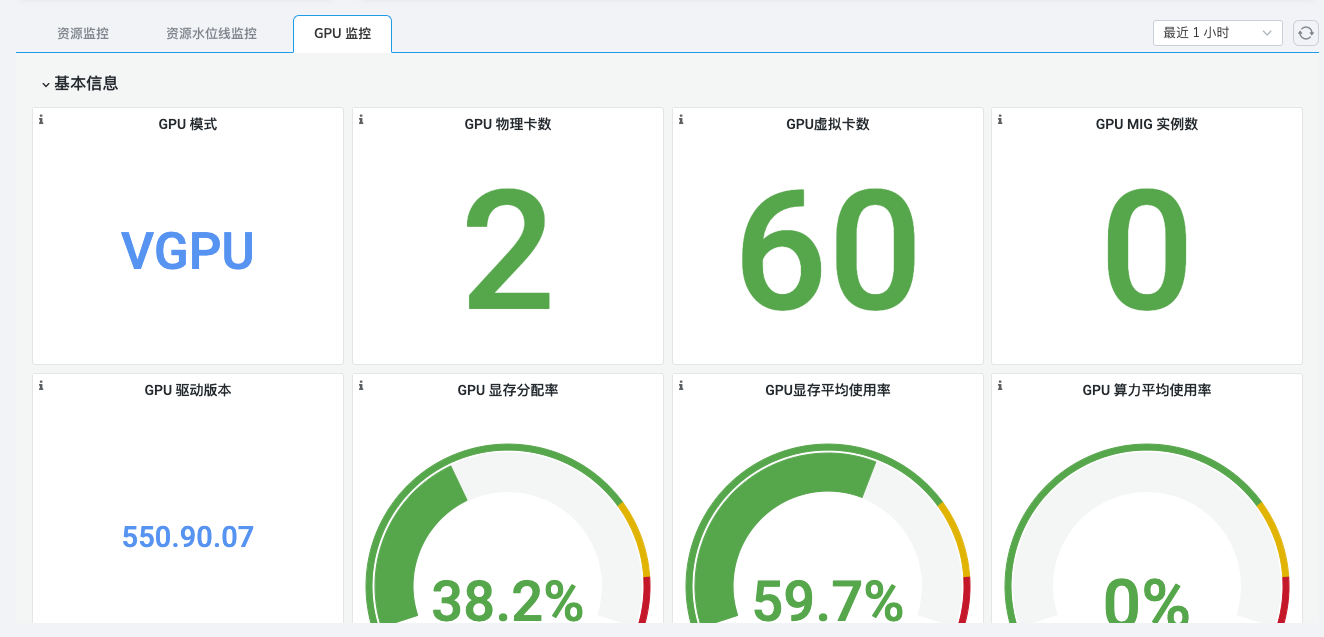
If the selected node is a GPU node, you can see GPU Monitoring in the tab below the node, and from GPU Monitoring you can monitor the GPU resources.
Note
Currently, only NVIDIA and Huawei Ascend GPU monitoring are supported.